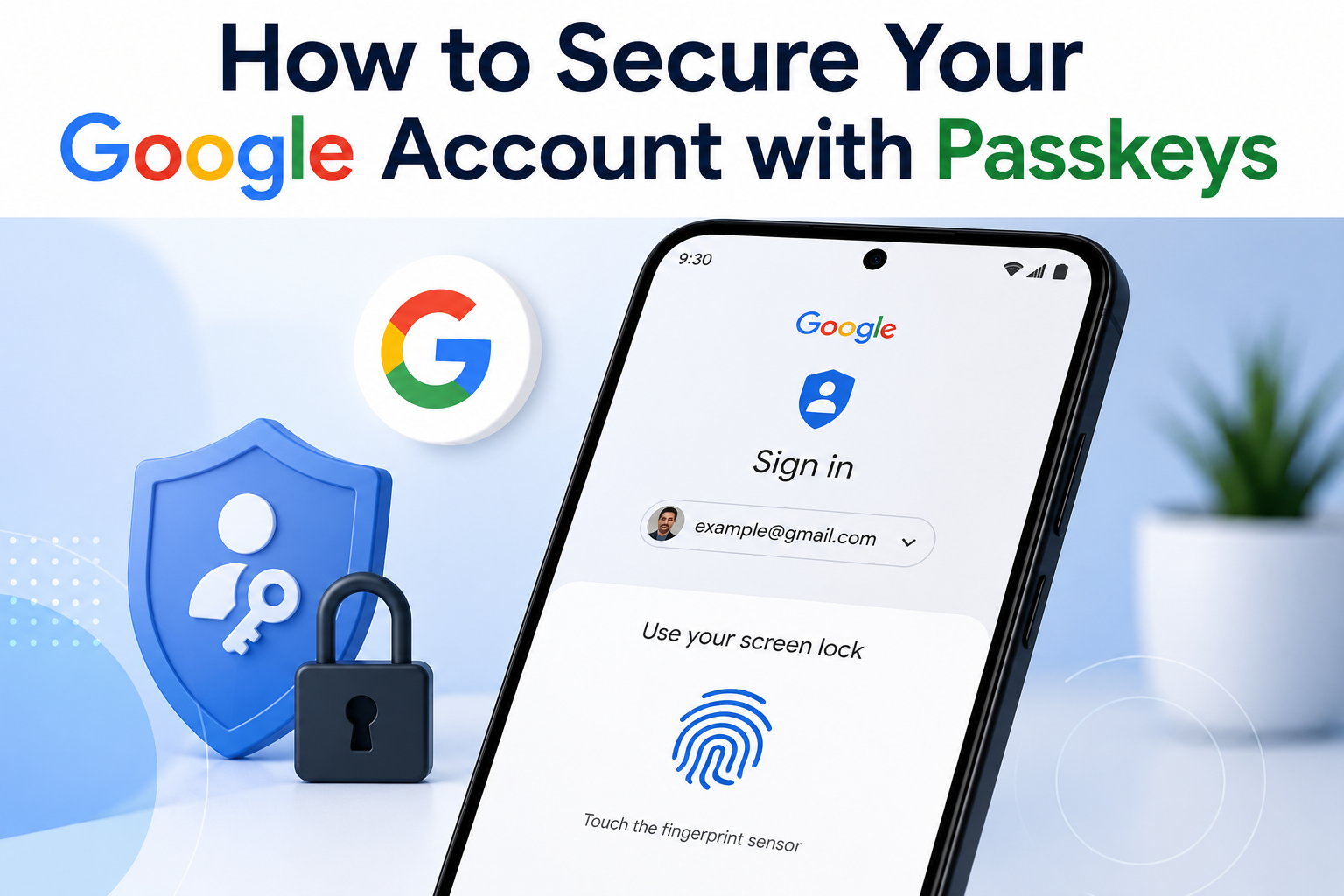
How to Secure Your Google Account with Passkeys is one of the best ways to protect your online accounts in 2026. Passkeys are a modern replacement for passwords that use your device’s fingerprint, face recognition, or screen lock to verify your identity. They are more secure than traditional passwords and help protect against phishing attacks and account hacking.
In this guide, you’ll learn how to secure your Google Account with Passkeys, how they work, and why you should enable them today.
Important: Passkeys are supported on most modern Android phones, iPhones, tablets, and computers. Make sure your device is updated to the latest software version.
Table of Contents
- What Are Passkeys?
- Why You Should Use Passkeys
- How to Secure Your Google Account with Passkeys
- How to Manage or Remove Passkeys
- Tips for Better Google Account Security
- Frequently Asked Questions
- Final Thoughts
What Are Passkeys?
A Passkey is a passwordless sign-in method that uses your device instead of a traditional password.
Instead of remembering long passwords, you simply verify your identity using:
- Fingerprint
- Face Unlock
- PIN
- Pattern
- Device Screen Lock
Since passkeys are stored securely on your device, they are much harder for hackers to steal.
Why You Should Use Passkeys
Passkeys offer several security benefits:
- Protect against phishing websites
- No passwords to remember
- Faster login process
- Strong encryption
- More secure than SMS OTPs
- Works across multiple devices
Google recommends using passkeys whenever possible.
How to Secure Your Google Account with Passkeys
Step 1: Open Your Google Account
Open your browser and visit your Google Account.
Sign in if you haven’t already.
Step 2: Go to the Security Section
From the left menu, tap or click:
Security
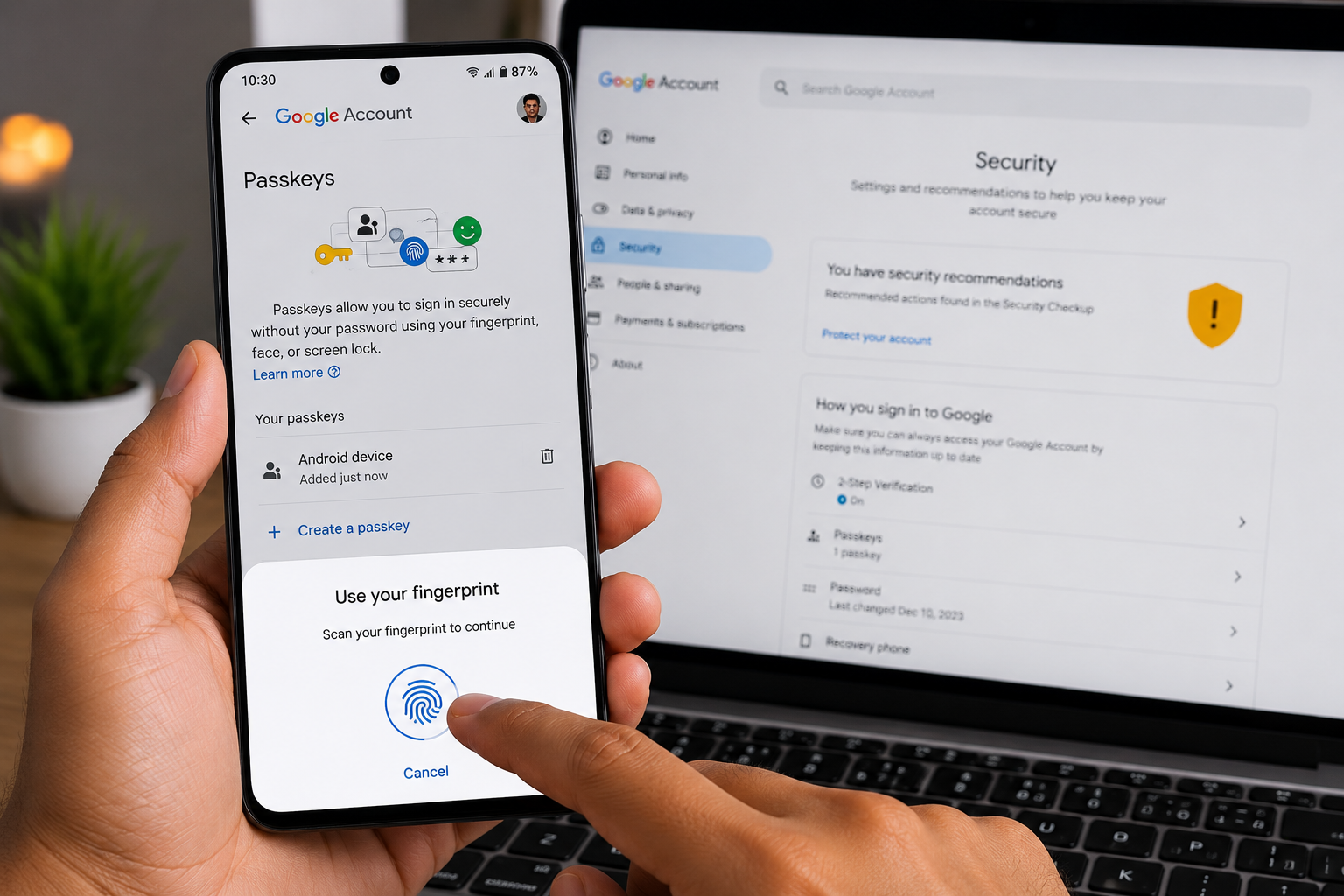
Scroll down until you find the Passkeys section.
Step 3: Select Passkeys
Tap:
Passkeys
Google may ask you to verify your identity before continuing.
Step 4: Create a New Passkey
Select:
Create a Passkey
Your device will display its authentication options.
Step 5: Verify Your Identity
Authenticate using one of the following:
- Fingerprint
- Face Unlock
- Screen Lock
- PIN
- Pattern
Once verified, your passkey will be created automatically.
Step 6: Test Your Passkey
Sign out of your Google Account.
Sign in again and choose the passkey option.
Verify using your device to confirm everything works correctly.
Step 7: Keep a Backup Sign-In Method
Although passkeys are secure, it’s a good idea to keep recovery options updated, such as:
- Recovery email
- Recovery phone number
- Two-Step Verification (if appropriate)
This helps you regain access if you lose your device.
How to Manage or Remove Passkeys
If you want to review your passkeys:
- Open your Google Account.
- Go to Security.
- Select Passkeys.
- View your registered devices.
- Remove old or unused passkeys.
Only keep passkeys on devices you trust.
Tips for Better Google Account Security
Improve your account security with these tips:
Enable Two-Step Verification
Use an extra verification method for added protection.
Keep Recovery Information Updated
Ensure your recovery email and phone number are current.
Review Connected Devices
Regularly remove devices you no longer use.
Turn On Google Security Alerts
You’ll receive notifications about suspicious login attempts.
Keep Your Device Updated
Install Android and browser updates to benefit from the latest security improvements.
Common Mistakes to Avoid
Avoid these mistakes:
- Sharing your device screen lock with others.
- Keeping passkeys on public or shared devices.
- Ignoring Google security alerts.
- Forgetting to update your recovery information.
- Using outdated software.
Read More:
- Google Par Apni Photo Kaise Search Kare
- How to Stop Apps from Running in the Background
- How to Identify Fake QR Codes Before Scanning
- How to Find Duplicate Photos on Android and Delete Them
Frequently Asked Questions
Are passkeys safer than passwords?
Yes. Passkeys are designed to resist phishing attacks and aren’t stored like traditional passwords, making them more secure.
Can I use passkeys on multiple devices?
Yes. Depending on your device ecosystem and account settings, you can use passkeys across compatible devices.
What happens if I lose my phone?
You can recover access using your Google Account recovery options or another trusted device if you’ve set them up.
Can I still use my password?
Yes. Google may still allow password sign-in in some situations, but passkeys provide a more secure option where supported.
Final Thoughts
Knowing How to Secure Your Google Account with Passkeys is one of the smartest steps you can take to protect your personal information. Passkeys make signing in easier while providing stronger protection against phishing and password theft.
If your device supports passkeys, enabling them today can significantly improve your Google Account security.