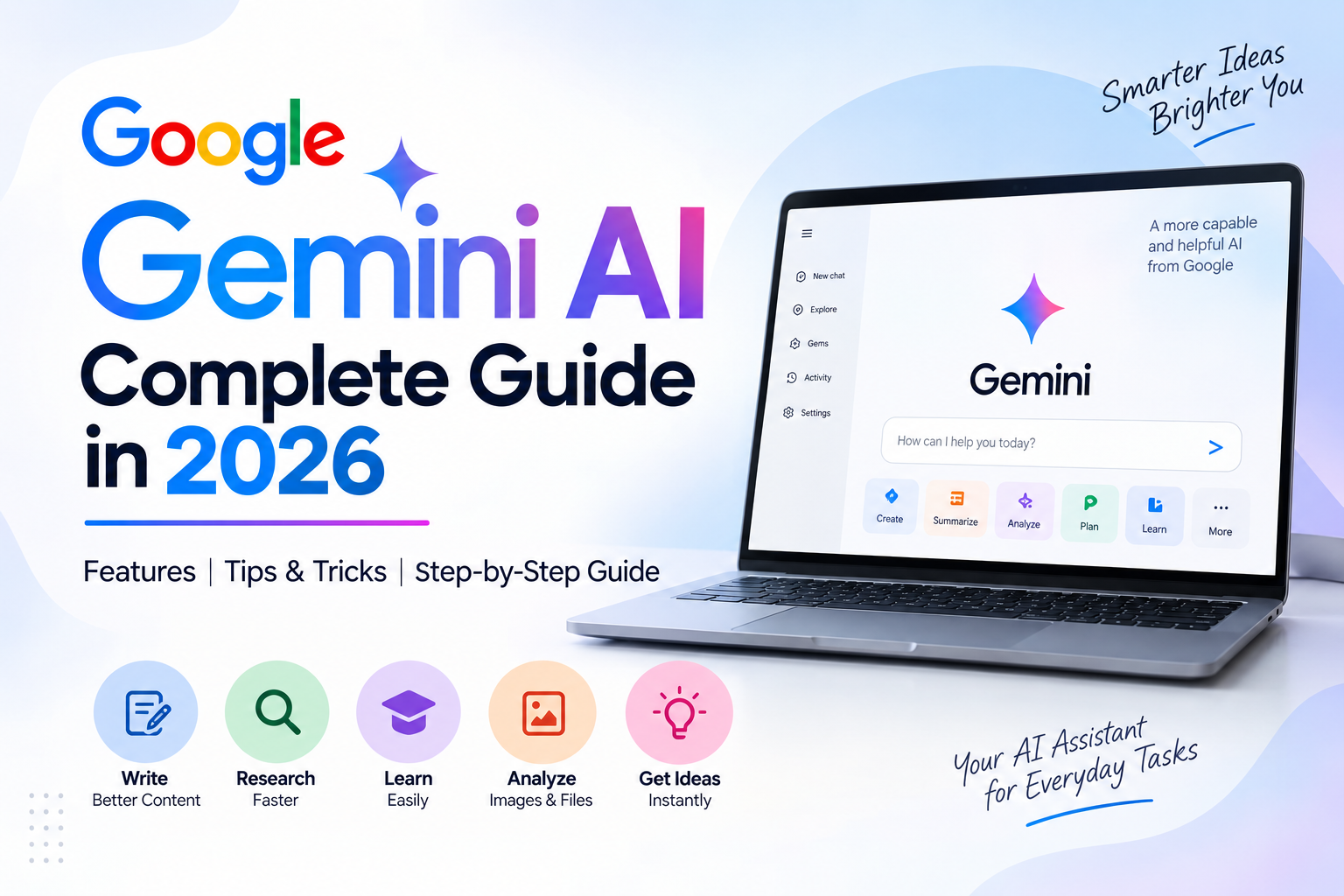
Artificial intelligence has become a useful part of everyday work, study and content creation. One of the most popular AI tools available today is Google Gemini. It can help users brainstorm ideas, summarize information, create drafts, analyze files and images, and complete many everyday tasks. Google also provides Gemini through the web and mobile apps, with additional capabilities depending on the account, device and available features.
If you are new to Gemini, you may be wondering how to use Google Gemini AI, what you can actually do with it, and how to write better prompts.
This complete guide explains how to get started with Gemini and how to use it more effectively.
What Is Google Gemini AI?
Google Gemini is Google’s AI assistant that can understand natural-language instructions and help with different types of tasks.
Instead of searching for information manually or creating everything from scratch, you can describe what you need in a prompt and ask Gemini to help.
For example, you can ask Gemini to:
- Write an email
- Summarize a long topic
- Create a blog outline
- Explain a difficult concept
- Analyze an image
- Work with uploaded files
- Brainstorm content ideas
- Create study material
- Rewrite text
- Help with coding
- Generate a plan for a project
Google’s own documentation lists brainstorming, planning, summarization and drafting as common uses for Gemini.
How to Use Google Gemini AI
Using Gemini is relatively simple. You can access Gemini through its web application or supported mobile experience.
Step 1: Open Gemini
Open the Gemini web application and sign in with your Google Account if required.
Some Gemini features can be used without signing in, while signing in provides access to additional functionality and allows activity to be saved depending on your settings.
Step 2: Enter Your Prompt
At the bottom of the Gemini interface, you will find the text box where you can enter your request.
For example, instead of writing:
“Write something about SEO.”
give Gemini more information:
“Write a 1,000-word beginner-friendly guide to SEO for a technology blog. Use simple English, include H2 headings, FAQs and practical examples.”
The second prompt gives Gemini a much clearer idea of what you want.
Step 3: Add a File or Image
Depending on the available features, you can upload files or images and ask Gemini to analyze them.
For example, you could upload:
- A PDF
- A document
- A screenshot
- A table
- An image
- Study material
You can then ask questions about the uploaded material. Google documents file and image upload capabilities within Gemini.
Step 4: Review the Response
Never assume that an AI-generated response is automatically correct.
Google specifically warns that Gemini can make mistakes, so important information should be checked before you rely on or publish it.
This is particularly important for:
- Government information
- Financial information
- Legal information
- Medical information
- Current events
- Technical specifications
Best Google Gemini AI Tips and Tricks
Knowing how to use Gemini is only the first step. Writing better prompts can make the results much more useful.
1. Give Gemini a Role
Tell Gemini what type of expert or assistant you want it to act as.
For example:
“Act as an SEO content writer and create a beginner-friendly article about technical SEO.”
This gives the response a specific direction.
2. Give Clear Instructions
Avoid extremely short prompts when the task requires detail.
Instead of:
“Write a blog.”
Try:
“Write an 800-word SEO-friendly blog about Android security tips for beginners. Use simple English, H2 headings, bullet points and five FAQs.”
Clear instructions generally produce more usable results.
3. Mention Your Target Audience
Tell Gemini who will read the content.
For example:
“Explain this topic for beginners who have never used AI tools.”
This helps control the complexity of the response.
4. Ask for Different Versions
You can ask Gemini to rewrite the same content in different styles.
For example:
“Rewrite this in simple English.”
or:
“Make this more professional.”
You can also ask for a shorter version suitable for social media.
5. Use Follow-Up Prompts
You don’t always need to start a new conversation.
You can continue the discussion and ask Gemini to:
- Expand a section
- Simplify an explanation
- Add examples
- Create FAQs
- Rewrite a paragraph
- Find gaps in an outline
- Create a checklist
This makes AI much more useful for longer tasks.
Google Gemini AI for Students
Students can use Gemini for learning and study-related tasks.
For example, you can ask it to:
“Explain photosynthesis in simple language for a Class 8 student.”
You can also provide study material and ask for:
- Chapter summaries
- Revision notes
- Practice questions
- Flashcards
- Topic explanations
- Study plans
However, students should use AI as a learning assistant rather than simply copying answers.
The goal should be to understand the subject and verify important information.
Google Gemini for Content Creators
Gemini can also help bloggers, marketers and creators with the early stages of content production.
You can use it to generate:
- Blog ideas
- Content outlines
- Headlines
- Meta descriptions
- FAQs
- Social media captions
- Email drafts
- Video ideas
- YouTube descriptions
For example:
“Give me 20 long-tail blog topics about Android tips with informational search intent.”
After generating ideas, research the topics and create original content instead of publishing raw AI output.
Google Gemini for SEO
Gemini can be useful during different stages of an SEO workflow.
You can ask it to:
Keyword research
“Give me long-tail keyword ideas around Google Gemini AI for beginners.”
Content planning
“Create a topical cluster around Google Gemini AI.”
Content structure
“Create an SEO-friendly outline targeting the keyword ‘how to use Google Gemini AI’.”
FAQ research
“Create 10 common questions beginners may have about Google Gemini.”
Content optimization
“Review this article for readability, missing subtopics and search intent.”
However, AI should support SEO research rather than replace keyword research, competitor analysis and real user insights.
Can Gemini Analyze Images and Files?
Yes. Depending on the available account and feature set, Gemini can work with uploaded files and images.
For example, you can upload a screenshot and ask:
“Explain what this error message means.”
Or upload a document and ask:
“Summarize the important points from this file.”
Google’s Gemini documentation specifically includes file and image uploads among its capabilities.
What Are Gemini Gems?
Gemini also supports Gems, which are customized versions of Gemini designed for repeated tasks or specific workflows. Google describes Gems as a way to customize Gemini’s responses for recurring goals and guidelines.
For example, you could create a custom Gem for:
- SEO content writing
- Study assistance
- Coding
- Marketing
- Research
- Email writing
A custom Gem can save time because you don’t have to repeat the same instructions every time.
10 Useful Gemini Prompts for Beginners
Here are some practical prompts you can try:
- Writing:
“Rewrite this paragraph in simple English.” - Learning:
“Explain this topic like I am a beginner.” - Research:
“Give me the main points I should research about this topic.” - SEO:
“Create a blog outline targeting this keyword.” - Content:
“Give me 20 content ideas for a technology website.” - Email:
“Write a short professional email based on these points.” - Summarization:
“Summarize this content into five important points.” - Planning:
“Create a seven-day learning plan for this topic.” - Editing:
“Check this content for grammar and clarity.” - Brainstorming:
“Give me 15 practical ideas and explain the best three.”
Common Mistakes to Avoid When Using Gemini
Don’t use vague prompts
The more specific your requirements are, the easier it is to get a useful response.
Don’t blindly trust AI-generated information
Always verify important facts, especially when the information can change.
Don’t publish raw AI content
AI-generated text should be reviewed, edited and improved with original information, examples and expertise.
Don’t share sensitive information
Avoid entering passwords, confidential business information, private documents or other sensitive data into an AI tool unless you understand the relevant privacy and data-handling implications.
Don’t expect one prompt to do everything
Complex tasks are often better handled step by step.
Frequently Asked Questions
Is Google Gemini free?
Some Gemini functionality is available without a subscription, while access to particular models and features can depend on the account and plan. Google maintains current information about Gemini access and limits in its help documentation.
Can I use Gemini without a Google Account?
Some features may be available without signing in, while additional features require a Google Account. Availability can vary by location and feature.
Can Gemini analyze PDFs and images?
Gemini supports uploading and analyzing files and images through supported experiences.
Can Gemini write blog posts?
Yes. Gemini can help create outlines and first drafts for blog posts, but the content should be reviewed, fact-checked and edited before publishing.
What is the best way to write a Gemini prompt?
Be specific about the task, context, audience, format and desired result. Instead of asking a vague question, provide enough information for Gemini to understand exactly what you need.
Useful Links:
- Google Gemini → Gemini
- Gemini Apps Help → Google Gemini Help
- Gemini Gems → Official Gemini Gems Guide
- Gemini File Upload & Analysis → Official File Upload Guide
- Gemini Deep Research → Official Deep Research Guide
- How to Check App Permissions on Android:
- How to Turn On Private DNS on Android
- How to Stop Websites from Sending Notifications on Android
- How to Check Android Storage Health and Fix Low Storage Problems
- How to Find Large Files Taking Up Storage on Android
Final Thoughts
Google Gemini can be much more useful when you treat it as an assistant rather than a simple question-and-answer tool. You can use it for writing, research, learning, planning, content creation and many other everyday tasks.
The most important skill is not finding a secret AI trick. It is learning how to give clear instructions, useful context and specific requirements.
Start with simple prompts, experiment with follow-up questions, verify important information and gradually create your own reusable prompts. With the right workflow, Gemini can become a practical productivity tool for everyday work and learning.