How to Recover Deleted Files from Google Drive
How to Recover Deleted Files from Google Drive is one of the most searched Google-related questions in 2026. Accidentally deleting an important document, photo, spreadsheet, or PDF can be stressful, but in many cases, your files can still be recovered.
In this guide, you’ll learn how to recover deleted files from Google Drive, restore files from the Trash, recover permanently deleted files in certain situations, and prevent future data loss.
Important: Files deleted from Google Drive usually remain in the Trash for up to 30 days before being permanently removed.
Table of Contents
- Why Files Get Deleted from Google Drive
- How to Recover Deleted Files from Google Drive
- How to Recover Permanently Deleted Files
- Tips to Prevent Losing Files
- Frequently Asked Questions
- Final Thoughts
Why Files Get Deleted from Google Drive
Google Drive files may disappear for several reasons, including:
- Accidental deletion
- Emptying the Trash
- Sync issues
- Shared file removal
- Malware or unauthorized access
- Deleting files from another synced device
Fortunately, many deleted files can still be restored.
How to Recover Deleted Files from Google Drive
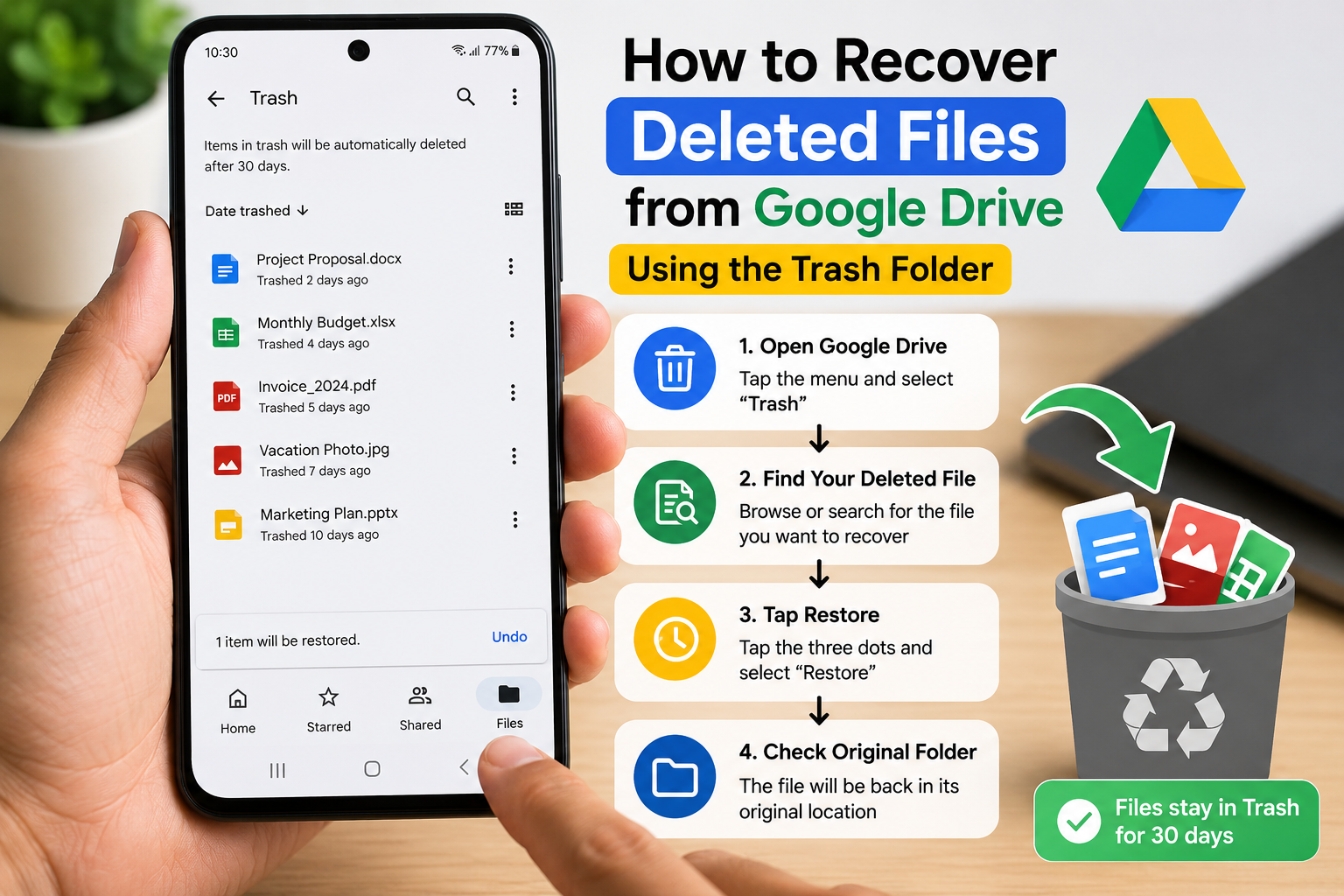
Step 1: Open Google Drive
Open the Google Drive app on your Android phone or visit Google Drive on your computer.
Sign in using the Google Account where the deleted file was stored.
Step 2: Open the Trash Folder
In the left menu, select:
Trash
All recently deleted files will appear here.
Step 3: Find Your Deleted File
Search for the file by:
- File name
- File type
- Date deleted
If you have many files, use the search bar or sort options.
Step 4: Restore the File
Right-click the file (or tap the three-dot menu in the mobile app).
Choose:
Restore
The file will return to its original location in Google Drive.
Step 5: Check the Original Folder
After restoring, navigate to the folder where the file was originally stored.
Verify that it opens correctly.
Step 6: Recover Shared Files
If someone else owns the file, restoring may not be possible from your Trash.
Ask the owner to:
- Restore the file
- Share it with you again
Step 7: Check Google Drive Activity
If you can’t find the file, review your Drive activity.
Open:
Google Drive → Activity
Look for:
- File deletions
- File moves
- Recent edits
- Sharing changes
This can help determine what happened.
How to Recover Permanently Deleted Files
If the file is no longer in the Trash, recovery options are limited, but you can still try the following.
Contact Google Support
If the file was recently deleted permanently, Google may be able to help in some cases, especially if the deletion was accidental and recent.
Business and Workspace users may also have additional recovery options available to administrators.
Check Local Device Copies
Look for downloaded versions on:
- Your phone
- Laptop
- Desktop
- External hard drive
Sometimes the file still exists locally.
Check Shared Folders
If the file was shared with others, another collaborator may still have access or a copy.
Review Google Workspace Admin Options
If you’re using a work or school account, your administrator may be able to restore deleted Drive data within Google’s supported recovery period.
Tips to Prevent Losing Files
Enable Google Drive Backup
Keep automatic syncing enabled for important files.
Organize Files into Folders
Store documents in clearly named folders for easier management.
Download Important Files
Keep offline copies of critical documents.
Don’t Empty Trash Immediately
Wait a few days before permanently deleting files from the Trash.
Enable Two-Step Verification
Protect your Google Account from unauthorized access.
Review Shared Access
Periodically check who has access to your important files.
Common Mistakes to Avoid
Avoid these mistakes:
- Emptying the Trash without checking its contents.
- Using the wrong Google Account.
- Assuming shared files are permanently gone.
- Ignoring Drive activity history.
- Not keeping backups of important documents.
Read More:
- Google Drive को Free Cloud Storage के रूप में इस्तेमाल करने का
- Gmail Password Bhool Jaye To Kya Kare
- How to Scan Documents with Google Drive: 7 Easy Steps
- Google Drive Not Syncing? Easy Fixes That Work
Frequently Asked Questions
How long do deleted files stay in Google Drive Trash?
Most deleted files remain in the Trash for up to 30 days before being permanently removed.
Can I recover permanently deleted Google Drive files?
Recovery may be possible in limited situations, such as recent accidental deletions or through a Google Workspace administrator. Otherwise, permanently deleted files may not be recoverable.
Will restoring a file keep its original folder?
Yes. Restored files generally return to their original location unless that folder no longer exists.
Can I recover files deleted from a shared Drive?
If you don’t own the file, you’ll usually need the owner or your organization’s administrator to restore it.
Final Thoughts
Knowing How to Recover Deleted Files from Google Drive can save you time and prevent unnecessary stress. In many cases, deleted files can be restored from the Trash within 30 days. Even if a file has been permanently deleted, checking local backups, shared folders, or contacting the appropriate administrator or support channels may still help.
To avoid future data loss, regularly back up important files, organize your Drive, and secure your Google Account with strong security settings.