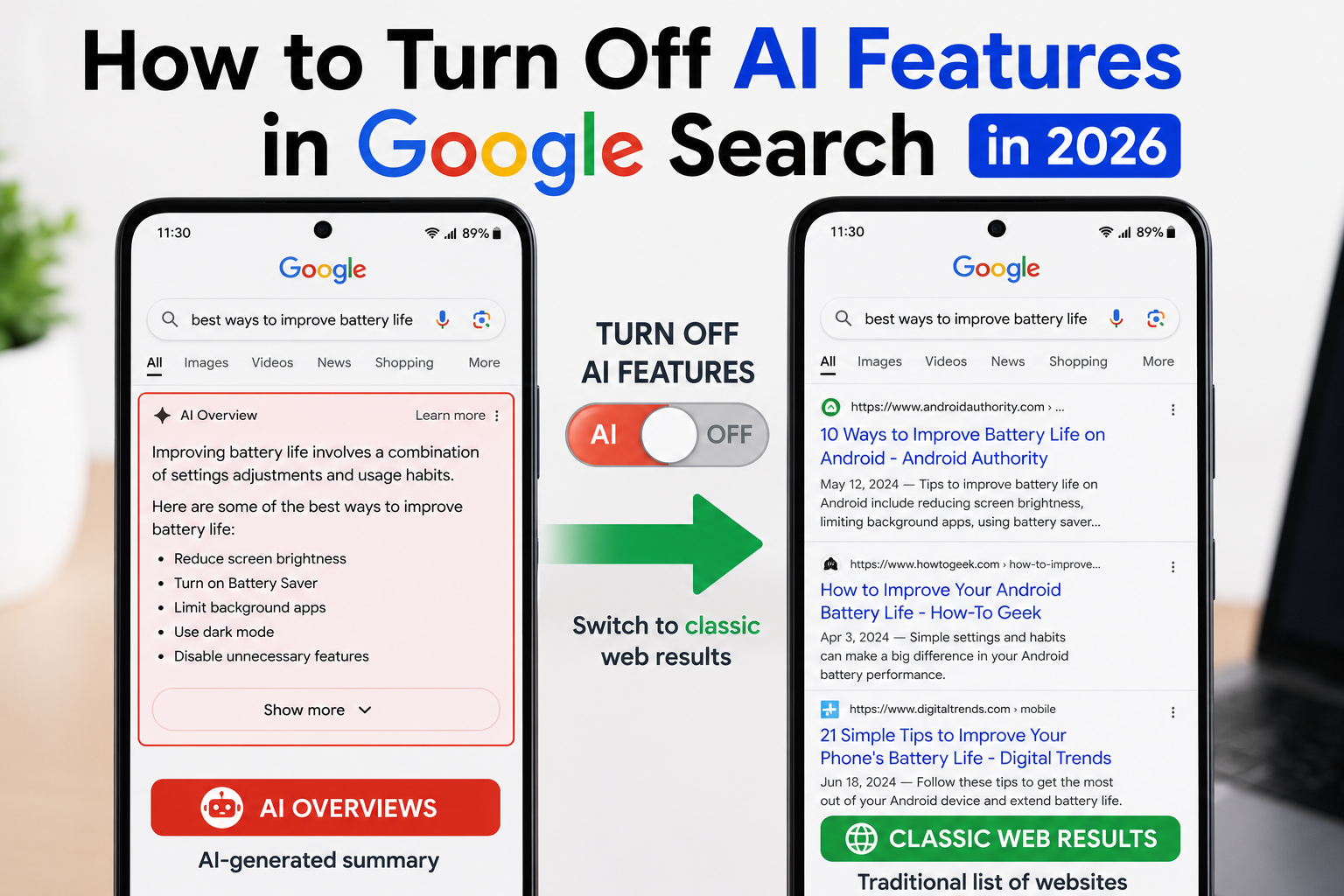
How to Turn Off AI Features in Google Search is becoming one of the most searched tech topics in 2026. Google’s AI-powered features, such as AI Overviews, can quickly summarize search results, but not everyone prefers them. Many users still want the traditional list of web links for faster browsing and more control over the information they read.
In this guide, you’ll learn how to turn off AI features in Google Search, reduce AI-generated content in search results, and use classic search methods on Android, iPhone, and desktop.
Important: Google frequently updates its Search experience. The availability of AI features and settings may vary by country, language, account type, and device.
Table of Contents
- What Are AI Features in Google Search?
- Why Some Users Want to Turn Off AI Features
- How to Turn Off AI Features in Google Search
- Alternative Ways to Get Classic Search Results
- Tips for Better Google Searches
- Frequently Asked Questions
- Final Thoughts
What Are AI Features in Google Search?
Google Search now includes AI-powered tools that can generate summaries and answer questions directly on the results page.
These features may include:
- AI Overviews
- AI-generated summaries
- Follow-up question suggestions
- Conversational search experiences
While these tools can be helpful, some users prefer traditional search results for research, troubleshooting, or comparing multiple sources.
Why Some Users Want to Turn Off AI Features
Common reasons include:
- Preference for traditional search results
- Faster access to websites
- More control over information sources
- Easier research using multiple websites
- Reduced distractions from AI summaries
How to Turn Off AI Features in Google Search
Step 1: Open Google Search
Open your preferred browser or the Google app.
Visit Google Search.
Step 2: Use the Web Filter
After searching for something, look for the Web filter in the search results.
Selecting Web displays traditional web links and may reduce AI-generated content for that search.
Step 3: Search More Specifically
Using detailed search queries often helps you reach the exact information you need without relying on AI summaries.
For example:
Instead of:
- Android battery
Try:
- How to improve Android battery life 2026
Step 4: Use Search Operators
Google supports advanced search operators such as:
- quotation marks (” “)
- site:
- filetype:
- minus (-)
These operators help narrow results and improve search accuracy.
Step 5: Check Google Search Labs
In regions where available, Google Search Labs lets users try experimental search features.
If AI-related experiments are enabled, you may be able to leave those experiments through the Labs interface.
Availability varies by account and region.
Step 6: Keep Google Updated
Using the latest version of the Google app ensures you have access to the newest search options and controls available for your device.
Step 7: Send Feedback to Google
If you prefer traditional search results, you can use Google’s feedback options within Search to share your experience and preferences.
User feedback helps Google improve future search features.
Alternative Ways to Get Classic Search Results
If you prefer traditional results:
Use the Web Results Filter
This often provides a simpler list of website links.
Visit Websites Directly
Instead of relying on summaries, visit trusted websites for complete information.
Compare Multiple Sources
Reading several sources helps verify information and provides a broader understanding of a topic.
Bookmark Trusted Websites
Save frequently used websites for quick access without depending solely on search summaries.
Tips for Better Google Searches
Follow these best practices:
- Use specific keywords.
- Include the year in your search.
- Use quotation marks for exact phrases.
- Use the site: operator to search within a particular website.
- Verify important information from reliable sources.
- Keep your browser updated.
Common Mistakes to Avoid
Avoid these common mistakes:
- Assuming AI summaries always include every detail.
- Relying on a single source for important information.
- Ignoring official websites.
- Using overly broad search terms.
- Forgetting to compare multiple search results.
Read More:
- Best AI Tools for YouTube Creators
- How to Recover Instagram Without Email or Phone Number: 2026 Guide
- How to Spot AI Voice Scam Calls: 10 Powerful Tips
- Kya AI Ki Wajah Se Jobs Kam Hongi? Ya Naye Opportunities Bhi Aa Sakte Hain?
Frequently Asked Questions
Can I completely disable AI features in Google Search?
Google doesn’t currently offer a universal setting that completely disables all AI features for every search experience. Available options may change over time and vary by region.
Does the Web filter remove AI summaries?
The Web filter can provide a more traditional list of search results for many queries, though behavior may vary.
Can I turn off AI features on Android?
The available options are generally tied to your Google Search experience rather than the Android operating system itself.
Why do I still see AI Overviews?
AI Overviews are rolled out gradually and depend on factors such as your region, language, account, and the type of search query.
Final Thoughts
Knowing How to Turn Off AI Features in Google Search can help you customize your search experience and focus on traditional web results when you prefer them. While AI-powered features are designed to make searching faster, using the Web filter, advanced search operators, and trusted websites can give you more control over the information you see.
As Google continues to update Search, keep an eye on new settings and features that may provide additional customization options.