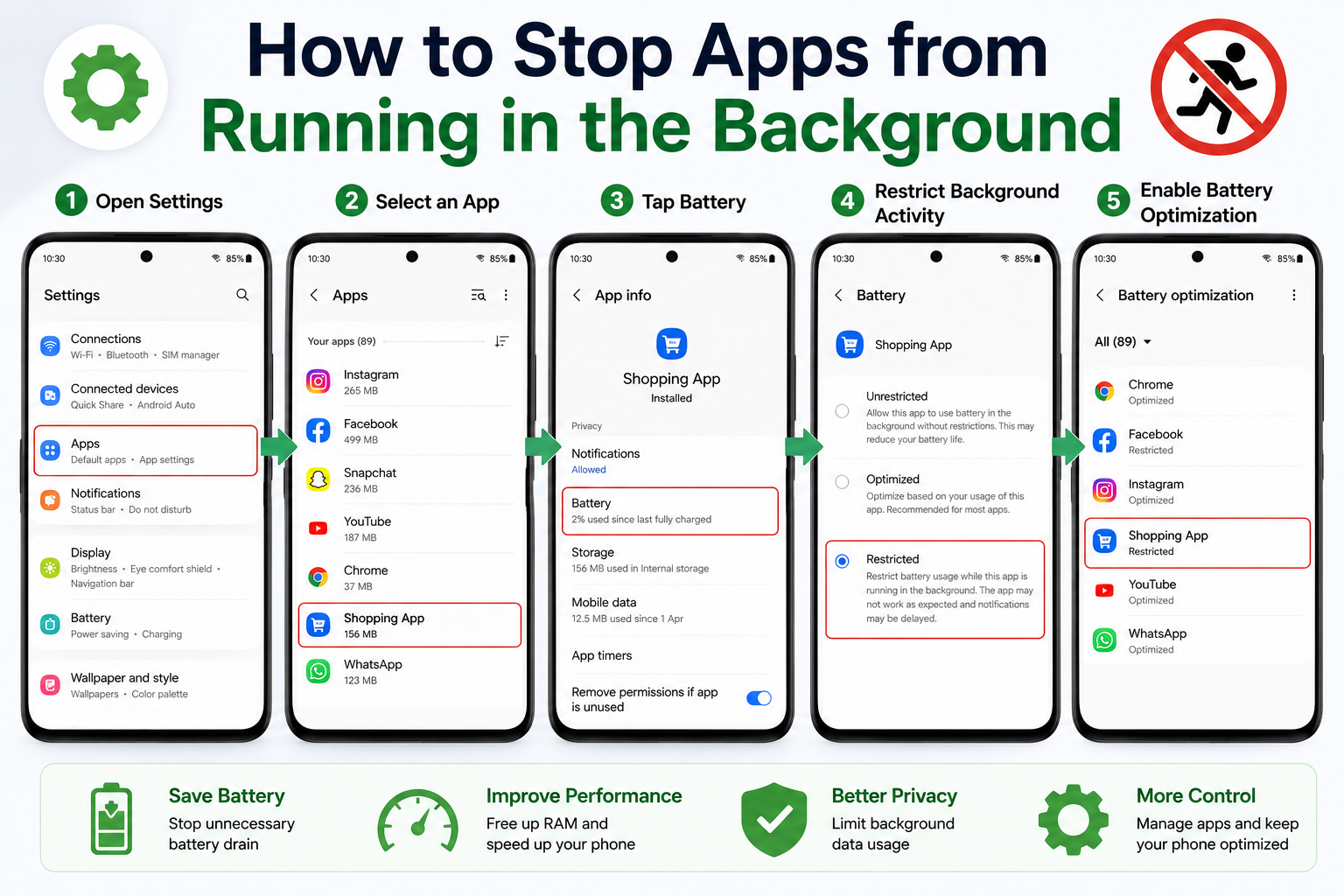
How to Stop Apps from Running in the Background
is one of the easiest ways to improve your Android phone’s speed, battery life, and overall performance. Many apps continue running even after you’ve closed them, consuming RAM, battery, mobile data, and system resources.
In this guide, you’ll learn how to stop apps from running in the background, identify apps that use excessive resources, and optimize your Android device without affecting essential apps.
Important: Some apps, such as messaging, email, alarms, and navigation apps, need background activity to function correctly. Only restrict apps that don’t require continuous background access.
Table of Contents
- Why Apps Run in the Background
- How to Stop Apps from Running in the Background
- Which Apps Should You Restrict?
- Tips to Improve Android Performance
- Frequently Asked Questions
- Final Thoughts
Why Apps Run in the Background
Many Android apps continue running after you close them to provide features like:
- Notifications
- Automatic syncing
- Location updates
- Music playback
- Fitness tracking
- File uploads
However, unnecessary background activity can slow down your phone and reduce battery life.
How to Stop Apps from Running in the Background
Step 1: Open Android Settings
Unlock your Android phone.
Open:
Settings
Step 2: Go to Apps
Tap:
Apps
or
Apps & Notifications
You’ll see a list of installed applications.
Step 3: Select the App
Choose the app you want to stop from running in the background.
For example:
- Games
- Shopping apps
- Wallpaper apps
- Unused social media apps
Step 4: Open Battery Settings
Inside the app settings, tap:
Battery
Depending on your phone, you may see options like:
- Battery Usage
- Background Activity
- Battery Optimization
Step 5: Restrict Background Activity
Enable:
Restricted
or
Don’t Allow Background Activity
This prevents the app from consuming resources when you’re not actively using it.
Step 6: Enable Battery Optimization
Go to:
Settings → Battery → Battery Optimization
Select the app.
Choose:
Optimized
or
Restricted
This helps Android automatically manage background processes.
Step 7: Force Stop Unused Apps
If an app is consuming excessive resources:
Go to:
Settings → Apps → App Name
Tap:
Force Stop
Only use this when necessary, as some apps will restart automatically when opened again.
Which Apps Should You Restrict?
You can usually restrict background activity for:
- Games
- Shopping apps
- Wallpaper apps
- Photo editing apps
- Utility apps
- Unused social media apps
Avoid restricting apps that rely on background services, such as:
- Gmail
- Google Maps (during navigation)
- Alarm apps
- Banking apps that require security notifications
How to Check Which Apps Use the Most Battery
Open:
Settings → Battery → Battery Usage
Review the list.
If an app is consuming unusually high battery while you’re not using it, consider restricting its background activity.
Tips to Improve Android Performance
Follow these best practices:
Remove Unused Apps
Uninstall apps you no longer use.
Keep Android Updated
Install the latest Android updates for improved performance and security.
Restart Your Phone Regularly
A restart clears temporary processes and refreshes system memory.
Use Files by Google
Clean unnecessary files and free up storage.
Limit Background Sync
Disable syncing for apps that don’t require constant updates.
Keep Storage Free
Maintain at least 15–20% free storage for smoother performance.
Common Mistakes to Avoid
Avoid these mistakes:
- Restricting messaging apps like WhatsApp.
- Disabling background activity for alarm apps.
- Force stopping system apps.
- Installing task killer apps unnecessarily.
- Ignoring battery usage reports.
Read More:
- Kya Free Apps Sach Me Free Hoti Hain?
- How to Find Hidden Spy Apps on Android: 10 Easy Ways
- How to Reduce Mobile Data Usage Without Installing Any App
- Hidden Business Model Samajhiye
- How to Stop Apps from Tracking Your Location
Frequently Asked Questions
Does stopping background apps save battery?
Yes. Restricting unnecessary background activity can improve battery life, especially for apps that frequently sync or use location services.
Will I stop receiving notifications?
Possibly. If you restrict apps like messaging or email apps, notifications may be delayed.
Is Force Stop safe?
Yes, but only for trusted third-party apps that aren’t essential. Avoid force stopping critical system apps.
How often should I review background apps?
Checking your battery usage and background activity once a month is a good practice to keep your phone running efficiently.
Final Thoughts
Knowing How to Stop Apps from Running in the Background can significantly improve your Android phone’s performance, battery life, and responsiveness. By restricting unnecessary apps, enabling battery optimization, and reviewing battery usage regularly, you can keep your device running smoothly without affecting important functions.
A few simple settings changes can make a noticeable difference in your phone’s speed and efficiency.