
Running out of storage is one of the most common problems Android users face. Photos, videos, apps, downloads, screenshots, messaging media, and temporary files can gradually consume your phone’s available space.
When storage becomes almost full, you may start seeing “Storage Space Running Out” notifications. Apps may also have difficulty downloading files, saving photos, or installing updates.
Instead of deleting files randomly, you can first check what is actually using your storage and then remove unnecessary data safely.
In this guide, we’ll explain how to check Android storage, identify what’s taking up the most space, and free up storage without accidentally deleting important files.
Why Does Android Storage Become Full?
Android phones have a fixed amount of internal storage. Every app, photo, video, document, and downloaded file uses part of that space.
Some of the most common storage-consuming items include:
- Photos and videos
- WhatsApp and other messaging media
- Large games and applications
- Downloaded files
- Screen recordings
- Screenshots
- Offline movies and music
- Duplicate files
- App cache and data
- Documents and ZIP files
Sometimes, users don’t realize how much space has accumulated because many of these files are created automatically.
How to Check Storage on Android
The easiest way to understand your phone’s storage usage is through Android Settings.
Open Settings
Open the Settings app on your Android smartphone.
You can also swipe down from the top of the screen and tap the gear icon.
Find the Storage Section
Use the search option inside Settings and type Storage.
Depending on your smartphone manufacturer and Android version, you may find it under names such as:
- Storage
- Device Care
- Battery and Device Care
- Storage & memory
Tap the relevant option to see your storage information.
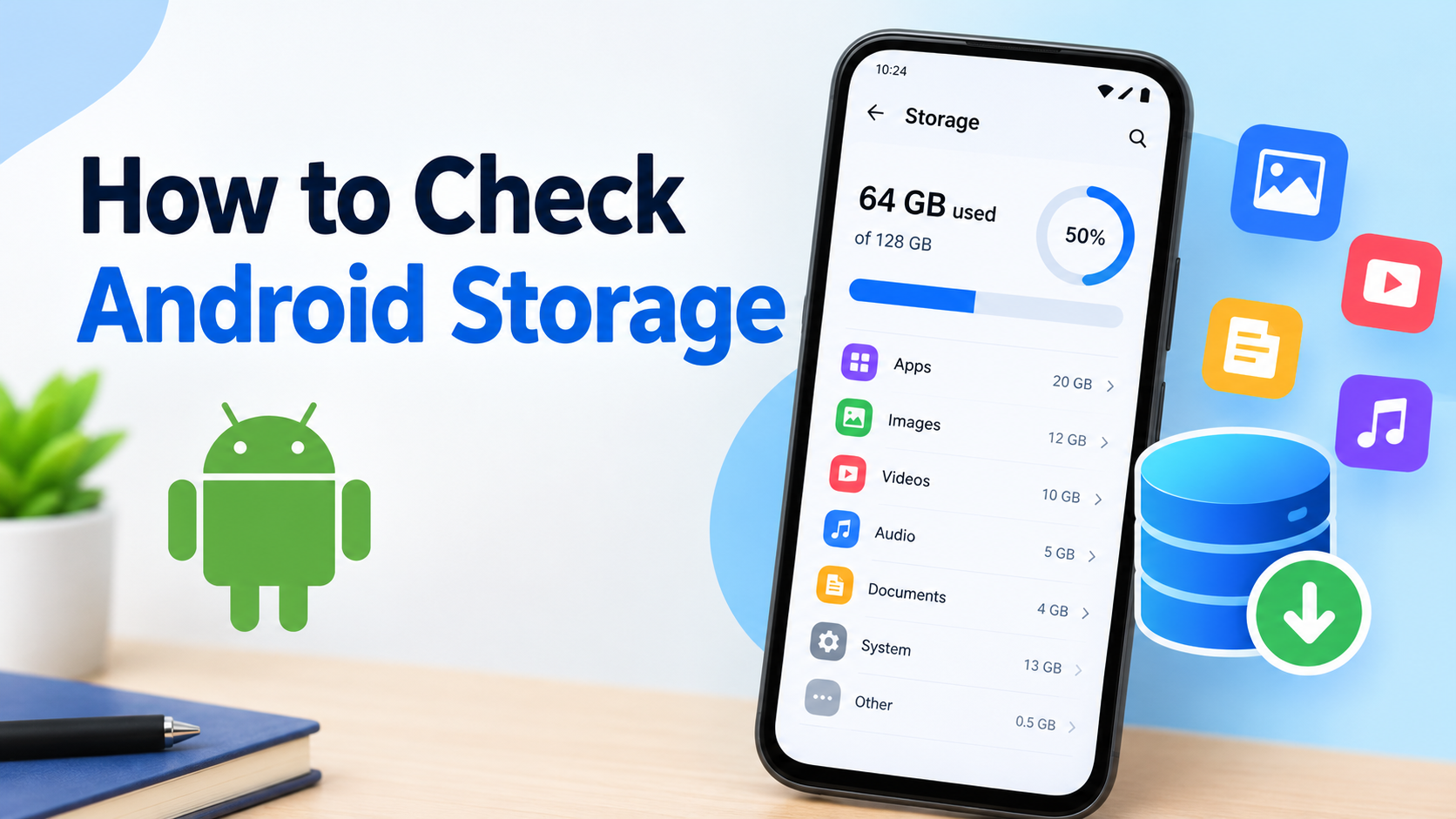
Check the Storage Breakdown
The storage screen usually shows how much space is:
- Used
- Available
- Occupied by apps
- Occupied by photos and videos
- Used by documents
- Used by system files
- Used by other data
This breakdown helps you determine where you should start cleaning.
How to Find What’s Taking Up the Most Space
Checking the total storage isn’t enough. You should also identify the categories or files consuming the most space.
Check Large Apps
Open the Apps section from your storage settings.
Look through the installed applications and check their storage usage.
Large games, video editors, social media apps, and streaming applications can sometimes take up several gigabytes.
If you have an app that you haven’t used for months, consider uninstalling it.
Check Your Downloads Folder
The Downloads folder is another common source of unnecessary files.
Open your phone’s file manager and go to Downloads.
You may find:
- Old PDFs
- ZIP files
- APK files
- Videos
- Images
- Documents
- Files downloaded for one-time use
Review these files carefully and delete anything you no longer need.
Check Photos and Videos
Photos and videos can quickly consume a large amount of storage.
High-resolution videos, screen recordings, and duplicate media are particularly likely to take up significant space.
Open your Gallery or Photos app and review:
- Old videos
- Duplicate videos
- Screen recordings
- Unwanted screenshots
- Blurry photos
- Downloaded media
Before deleting important memories, make sure they are backed up.
Check WhatsApp and Messaging Media
Messaging applications can quietly consume a significant amount of storage.
Photos, videos, documents, GIFs, voice recordings, and forwarded media may remain on your device for months or even years.
Open the storage management section of your messaging app and look for large files.
Review the files before deleting them because some may contain important personal or work-related information.
Use Files by Google to Find Unnecessary Files
Files by Google can help Android users identify files that may no longer be needed.
Depending on the content stored on your phone, it can provide suggestions related to:
- Duplicate files
- Large files
- Old screenshots
- Unused applications
- Downloads
- Other unnecessary content
Review each suggestion before deleting anything.
Don’t assume that every suggested file is safe to remove. Always check the file first.
Clear App Cache
Applications create temporary files called cache.
Over time, some apps may accumulate a considerable amount of cached data.
You can usually check an individual app’s storage through:
Settings → Apps → Select the App → Storage
If available, tap Clear Cache.
Clear Cache vs Clear Storage
These two options are different.
Clear Cache removes temporary files.
Clear Storage or Clear Data can remove locally stored application information and may reset the app.
For that reason, don’t tap Clear Storage unless you understand what information the app may remove.
Uninstall Apps You Don’t Use
Take a look at your installed applications.
You may find apps that you downloaded for a particular purpose but haven’t opened in months.
Removing unused applications can free up storage and reduce unnecessary clutter.
Before uninstalling an app, check whether you need any data stored locally within it.
Find and Remove Duplicate Files
Duplicate files are another reason storage can disappear without you noticing.
For example, the same photo may exist in multiple folders or have been downloaded several times.
Look for duplicate:
- Photos
- Videos
- Documents
- Downloads
- Audio files
Only remove files after confirming that they are genuine duplicates.
Delete Old Screen Recordings
Screen recordings can be surprisingly large, particularly when they are several minutes long or recorded at high resolution.
If you frequently record your screen for tutorials, troubleshooting, or other purposes, check your screen recording folder regularly.
Back up anything important and remove recordings you no longer need.
Check Offline Downloads
Streaming services often allow users to download content for offline viewing or listening.
These downloads can take up several gigabytes.
Check the download section of your streaming apps and remove movies, shows, songs, podcasts, or other content you no longer need offline.
Don’t Delete Unknown System Files
When trying to free up storage, avoid manually deleting files simply because their names look unfamiliar.
Some system-related files and folders may be necessary for Android or individual applications to work correctly.
If you don’t know what a file does, leave it alone until you understand its purpose.
Using Android’s built-in storage tools is generally a safer approach.
What If Storage Is Still Full After Deleting Files?
Sometimes your storage may appear full even after you’ve removed several files.
There are several possible reasons.
Check the Trash Folder
Photos, Gallery, and file-management applications may move deleted files to a Trash, Bin, or Recently Deleted folder instead of removing them immediately.
If you’re completely sure you no longer need those files, emptying the relevant trash folder can permanently remove them.
Remember that permanently deleted files may not be recoverable.
Check App Data
Large applications may store significant amounts of local data.
Go to:
Settings → Apps → Select App → Storage
Check which applications are using the most space.
Check Messaging Apps
WhatsApp and other messaging services may continue storing media even after you’ve cleaned your Gallery.
Review their storage-management tools separately.
How Much Free Storage Should You Keep?
It’s better not to let your phone’s storage remain completely full.
The amount of free space you need depends on your device and how you use it, but keeping some available space can help you avoid problems with downloading files, taking photos, installing updates, and using applications.
Instead of waiting for a critical storage warning, make storage management a regular habit.
How to Prevent Android Storage From Filling Up
Once you’ve cleaned your phone, a few simple habits can help prevent the problem from returning.
Review Downloads Regularly
Check your Downloads folder every few weeks and remove files you no longer need.
Delete Unnecessary Screenshots
Screenshots can accumulate quickly, especially if you frequently save temporary information.
Manage Messaging Media
Review large videos, photos, and documents in your messaging applications.
Back Up Important Photos
Keep important photos and videos backed up before deleting local copies.
Remove Unused Apps
Uninstall applications you no longer use.
Monitor Storage Regularly
Check your storage once or twice a month so you can identify problems before the phone becomes completely full.
When Should You Investigate Storage More Carefully?
If your phone’s storage fills up unusually quickly, it’s worth investigating instead of repeatedly deleting random files.
For example, if you free several gigabytes and the same amount disappears again within a short period, an app or service may be generating a large amount of data.
Check:
- Recently installed applications
- Messaging media
- Downloads
- Offline content
- Large app data
- Videos and screen recordings
This can help you identify the actual source of the problem.
Read More:
- Mobile Storage Jaldi Full Kyu Ho Jati Hai? Space Bachane Ke Simple Tareeke
- Google Drive को Free Cloud Storage के रूप में इस्तेमाल करने का
- Phone Storage Full? Fix It Fast
- How to Free Up Google Photos Storage (2026)
Frequently Asked Questions
How do I check storage on Android?
Open Settings and search for Storage. Your phone should show how much storage is used and which categories are consuming the most space.
What takes up the most storage on an Android phone?
Large videos, photos, games, applications, downloads, and messaging media are common causes of high storage usage.
Does clearing cache free up storage?
Yes. Clearing an app’s cache removes temporary files and can free some storage. The amount depends on the app.
Is it safe to delete files from Downloads?
Yes, as long as you have checked the files and no longer need them. Important documents should be backed up before deletion.
Why is my Android storage still full after deleting photos?
Deleted photos may still be stored in a Trash or Recently Deleted folder. Other apps, videos, downloads, cache, and system data may also be using storage.
Should I delete Android system files?
No. Avoid deleting unknown system files manually. Use Android’s built-in storage management options whenever possible.
Final Thoughts
Knowing how to check Android storage makes it much easier to deal with low-storage problems.
Start by opening the Storage section in Settings and finding out which categories are consuming the most space. Then review large apps, videos, Downloads, messaging media, duplicate files, screen recordings, and unused applications.
Always check files before deleting them and keep backups of important data.
A few minutes of storage management every few weeks can help keep your Android phone organized, maintain enough free space, and prevent frustrating low-storage warnings.


