How to Check Which Apps Are Draining Your Battery is one of the most searched Android troubleshooting topics in 2026. If your phone’s battery drains quickly, one or more apps may be running in the background, using excessive power without you realizing it.
In this guide, you’ll learn how to check which apps are draining your battery, identify battery-hungry apps, and optimize your Android phone for longer battery life.
Important: Some apps like WhatsApp, Google Maps, music players, and email apps naturally use more battery because they provide real-time notifications or location services. Focus on identifying apps that consume excessive battery without a clear reason.
Table of Contents
- Why Apps Drain Battery
- How to Check Which Apps Are Draining Your Battery
- How to Reduce Battery Usage
- Tips to Improve Android Battery Life
- Frequently Asked Questions
- Final Thoughts
Why Apps Drain Battery
Apps consume battery for various reasons, including:
- Running in the background
- Using GPS or location services
- Syncing data continuously
- Displaying notifications
- High screen brightness
- Poor app optimization
Checking battery usage regularly helps you identify apps that consume more power than expected.
How to Check Which Apps Are Draining Your Battery
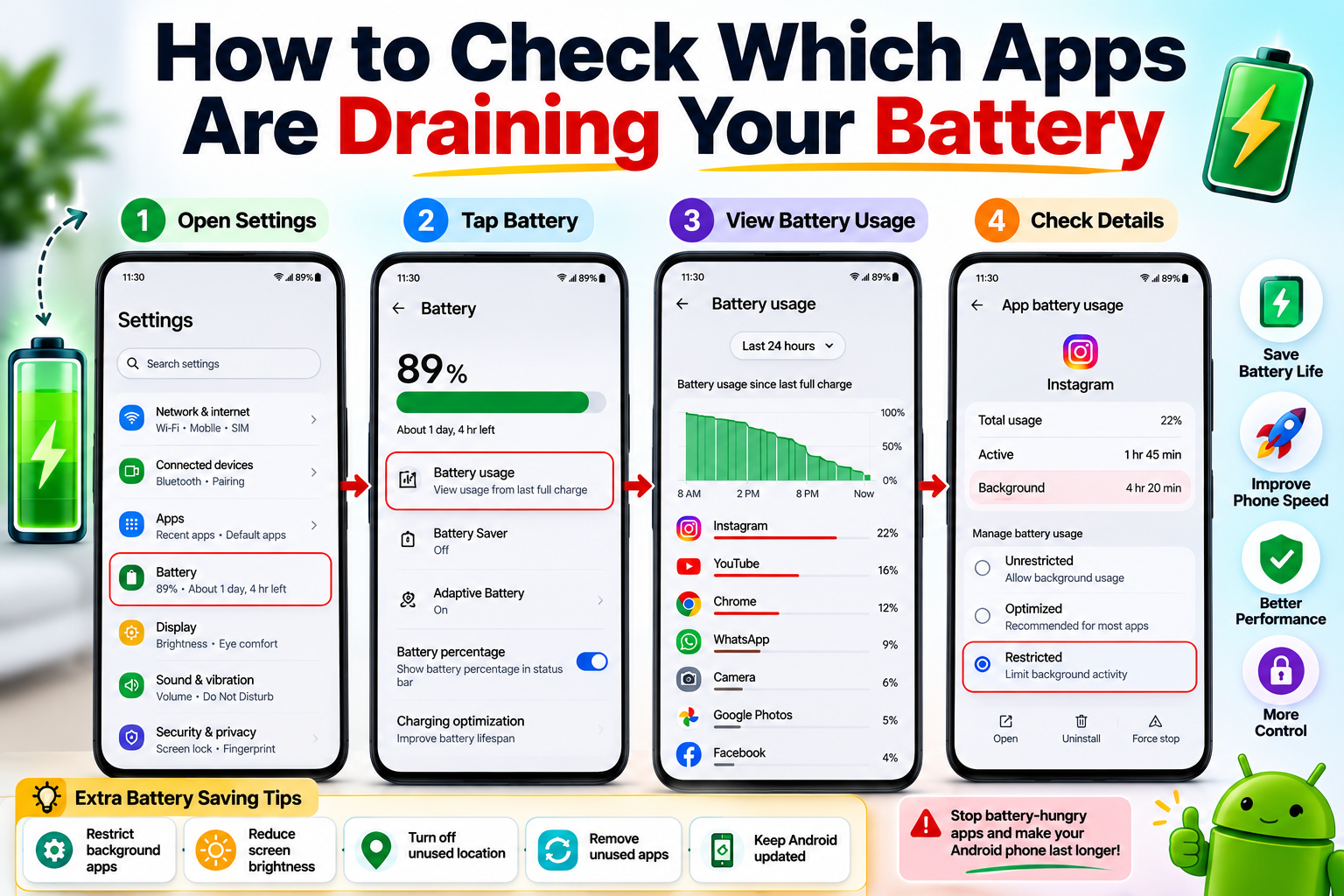
Step 1: Open Android Settings
Unlock your Android phone.
Open:
Settings
Step 2: Open Battery Settings
Tap:
Battery
or
Battery & Device Care
Depending on your phone model, the menu name may vary.
Step 3: View Battery Usage
Select:
Battery Usage
or
App Battery Usage
You’ll see a list of apps ranked by battery consumption.
Step 4: Identify High Battery Usage Apps
Look for apps that:
- Use a high percentage of battery.
- Run for long periods in the background.
- Continue consuming battery even when you rarely use them.
Common examples include games, social media apps, and video streaming apps.
Step 5: Check Background Activity
Tap an app from the battery list.
Review:
- Foreground usage
- Background usage
- Active time
If background usage is unusually high, consider restricting the app.
Step 6: Restrict Background Battery Usage
Go to:
Settings → Apps → App Name → Battery
Choose:
Optimized
or
Restricted
This helps reduce unnecessary background activity.
Step 7: Update or Remove Problematic Apps
If an app continues to drain your battery:
- Update it from the Google Play Store.
- Clear its cache.
- Uninstall it if you no longer need it.
How to Reduce Battery Usage
Enable Battery Saver
Go to:
Settings → Battery → Battery Saver
Turn it on to extend battery life.
Lower Screen Brightness
Reducing brightness is one of the quickest ways to save battery.
Turn Off Unused Features
Disable features you’re not using, such as:
- Bluetooth
- GPS
- NFC
- Wi-Fi scanning
Remove Unused Apps
Delete apps you rarely use to reduce background activity.
Keep Android Updated
Software updates often include battery performance improvements.
Tips to Improve Android Battery Life
Follow these best practices:
- Enable Adaptive Battery.
- Restrict background apps.
- Keep apps updated.
- Reduce screen timeout.
- Turn off Always-On Display if unnecessary.
- Restart your phone regularly.
- Avoid installing battery saver apps from unknown developers.
- Keep at least 20% free storage for better performance.
Common Mistakes to Avoid
Avoid these common mistakes:
- Force stopping every app.
- Disabling important apps like WhatsApp or Gmail.
- Ignoring battery usage reports.
- Using unofficial battery optimization apps.
- Keeping dozens of unused apps installed.
Read More:
- How to Identify Fake QR Codes Before Scanning
- How to Find Duplicate Photos on Android and Delete Them
- How to Check If an App Is Secretly Recording Your Screen
- QR Code Scam Se Kaise Bachen?
- Phone Hack Hua Hai Ya Nahi Kaise Check Kare?
Frequently Asked Questions
Why is my Android battery draining so fast?
The most common causes include background apps, high screen brightness, GPS usage, poor network signals, and outdated software.
Which apps usually consume the most battery?
Games, social media apps, video streaming apps, navigation apps, and camera apps often use more battery than others.
Is it safe to restrict background apps?
Yes, but avoid restricting apps that need to run continuously, such as messaging, alarms, or navigation apps.
How often should I check battery usage?
Checking your battery usage once every few weeks helps you spot unusual battery drain before it becomes a bigger problem.
Final Thoughts
Knowing How to Check Which Apps Are Draining Your Battery helps you improve your Android phone’s performance and extend battery life. By reviewing battery usage, restricting unnecessary background activity, and removing power-hungry apps, you can make your device last longer throughout the day.
A quick battery check every few weeks can help keep your phone fast, efficient, and reliable.