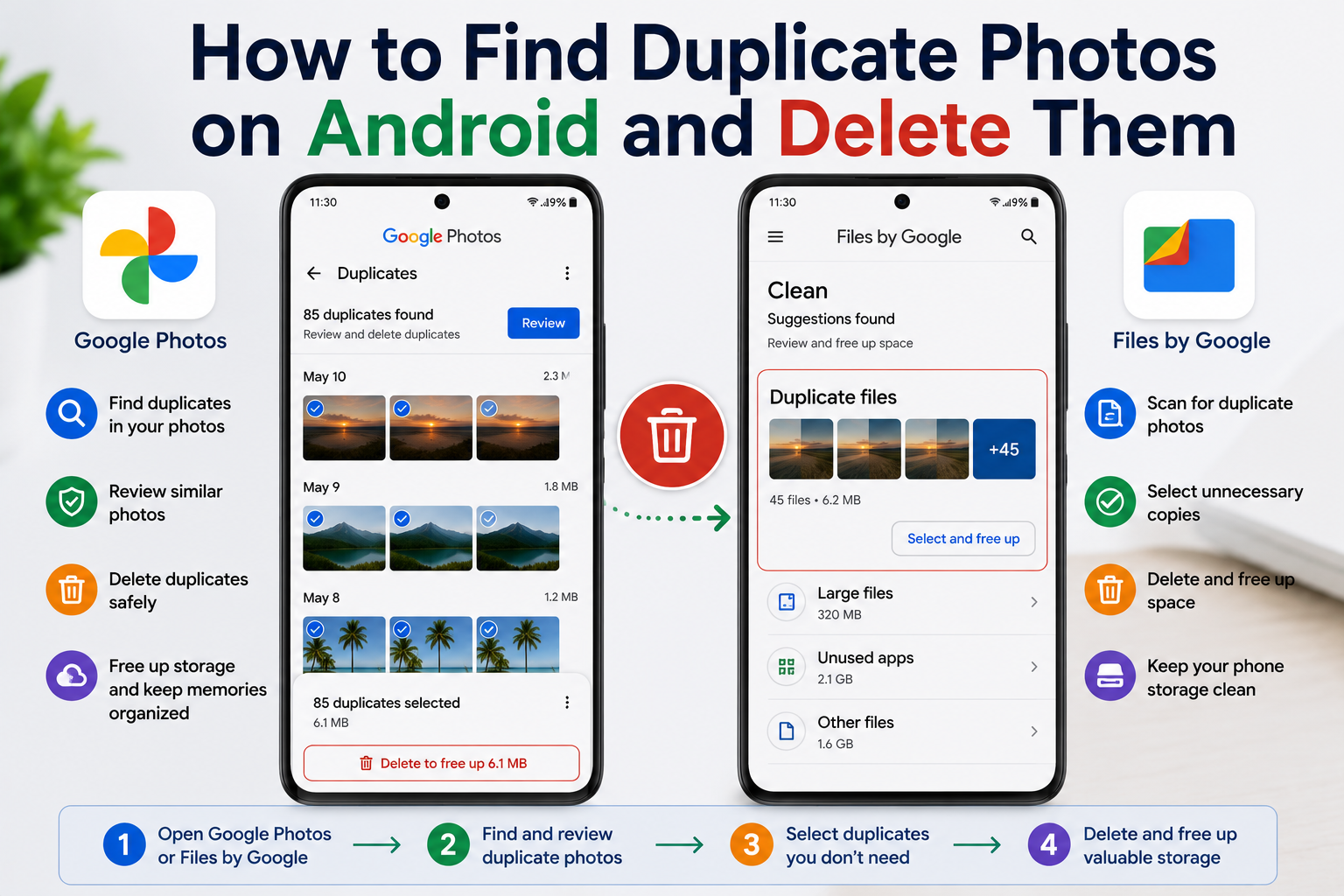
How to Find Duplicate Photos on Android and Delete Them is one of the easiest ways to free up storage space without deleting your favorite memories. Duplicate photos often accumulate after restoring backups, downloading the same images multiple times, using messaging apps, or syncing with cloud services.
In this guide, you’ll learn how to find duplicate photos on Android and delete them using built-in tools and trusted apps, while keeping your important photos safe.
Important: Before deleting duplicate photos, back up your important images to Google Photos or another trusted cloud storage service.
Table of Contents
- Why Duplicate Photos Appear on Android
- How to Find Duplicate Photos on Android and Delete Them
- Best Ways to Prevent Duplicate Photos
- Common Mistakes to Avoid
- Frequently Asked Questions
- Final Thoughts
Why Duplicate Photos Appear on Android
Duplicate photos can appear for several reasons, including:
- Restoring a phone backup
- Downloading the same image multiple times
- Saving photos from WhatsApp or Telegram repeatedly
- Syncing photos from multiple cloud accounts
- Using photo editing apps that create copies
- Transferring files from another device
Removing duplicates helps keep your gallery organized and frees valuable storage.
How to Find Duplicate Photos on Android and Delete Them
Step 1: Open Google Photos
Launch the Google Photos app on your Android device.
If you’re signed in with your Google Account, your photos and videos will automatically appear.
Step 2: Review Recently Added Photos
Tap the Photos tab.
Scroll through your recent uploads to identify obvious duplicate images.
Look for:
- Same photo saved multiple times
- Edited copies
- Screenshots of the same content
Step 3: Check Device Folders
Open:
Google Photos → Collections → On this Device
Browse folders such as:
- Camera
- Screenshots
- Downloads
- WhatsApp Images
- Telegram Images
Duplicate images often appear across multiple folders.
Step 4: Use Your Phone’s Built-in Storage Cleaner
Many Android phones include a storage management tool.
Go to:
Settings → Storage
or
Settings → Battery and Device Care → Storage (Samsung)
Some devices automatically detect:
- Duplicate photos
- Large files
- Blurry images
- Unused files
Delete only the photos you no longer need.
Step 5: Use Files by Google
Install Files by Google if it isn’t already on your phone.
Open the app and tap:
Clean
Depending on your device and available suggestions, you may see recommendations for unnecessary or duplicate files that can help free up storage.
Review all suggestions carefully before deleting anything.
Step 6: Delete Duplicate Photos
Select the duplicate images.
Tap:
Delete
Then empty the Trash only after confirming you no longer need those photos.
Remember that photos deleted from Google Photos usually remain in the Trash for a limited time before permanent deletion.
Step 7: Review Google Photos Trash
Open:
Google Photos → Collections → Trash
If you accidentally deleted an important photo, you can restore it before it’s permanently removed.
Best Ways to Prevent Duplicate Photos
Enable Google Photos Backup
Use one Google Account for photo backups.
Avoid Downloading the Same Image Multiple Times
Before saving an image, check whether it’s already in your gallery.
Organize Photos into Albums
Creating albums makes duplicate photos easier to spot.
Clean Your Gallery Regularly
Review your gallery every month to remove unnecessary copies.
Keep Only One Backup Method
Using multiple backup services simultaneously may create duplicate images.
Common Mistakes to Avoid
Avoid these mistakes:
- Deleting photos without checking them first.
- Emptying the Trash immediately.
- Backing up the same photos using multiple apps.
- Ignoring storage cleanup suggestions.
- Forgetting to back up important memories.
Read More:
- Deleted Photos Wapas Kaise Laye
- Google Par Apni Photo Kaise Search Kare
- How to Free Up Google Photos Storage (2026)
- How to Recover Permanently Deleted Photos on Android
Frequently Asked Questions
Why do duplicate photos appear on Android?
Duplicate photos usually result from multiple backups, repeated downloads, photo editing apps, or syncing across different services.
Can Google Photos automatically remove duplicate photos?
Google Photos helps organize your photo library, but it doesn’t provide a dedicated “remove duplicate photos” feature. You’ll typically need to review and delete duplicates manually or use trusted cleanup tools provided by your device.
Is it safe to delete duplicate photos?
Yes, provided you verify that the images are true duplicates and you’ve backed up any important memories.
Will deleting photos from Google Photos remove them from my phone?
It depends on your backup and sync settings. Review the deletion prompt carefully before confirming, as synced photos may be removed from both your device and cloud library.
Final Thoughts
Knowing How to Find Duplicate Photos on Android and Delete Them can help you recover storage space, organize your gallery, and improve your phone’s performance. By reviewing your gallery regularly, using built-in storage tools, and keeping your backups organized, you can reduce clutter without losing important memories.
A few minutes of photo cleanup each month can keep your Android device running smoothly.