USB debugging is a useful Android feature that allows a phone to communicate with a computer using Android Debug Bridge (ADB). It is mainly used by developers, advanced users, and people who need to perform certain troubleshooting or device-management tasks.
However, if you don’t regularly use USB debugging, there is usually no reason to keep it enabled. Turning it off can reduce unnecessary debugging access and is a simple security habit, especially if you connect your phone to different computers.
In this guide, you’ll learn how to turn off USB debugging on Android, where to find the setting, how to disable Developer Options completely, and what you should check if USB debugging keeps appearing as enabled.
What Is USB Debugging on Android?
USB debugging is an Android developer feature that allows communication between an Android device and a computer through ADB.
With USB debugging enabled, development tools can communicate with the device when the appropriate connection and authorization are established. Android’s official documentation explains that USB debugging is enabled from the Developer options area and is used for communication between Android devices and development computers.
For normal users, USB debugging isn’t required for everyday activities such as:
- Charging your phone
- Transferring ordinary photos and files
- Using Bluetooth
- Browsing the internet
- Installing apps from Google Play
- Making calls
- Using social media
If you enabled USB debugging for a specific task and no longer need it, turning it off is a sensible option.
Why Should You Turn Off USB Debugging?
USB debugging isn’t inherently dangerous. It is a legitimate Android development feature.
The important point is that it provides additional communication capabilities between your phone and a computer. Android also uses an authorization mechanism when an ADB connection is established: on supported versions, the phone can ask you to accept an RSA key for a computer before debugging commands can be executed.
Keeping unnecessary developer features disabled can therefore help reduce unwanted configuration and make your phone’s security settings simpler.
You may want to turn off USB debugging if:
- You enabled it temporarily for troubleshooting.
- You used ADB commands and are finished.
- You connected your phone to a development computer.
- You don’t use Android developer features.
- You want to review your phone’s developer settings.
- You frequently connect your phone to different computers.
How to Turn Off USB Debugging on Android
The exact location can vary depending on your Android version and phone manufacturer.
On many recent Android devices, you can find it through:
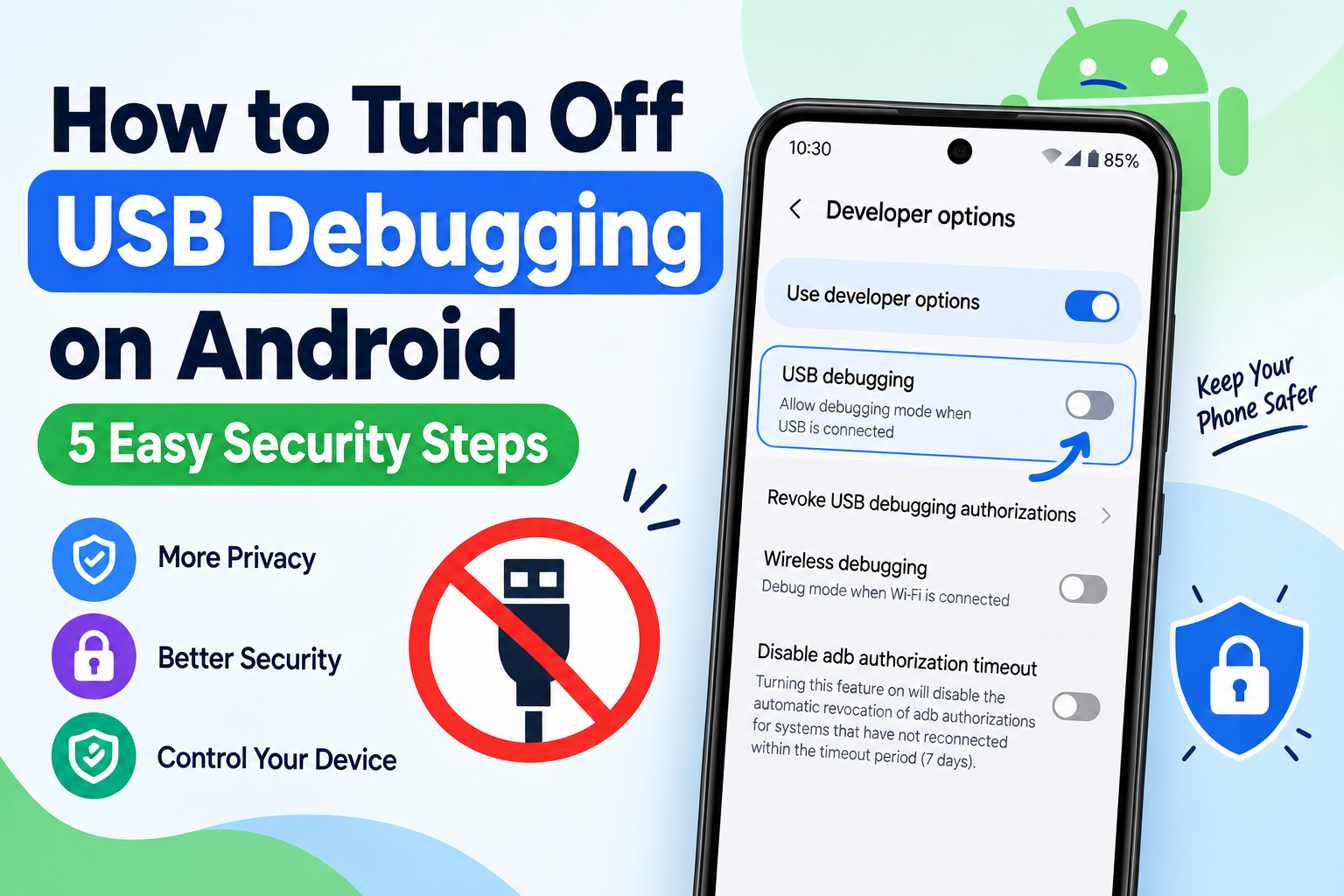
Settings → System → Developer options → USB debugging
Google’s Android developer documentation lists this location for Android 9 and later, although manufacturers can change the menu structure.
Step 1: Open Settings
Open the Settings app on your Android phone.
You can usually find it in your app drawer or by tapping the gear icon in the Quick Settings panel.
Step 2: Open Developer Options
Scroll through Settings and look for:
Developer options
On many devices, this is located under:
Settings → System → Developer options
However, Samsung and other manufacturers may place Developer Options somewhere else.
If you cannot find it, use the Settings search bar and type:
Developer options
Step 3: Find USB Debugging
Once you’ve opened Developer options, scroll down until you find USB debugging.
Depending on your Android version, it may appear under a section related to Debugging.
Google’s current developer documentation confirms that USB debugging is located within Developer options, although the exact menu path can vary by Android version and device.
Step 4: Turn Off USB Debugging
Tap the switch next to:
USB debugging
If the switch is currently enabled, Android may display a confirmation message.
Tap OK, Turn off, or the equivalent confirmation option shown on your phone.
USB debugging should now be disabled.
Step 5: Disconnect Your Phone
If your phone is connected to a computer, disconnect the USB cable after disabling USB debugging.
You can then reconnect it later if you need to charge the phone or transfer files.
Remember that normal USB file transfer and USB debugging are different features. You don’t need USB debugging simply to charge your phone.
How to Turn Off Developer Options Completely
If you don’t use any developer features, you can also turn off the main Developer options switch.
Open:
Settings → Developer options
At the top of the Developer options screen, look for the main switch.
Turn it Off.
Android’s documentation explains that the Developer options screen contains various system-development and debugging settings, and turning the main Developer options control off disables most of those options.
This can be useful if you enabled Developer Options only to activate USB debugging.
Should You Turn Off Developer Options?
You don’t have to.
If you regularly use other developer features, you can leave Developer Options enabled and simply turn off USB debugging.
If you don’t use any developer features, turning Developer Options off can keep things simpler.
Does Turning Off USB Debugging Delete Anything?
No.
Turning off USB debugging does not normally delete your:
- Photos
- Videos
- Apps
- Contacts
- Messages
- Documents
- Google Account
- Other personal files
It simply disables the debugging feature.
You can enable USB debugging again later if you need it for development or troubleshooting.
USB Debugging vs USB File Transfer
These two settings are often confused.
USB Debugging
USB debugging allows ADB-based communication between a computer and your Android device.
It is mainly intended for development, testing, troubleshooting, and advanced device management.
USB File Transfer
USB file transfer allows you to move files such as photos, videos, and documents between your phone and a computer.
You don’t need USB debugging just to transfer ordinary files.
Therefore, turning off USB debugging does not mean you can no longer connect your phone to your computer.
What Happens When USB Debugging Is Disabled?
When USB debugging is disabled, ADB-based debugging through USB won’t be available.
If you later try to use Android development tools that require USB debugging, you’ll need to enable it again.
For example, Android Studio’s device debugging workflow requires debugging to be enabled on a connected physical Android device.
For normal smartphone use, you probably won’t notice any difference.
Your phone can still:
- Charge through USB
- Transfer files
- Connect to accessories
- Use Bluetooth
- Connect to Wi-Fi
- Run apps normally
- Make calls
- Access mobile data
What If You Can’t Find USB Debugging?
Don’t worry if the option isn’t immediately visible.
USB debugging is inside Developer options, so first make sure Developer options is enabled.
If Developer options isn’t visible, Android may have it hidden.
How to Enable Developer Options
On many Android devices:
- Open Settings.
- Open About phone.
- Find Build number.
- Tap Build number seven times.
- Enter your PIN, password, or pattern if requested.
- Android should display a message indicating that Developer Options has been enabled.
- Return to Settings.
- Search for Developer options.
Google documents this general process and notes that the location of Build number can differ between manufacturers.
You only need to do this if Developer Options isn’t already available.
How to Turn Off USB Debugging on Samsung Phones
Samsung devices may use a slightly different Settings layout.
Try:
Settings → Developer options → USB debugging
If you cannot find Developer options, use the Settings search function.
On many Samsung devices, Developer Options can also be found through:
Settings → About phone → Software information → Build number
The exact layout can vary depending on the Galaxy model and software version.
How to Turn Off USB Debugging on OnePlus Phones
On OnePlus devices, Developer Options may be located under the system-related settings.
Try searching:
Developer options
from the Settings search bar.
Then open Developer options and turn off:
USB debugging
Using Settings search is often faster than looking through multiple menus because manufacturers can rearrange their settings.
What About Wireless Debugging?
USB debugging isn’t the only Android debugging feature.
Recent Android versions also support Wireless debugging, which allows development tools to communicate with compatible devices over Wi-Fi after the device and computer have been paired. Android’s official documentation says wireless debugging is supported on Android 11 and later for compatible devices.
If you previously used wireless debugging, it’s worth checking that setting too.
Go to:
Settings → Developer options → Wireless debugging
If you don’t use it, you can turn it off.
This is especially useful if you previously paired your phone with a development computer.
How to Revoke Previous Debugging Authorizations
If you’ve connected your Android phone to several computers using ADB, you can also look for an option such as:
Revoke USB debugging authorizations
The exact wording varies by Android version.
This can be useful if you want to clear previously authorized computers.
Android’s documentation also describes revoking ADB debugging authorizations as a way to unpair previously authorized workstations.
If you don’t recognize a computer that has been authorized for debugging, reviewing and revoking authorizations is a good precaution.
Is USB Debugging Dangerous?
USB debugging itself isn’t malware and isn’t automatically dangerous.
It is a legitimate Android development tool.
The security concern is more about unnecessary debugging access and whether you knowingly authorize a computer to communicate with your phone.
Android uses an RSA authorization prompt on supported versions to help protect the device from unauthorized ADB connections.
The safest approach for ordinary users is simple:
If you don’t need USB debugging, keep it turned off.
Common USB Debugging Mistakes to Avoid
Don’t Leave It Enabled Without a Reason
If you enabled it temporarily, turn it off when you’re finished.
Don’t Approve Unknown Computers
If Android asks you to authorize a computer for debugging and you don’t recognize it, don’t approve the request.
Don’t Confuse Charging With Debugging
Your phone can charge through USB even when USB debugging is disabled.
Don’t Disable Developer Options If You Need It
If you use other developer settings, you can simply disable USB debugging instead.
Don’t Follow Random ADB Commands
If you’re using ADB for troubleshooting, only follow commands from trustworthy documentation or sources you understand.
Frequently Asked Questions
How do I turn off USB debugging on Android?
Open Settings → Developer options → USB debugging and switch it off. The exact menu location can vary by device.
Should USB debugging be on or off?
If you don’t need ADB or Android development features, keeping USB debugging off is a simple security-minded choice.
Does turning off USB debugging affect charging?
No. Your phone can still charge normally through a USB cable.
Does USB debugging delete data?
No. Turning off USB debugging does not normally delete your personal data.
Can I turn USB debugging back on?
Yes. You can return to Developer options and enable it again whenever you need it.
Is USB debugging required for file transfer?
No. Normal USB file transfer does not require USB debugging.
What if I cannot find Developer Options?
Search for Developer options in Settings. If it isn’t available, you may need to enable Developer Options by tapping Build number seven times under the appropriate About phone menu.
Final Thoughts
Learning how to turn off USB debugging on Android is useful if you previously enabled the feature for development, troubleshooting, or ADB commands.
For most everyday users, USB debugging isn’t necessary. Once you’ve finished the task that required it, you can return to Developer options and switch it off.
You can also check Wireless debugging and revoke old debugging authorizations if you’ve previously connected your phone to development computers.
Keeping unused debugging features disabled is a small step, but it can help you maintain better control over how your Android phone communicates with other devices.