Getting constant notifications from websites can quickly become annoying. You may receive alerts about breaking news, shopping deals, new articles, or other updates that you don’t actually need.
The good thing is that you don’t have to keep ignoring these notifications. Android and popular browsers such as Chrome allow you to control which websites can send notifications to your phone.
In this guide, you’ll learn how to stop websites from sending notifications on Android, remove unwanted website alerts, and prevent websites from asking for notification permission in the future.
Why Do Websites Send Notifications on Android?
Many websites use browser notifications to keep visitors updated even when the website isn’t open.
For example, a website may send notifications about:
- New articles
- Breaking news
- Product discounts
- Sports updates
- New videos
- Blog posts
- Special offers
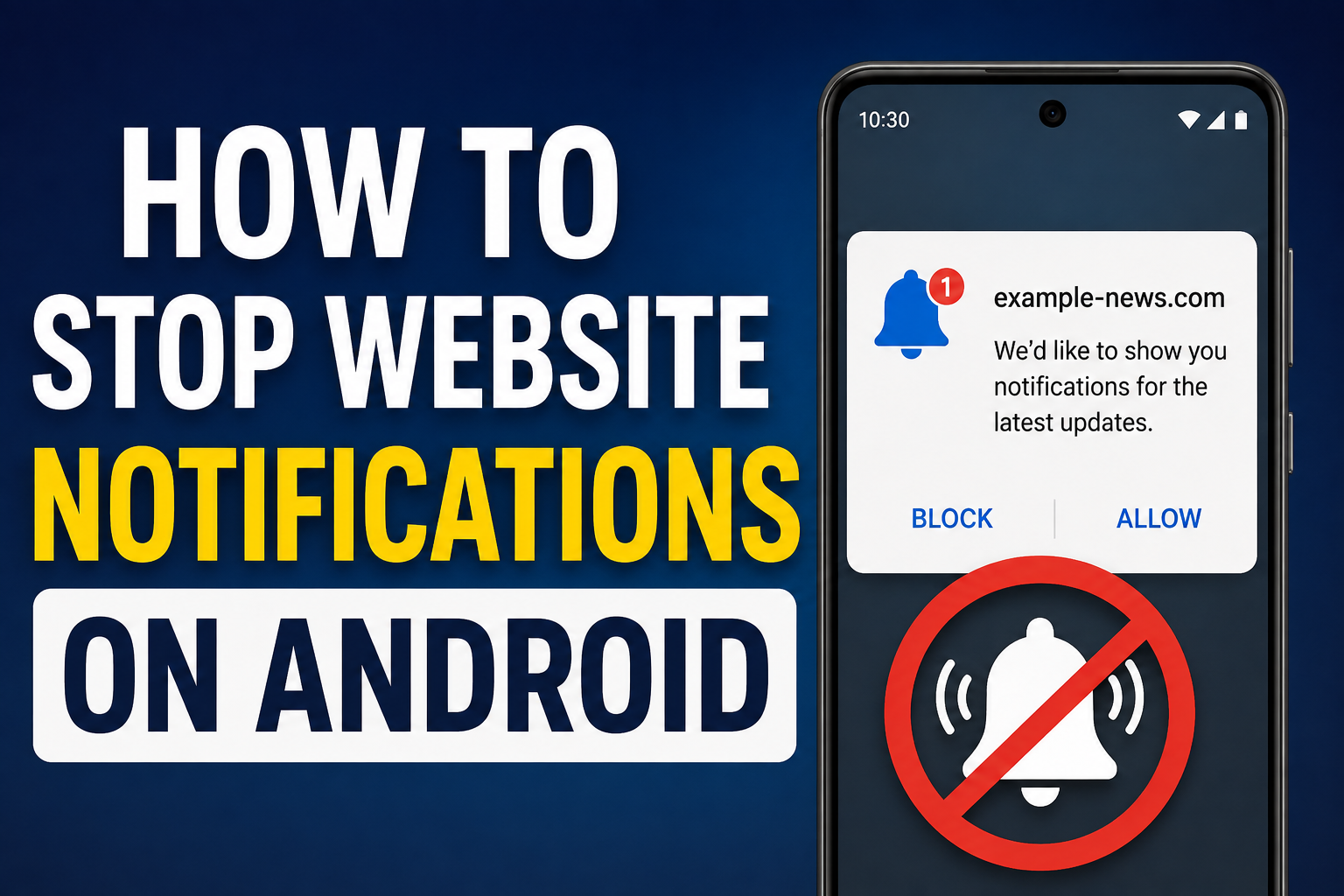
When you visit some websites, your browser may display a message asking whether you want to allow notifications.
If you tap Allow, that website may later send notifications directly to your phone.
This can become a problem when you have allowed notifications from several websites over time.
How to Stop Website Notifications on Android
The easiest way to manage website notifications is through your browser.
Open Google Chrome
Open Google Chrome on your Android smartphone.
Tap the three-dot menu in the top-right corner.
Open Chrome Settings
Tap Settings from the menu.
Look for the section related to Site settings or Notifications, depending on your Chrome version.
Open Notifications
Tap Notifications.
You should see options related to notifications from websites and Chrome.
If website notifications are enabled, you can manage which sites are allowed to send them.
Block Unwanted Websites
Find the website that you no longer want to receive notifications from.
Change its notification permission to Block or turn off its permission.
Once blocked, that website should no longer be able to send browser notifications through Chrome.
How to Block Notifications From a Specific Website
There is another useful method if you know exactly which website is sending the unwanted alerts.
Open the Website
Launch Chrome and visit the website responsible for the notifications.
Open Site Information
Tap the site information icon next to the website address.
Depending on your Chrome version, you may see a settings or permissions option.
Manage Permissions
Look for Notifications under the site’s permissions.
Change the setting from Allow to Block.
This prevents that particular website from sending notifications through Chrome.
How to Stop Notification Permission Requests
If you don’t want websites repeatedly asking whether they can send notifications, Chrome also provides controls for website notification requests.
Open:
Chrome → Settings → Site settings → Notifications
From there, review the notification behavior available on your device.
Depending on your Android and Chrome version, you may be able to prevent websites from requesting notification permission.
This can be useful if you rarely use website notifications.
How to Turn Off Chrome Notifications Completely
If you don’t want Chrome itself to show notifications, you can control Chrome’s notification permission through Android.
Open:
Settings → Apps → Chrome → Notifications
You can then manage which Chrome notifications are allowed.
Be careful when turning everything off because Chrome can use notifications for more than just websites.
Some useful browser notifications may also be affected.
How to Remove Notifications From a Website You Previously Allowed
If you previously allowed a website but have changed your mind, you don’t necessarily need to uninstall Chrome.
Instead, locate the website in Chrome’s notification or site-permission settings.
Find the website and change its permission.
This is a better option than disabling all browser notifications because you can continue receiving alerts from websites you actually want to follow.
What If You Can’t Find the Website?
Sometimes you may receive a notification but not immediately remember which website sent it.
When this happens, check the notification carefully.
The notification may show the website name or Chrome as the source.
You can also check Chrome’s website permissions and review the websites that currently have notification access.
Remove permissions from websites you don’t recognize or no longer trust.
How to Stop Spam Website Notifications
Not every unwanted notification is necessarily dangerous, but some websites may use aggressive notifications to promote misleading offers, fake warnings, or suspicious links.
If you receive notifications containing messages such as:
- “Your phone has a virus”
- “You have won a prize”
- “Claim your reward now”
- “Your device is infected”
- “Click immediately”
don’t tap the notification just because it looks urgent.
Instead, block the website that generated it.
If you accidentally opened a suspicious page, close it and review your browser’s site permissions.
Don’t Install an App Just to Stop Website Notifications
You don’t normally need a separate app to manage browser website notifications.
Android and Chrome already provide notification and permission controls.
Installing an unknown “notification blocker” or “phone cleaner” app can introduce unnecessary permissions and privacy concerns.
Whenever possible, use the built-in Android and browser settings.
How to Prevent Unwanted Website Notifications in the Future
The easiest way to avoid notification clutter is to be selective when websites request permission.
When a website asks:
“Allow notifications?”
think about whether you actually need updates from that website.
If you don’t need them, choose Block or Don’t allow.
You can always change the permission later if you decide that you want notifications.
Should You Turn Off All Website Notifications?
It depends on how you use your phone.
If you like receiving updates from selected websites, there’s no need to disable everything.
Instead, allow notifications only from websites you trust and regularly use.
If you never use browser notifications, turning them off can make your notification panel much cleaner.
Benefits of Blocking Unwanted Website Notifications
Removing unnecessary website notifications can make your phone easier to manage.
Less Notification Clutter
Your important messages won’t be buried under promotional alerts.
Fewer Distractions
Constant notifications can interrupt work, study, or other activities.
Better Control Over Permissions
You can decide which websites are allowed to interact with your phone.
Reduced Exposure to Suspicious Alerts
Blocking unfamiliar websites can reduce the chance of accidentally interacting with misleading notification messages.
Frequently Asked Questions
How do I stop websites from sending notifications on Android?
Open your browser’s settings and find the website notification or site-permission section. From there, block websites that you no longer want to receive notifications from.
Can I block notifications from only one website?
Yes. You can usually manage notification permission for individual websites instead of disabling browser notifications completely.
Why am I getting random website notifications?
You may have previously allowed a website to send notifications through your browser. Check your browser’s site notification permissions and remove access from websites you don’t recognize.
Are website notifications dangerous?
Website notifications aren’t automatically dangerous, but suspicious notifications can contain misleading messages or links. Avoid interacting with alerts from websites you don’t recognize.
Do I need a notification-blocking app?
Usually, no. Android and modern browsers provide built-in controls for managing website notifications.
Can I enable website notifications again later?
Yes. If you change your mind, you can usually return to the website’s notification permission and allow notifications again.
Read More:
- How to Find Large Files Taking Up Storage on Android
- How to Enable Private DNS on Android
- How to Check Battery Usage on Android
- Phone Hack Hua Hai Ya Nahi Kaise Check Kare?
- Driving Licence Download Kaise Kare
Final Thoughts
Knowing how to stop websites from sending notifications on Android can help you reduce distractions and keep your notification panel organized.
Instead of disabling every notification on your phone, start by identifying which websites are sending unwanted alerts. Then open your browser’s settings and block notification access for those websites.
It’s also a good idea to avoid allowing notifications from websites unless you genuinely want their updates. For suspicious alerts, don’t click the message blindly. Review the website’s permission and remove its notification access.
With a few simple changes, you can take better control of website notifications without installing additional apps.