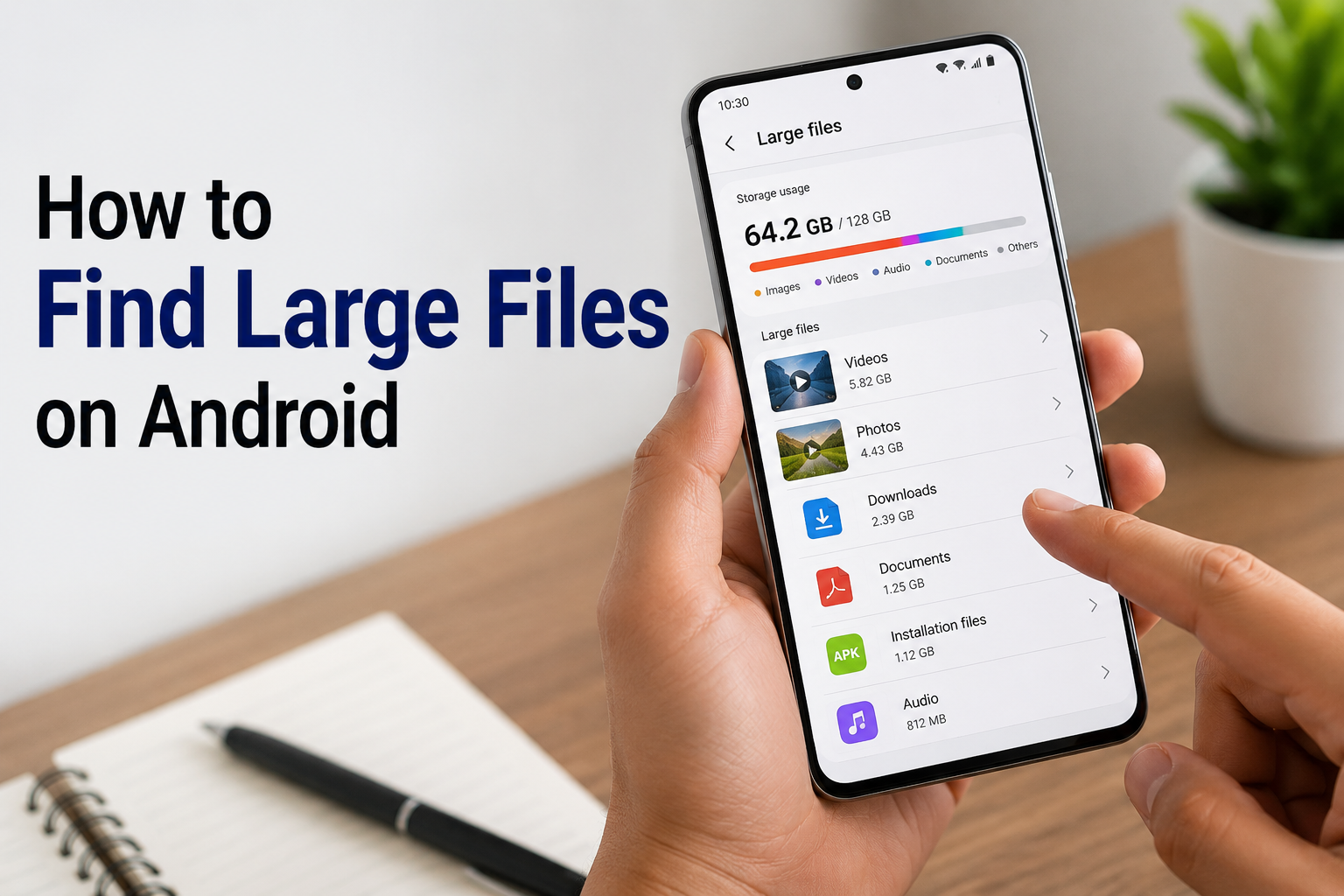
If your Android phone keeps showing low storage warnings, large files may be taking up more space than you realize. Videos, downloaded files, screenshots, documents, and unused app files can quickly fill your phone’s storage.
The good news is that you don’t need to delete files randomly. Android provides several ways to identify what’s consuming your storage so you can remove unnecessary files safely.
In this guide, you’ll learn how to find large files on Android, check which files are using the most storage, and free up space without accidentally deleting important data.
Why Does Android Storage Fill Up?
Your phone’s storage can become full for several reasons. Large videos and photos are often the biggest contributors, but downloaded files and app data can also occupy significant space.
Common storage-consuming items include:
- Large videos
- Downloaded movies and music
- Screenshots and screen recordings
- WhatsApp and other messaging media
- PDF and document files
- Duplicate photos and videos
- Offline content
- Large app files
- Files stored in the Downloads folder
Finding these files first makes it easier to decide what can safely be removed.
How to Check Storage Usage on Android
Open Settings
Open the Settings app on your Android phone.
Depending on your device manufacturer, the storage option may appear directly in Settings or under Device Care, Battery and Device Care, or a similar menu.
Open Storage
Tap Storage.
You’ll usually see a breakdown showing how much space is being used by categories such as apps, images, videos, audio, documents, and system files.
This gives you a quick overview of what’s occupying your phone’s storage.
How to Find Large Files on Android
Open Files by Google
If your phone has Files by Google, open the app.
If it isn’t installed, you can download it from Google Play.
Go to the Clean Section
Open the Clean section in Files by Google.
The app can provide suggestions for freeing up storage, depending on the files and content found on your device.
Look for Large Files
Files by Google can highlight large files that may be taking up unnecessary storage.
Review each file before deleting it. A large file isn’t necessarily useless, so avoid removing something simply because it has a large size.
Check Your Downloads Folder
The Downloads folder is another place where large files often accumulate.
Open your file manager and select Downloads.
Look for files such as:
- Old ZIP files
- Installation packages
- Large PDFs
- Videos
- Documents
- Images
- Files downloaded for one-time use
Delete files you no longer need.
Check Large Videos
Videos can consume more storage than almost any other type of personal file.
Open your gallery or photo management app and review your videos.
Pay particular attention to:
- Screen recordings
- Long videos
- Downloaded videos
- Duplicate videos
- Videos received through messaging apps
Back up important videos before deleting them.
Check Messaging App Media
Messaging apps can quietly use a large amount of storage because photos, videos, GIFs, and documents may be saved on your phone.
Open the storage management section of your messaging application and review large media files.
Before deleting anything, check whether the files are important or need to be saved elsewhere.
Remove Unnecessary Files Safely
Once you’ve identified large files, don’t delete everything immediately.
Follow these steps:
- Open the file.
- Check what it contains.
- Confirm that you no longer need it.
- Back it up if necessary.
- Delete it.
- Empty the relevant trash or recycle folder if required.
This approach reduces the chance of accidentally losing something important.
Don’t Delete System Files Randomly
Some files may look unfamiliar but can be necessary for Android or your applications to work correctly.
Avoid manually deleting files from system-related folders unless you know exactly what they are.
If you’re unsure about a file, leave it alone and research its purpose before removing it.
How to Free Up More Android Storage
Finding large files is only one part of managing storage.
Uninstall Apps You Don’t Use
Open your installed apps and remove applications you haven’t used for a long time.
Unused apps can occupy storage and may continue creating cache and other data.
Clear Unnecessary Cache
Some apps accumulate temporary cached data over time.
You can check an app’s storage information through:
Settings → Apps → Select App → Storage
Be careful when choosing Clear Storage or Clear Data, because this can remove locally stored app information. Clearing cache is different and generally removes temporary files.
Remove Duplicate Files
Duplicate photos, videos, and documents can waste storage without providing any additional value.
Use your phone’s built-in tools or a trusted file-management application to identify duplicates before removing them.
Back Up Important Photos and Videos
If your phone contains valuable memories, consider backing them up before deleting local copies.
This gives you an additional copy and can help free up device storage.
How to Prevent Storage Problems in the Future
You don’t have to wait until your phone is completely full.
A few simple habits can help:
- Review your Downloads folder regularly.
- Delete unnecessary screen recordings.
- Remove unwanted videos.
- Uninstall unused apps.
- Clean duplicate files.
- Review messaging media.
- Back up important files.
- Check storage once every few weeks.
Keeping some free space available can also make everyday phone management easier.
What Should You Delete First?
If you’re running out of storage, start with files that are usually easy to identify:
- Unused downloaded files
- Duplicate photos and videos
- Old screen recordings
- Unnecessary large videos
- Old documents
- Unused apps
- Temporary files
Always review files before deleting them.
Frequently Asked Questions
How do I find large files on Android?
Open your phone’s Settings → Storage to see storage categories. You can also use a file manager such as Files by Google to review large files.
What takes up the most storage on an Android phone?
Large videos, photos, apps, downloads, and messaging media are common sources of high storage usage.
Can I delete large files from my Android phone?
Yes, but always check the file before deleting it. Important photos, documents, and videos should be backed up first.
Does deleting apps free up storage?
Yes. Uninstalling an unused app can remove the app and, depending on the device and application, associated local data.
Why is my Android storage full even after deleting files?
Deleted files may remain in a trash or recycle folder. Cached data, app data, system files, and other content can also continue using storage.
Final Thoughts
Knowing how to find large files on Android can make it much easier to manage your phone’s storage. Instead of deleting files randomly, start by checking your storage breakdown and identifying the largest categories.
Review large videos, Downloads, messaging media, unused apps, and duplicate files first. Always check important files before deleting them and keep backups of anything you don’t want to lose.
With a quick storage check every few weeks, you can keep your Android phone organized and avoid unexpected low storage warnings.