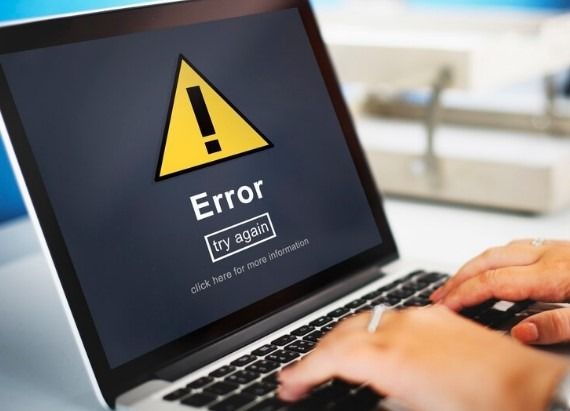
Google Drive makes it easy to store files in the cloud and access them from multiple devices. However, many users occasionally encounter sync issues where files stop updating, uploads remain pending, or changes fail to appear across devices.
When Google Drive stops syncing, it can affect productivity and cause confusion, especially when working with important documents.
Fortunately, most sync problems can be fixed with simple troubleshooting.
Why Does Google Drive Stop Syncing?
Common causes include:
- Internet connection issues
- Full Google storage
- Software bugs
- Account problems
- Outdated applications
- Device synchronization conflicts
Understanding the cause makes troubleshooting easier.
Check Your Internet Connection
Google Drive relies heavily on internet connectivity.
A weak or unstable connection may result in:
- Upload failures
- Incomplete synchronization
- Delayed updates
Testing your connection should be the first troubleshooting step.
Verify Google Storage Availability
If your Google account storage is full:
- New uploads may fail
- Syncing may stop
- Backup operations may pause
Storage limitations are a common cause of Drive issues.
Restart Google Drive
Restarting the application often resolves temporary glitches.
Benefits include:
- Refreshing synchronization services
- Reconnecting cloud servers
- Resolving temporary software bugs
Update the Google Drive Application
Outdated software may contain bugs affecting synchronization.
Updates often provide:
✔ Improved stability
✔ Better compatibility
✔ Bug fixes
Keeping applications updated helps prevent syncing problems.
Check Account Sign-In Status
If account authentication fails:
- Syncing may stop unexpectedly
- Files may remain pending
Verify that you’re signed into the correct Google account.
Pause and Resume Sync
Temporarily pausing and resuming synchronization can refresh the process.
This simple action often resolves stuck uploads.
Check File Restrictions
Some files may fail to sync due to:
- Unsupported names
- Special characters
- Excessive size
Reviewing file names and formats can help identify issues.
Disable Conflicting Software
Occasionally, security software or firewall settings interfere with cloud synchronization.
Testing temporarily can help determine whether conflicts exist.
Keep Google Drive Working Efficiently
Helpful practices include:
✔ Stable internet connections
✔ Regular updates
✔ Organized file management
✔ Monitoring storage usage
Solving Google Drive Sync Problems
Google Drive synchronization issues are usually caused by storage limitations, connectivity problems, or software glitches. By systematically checking each possible cause, most users can restore syncing quickly.
Keeping your account organized and monitoring storage regularly helps prevent future disruptions and ensures your files remain accessible across all devices.