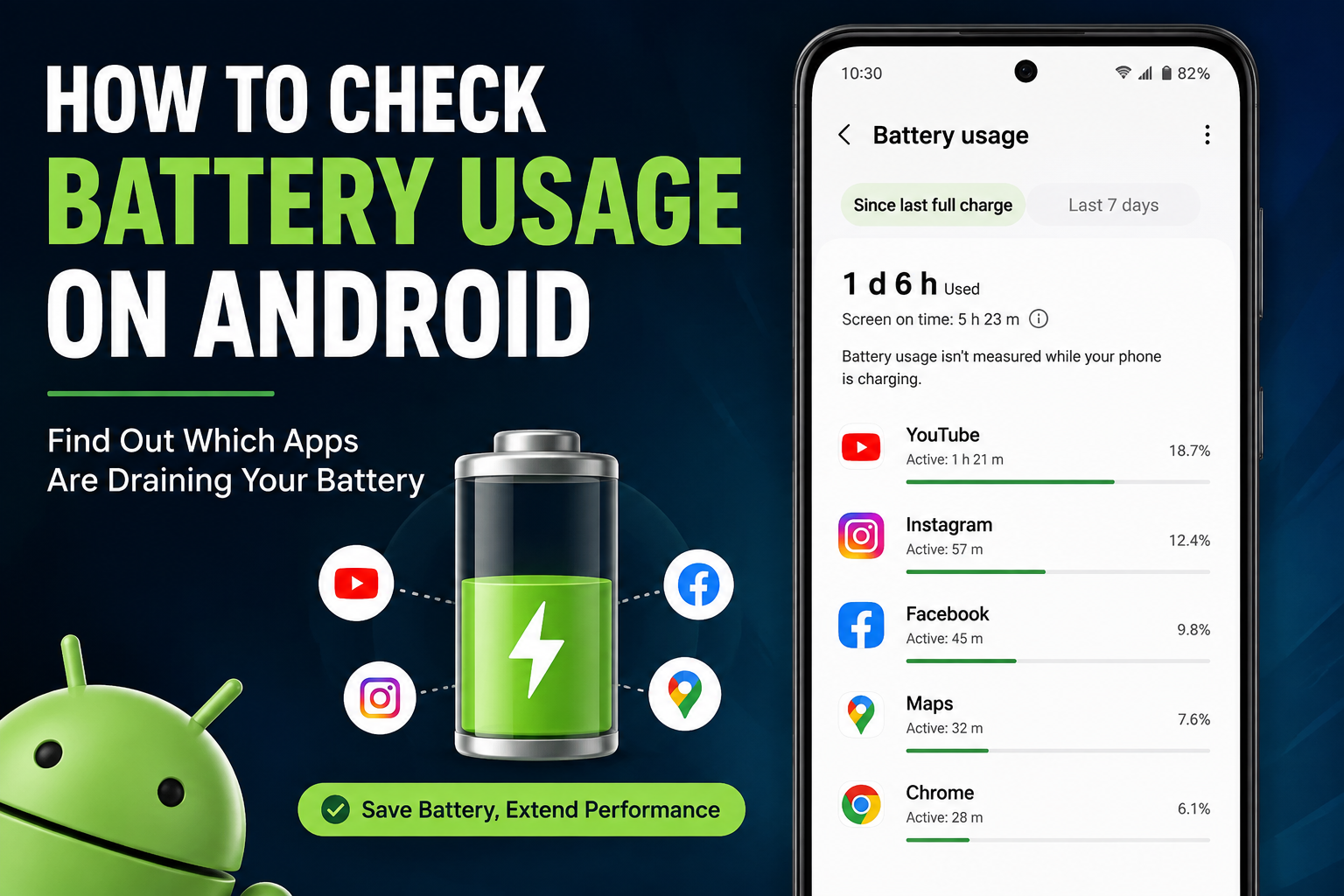
How to Check Battery Usage on Android
How to Check Battery Usage on Android is one of the easiest ways to find out why your phone’s battery is draining faster than usual. Android includes built-in battery tools that show which apps and features are consuming the most power.
Instead of uninstalling apps randomly or using third-party battery saver applications, you can first check your phone’s battery usage and identify the real cause of the problem.
In this guide, you’ll learn how to check battery usage on Android, identify apps that consume excessive power, and use simple settings to improve battery life.
Why Is Your Android Battery Draining So Fast?
Battery drain can happen for several reasons. Some apps continue working in the background, while others use location, mobile data, GPS, or the screen for long periods.
Common causes of battery drain include:
- Apps running in the background
- High screen brightness
- Location and GPS usage
- Video streaming
- Gaming
- Social media applications
- Poor mobile network signal
- Automatic syncing
- Outdated apps
- High refresh-rate displays
Checking battery usage can help you determine which of these factors is affecting your phone.
How to Check Battery Usage on Android in 7 Steps
1. Open the Settings App
Unlock your Android smartphone and open the Settings application.
The location of battery settings can vary slightly depending on your phone manufacturer.
2. Open Battery Settings
Scroll through Settings and tap Battery.
On some smartphones, you may see options such as Battery & Device Care or Battery and Performance instead.
3. Select Battery Usage
Look for an option such as:
Battery Usage
or
Battery Usage by App
Tap it to view a detailed breakdown of your phone’s battery consumption.
4. Find Apps Using the Most Battery
Android will display applications according to their battery consumption.
Look for apps that appear unusually high on the list, particularly applications that you don’t use very often.
For example, a game that uses a large amount of battery while you haven’t played it recently may deserve further investigation.
5. Check Background Battery Usage
Tap an individual application to see more information.
Depending on your Android version and device, you may see:
- Battery used in the foreground
- Background battery usage
- Screen time
- Active usage
- Background activity
If an app is consuming significant power while running in the background, you may be able to restrict its battery activity.
6. Restrict Unnecessary Battery Usage
Open the battery settings for the problematic app.
You may find options such as:
- Unrestricted
- Optimized
- Restricted
Selecting Optimized allows Android to manage battery usage automatically.
Choosing Restricted can reduce background activity, but it may delay notifications or affect some features.
7. Check Battery Usage Regularly
Don’t check battery usage only when your phone has a problem.
Reviewing it occasionally can help you spot apps that suddenly start consuming more power after an update or installation.
This is particularly useful if your phone’s battery performance changes unexpectedly.
Which Apps Usually Use the Most Battery?
Some apps naturally consume more battery because of the features they provide.
Games
Mobile games can use considerable processing and graphics power, especially when played for long periods.
Social Media Apps
Social media applications may use background synchronization, notifications, images, videos, and network connections.
Navigation Apps
Navigation applications use GPS and location services continuously, which can increase battery consumption.
Video Streaming Apps
Streaming videos keeps the screen active and requires continuous network activity, making these apps relatively power-intensive.
Camera Apps
Using the camera for extended periods can also consume more battery because of the display, processor, camera hardware, and storage activity.
High battery usage from these apps isn’t necessarily a problem. What matters is whether the amount of battery consumed is reasonable for how much you’re using the app.
How to Reduce Battery Drain on Android
After learning how to check battery usage on Android, you can take several steps to reduce unnecessary power consumption.
Reduce Screen Brightness
The display can consume a significant amount of battery. Lowering brightness or enabling adaptive brightness can help your phone last longer.
Use Battery Saver
Android includes a built-in Battery Saver mode that limits certain background activities and other power-consuming features.
You can usually find it under:
Settings → Battery → Battery Saver
Restrict Unused Apps
If an application doesn’t need to work in the background, consider setting its battery usage to Optimized or Restricted.
Avoid restricting essential apps such as messaging, alarms, or applications that need timely notifications.
Turn Off Unused Features
When you don’t need them, consider disabling:
- Bluetooth
- GPS
- Mobile hotspot
- NFC
- Location services
Update Your Apps
Open the Google Play Store and install available updates. App updates can include performance improvements and bug fixes.
Remove Apps You Don’t Use
If you have applications that you never use, uninstalling them can reduce unnecessary background activity and free storage space.
How to Find a Problematic App
Sometimes the battery usage list alone isn’t enough to identify the problem.
Pay attention if:
- An app uses a lot of battery despite minimal usage.
- Background activity is unusually high.
- Your phone becomes warm while the app isn’t being used.
- Battery drain started after installing an application.
- The app frequently crashes or freezes.
In these situations, updating, restricting, or uninstalling the application may help.
Don’t Force Stop Every App
A common mistake is force-stopping every application to save battery.
Android is already designed to manage background applications automatically. Constantly force-stopping apps can sometimes cause them to restart and use additional resources.
It’s better to identify the apps actually causing excessive battery usage and manage those individually.
Keep Your Android Phone Battery Healthy
Checking battery usage is only one part of maintaining good battery performance.
For better long-term results:
- Keep Android updated.
- Install apps from trusted sources.
- Avoid extreme temperatures.
- Don’t keep unnecessary apps installed.
- Use Battery Saver when necessary.
- Keep your phone’s storage from becoming completely full.
- Monitor unusual battery drain.
If your battery still drains extremely quickly after optimizing your apps, the battery itself may be aging or there may be another hardware or software issue.
Read More:
- Phone Hack Hua Hai Ya Nahi Kaise Check Kare?
- OPPO Reno Kya Hai? Kharidne Se Pehle Zarur Jaane
- How to Identify Fake QR Codes Before Scanning
Frequently Asked Questions
How do I check battery usage on Android?
Open Settings → Battery → Battery Usage. The exact menu name may vary depending on your Android phone.
Which app is draining my Android battery?
Check the battery usage list to see which applications have consumed the most power. Also check their background activity for a better understanding of their usage.
Does restricting background apps save battery?
Yes, restricting unnecessary background activity can reduce battery consumption. However, it may also delay notifications for some applications.
Should I use a third-party battery saver app?
Usually, Android’s built-in battery management tools are enough for basic battery optimization. Third-party battery saver apps aren’t necessary for most users.
Why does my battery drain even when I’m not using my phone?
Background applications, poor network signals, location services, syncing, notifications, and system processes can continue using power when the screen is off.
Final Thoughts
Learning How to Check Battery Usage on Android can help you understand exactly where your phone’s battery is going. Instead of guessing which application is responsible for battery drain, Android’s built-in tools allow you to check individual app usage and background activity.
By restricting unnecessary apps, reducing screen brightness, using Battery Saver, and keeping your device updated, you can improve battery performance and get more usage from your phone throughout the day.
For official Android battery and device guidance, you can also check Google’s Android Help Center