Passwords are one of the biggest targets for hackers. Weak passwords, phishing attacks, and data breaches can put your online accounts at risk. That’s why Google now supports passkeys, a more secure way to sign in without relying on traditional passwords. If you’re searching for How to Enable Passkeys in Google Account, this guide will show you exactly how to set them up.
In this article, you’ll learn how to enable passkeys in Google Account, how passkeys work, their benefits, and how to use them safely across your devices.
Important: Passkeys are tied to your trusted device and protected by your device’s screen lock (such as a PIN, fingerprint, or face recognition). They are designed to reduce the risk of phishing and password theft.
Table of Contents
- What Are Google Passkeys?
- Why Should You Use Passkeys?
- Requirements Before Enabling Passkeys
- How to Enable Passkeys in Google Account
- How to Use Passkeys to Sign In
- How to Remove a Passkey
- Tips to Keep Your Google Account Secure
- Frequently Asked Questions
- Final Thoughts
What Are Google Passkeys?
A passkey is a modern sign-in method that lets you access your Google Account without typing a password. Instead, your identity is verified using your device’s built-in authentication, such as:
- Fingerprint
- Face recognition
- Device PIN
- Screen lock
Passkeys are based on cryptographic technology and are more resistant to phishing than traditional passwords.
Why Should You Use Passkeys?
Using passkeys offers several advantages:
- No need to remember complex passwords.
- Faster sign-in process.
- Better protection against phishing attacks.
- Improved account security.
- Reduced risk of password leaks.
- Works across many supported devices and browsers.
For most users, passkeys provide both stronger security and greater convenience.
Requirements Before Enabling Passkeys
Before setting up a passkey, make sure you have:
- A Google Account
- A supported smartphone, tablet, or computer
- A screen lock (PIN, fingerprint, or face recognition) enabled on your device
- An updated browser or operating system
If your device doesn’t support passkeys, you may need to update it or use another compatible device.
How to Enable Passkeys in Google Account
Step 1: Open Your Google Account
Sign in to your Google Account using a trusted browser.
Step 2: Go to Security Settings
From your account page, open the Security section.
Scroll until you find options related to passkeys.
Step 3: Open the Passkeys Page
Select the Passkeys option.
Google may ask you to verify your identity before continuing.
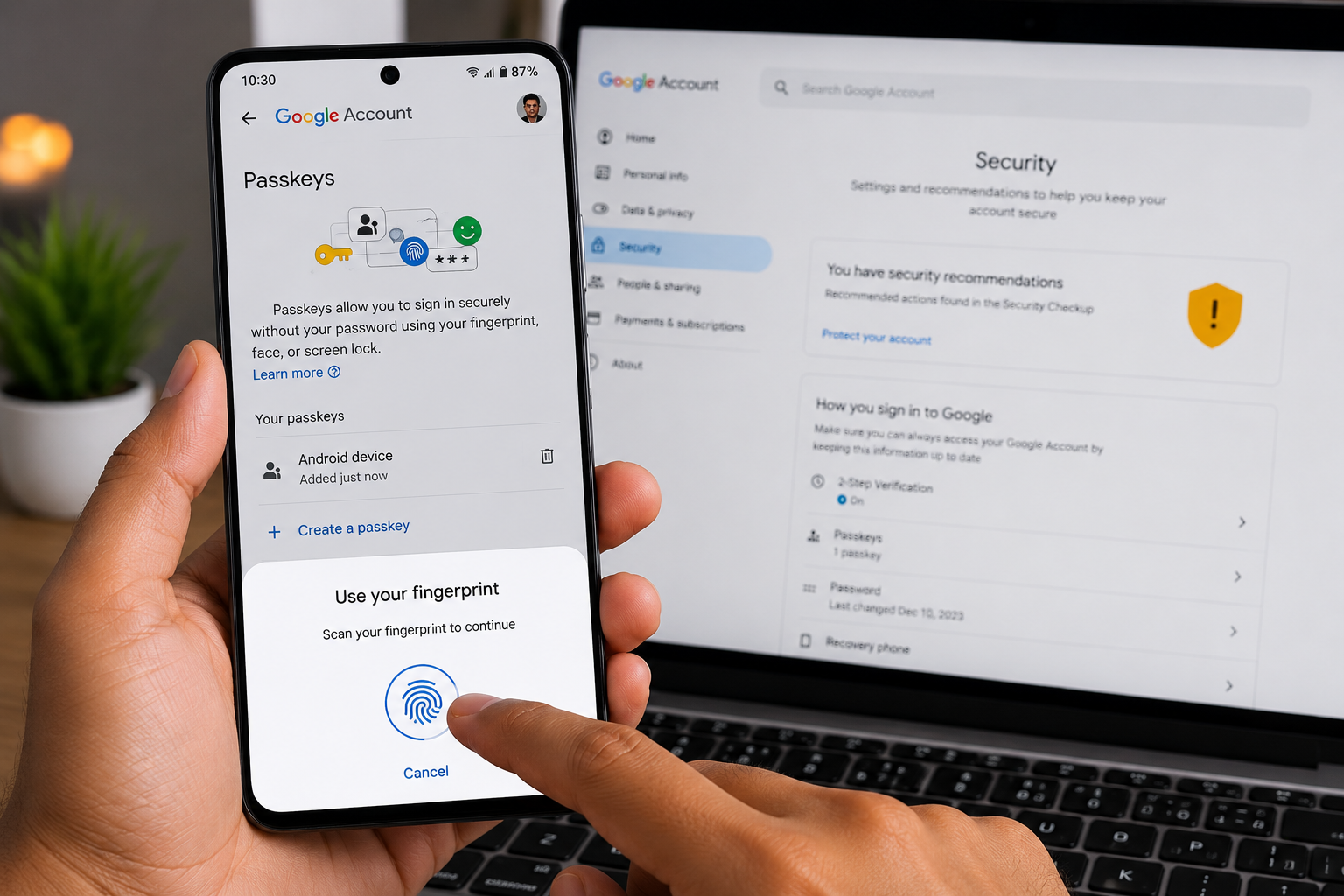
Step 4: Create a New Passkey
Choose Create a Passkey.
Google will guide you through the setup process.
Step 5: Verify Your Identity
Authenticate using your device’s available method, such as:
- Fingerprint
- Face unlock
- Device PIN
This confirms that you’re the owner of the device.
Step 6: Save the Passkey
Once verification is complete, your passkey will be securely stored on your device or your supported password manager, depending on your setup.
You can now use it to sign in without entering your password on compatible devices.
Step 7: Test Your Passkey
Sign out of your Google Account and try signing back in.
If prompted, authenticate using your fingerprint, face recognition, or screen lock instead of typing your password.
How to Use Passkeys to Sign In
When signing in to Google on a supported device:
- Enter your email address if requested.
- Select the passkey sign-in option (when available).
- Verify using your fingerprint, face unlock, or PIN.
- Access your account securely.
The exact experience may vary depending on your browser and device.
How to Remove a Passkey
If you no longer use a device:
- Open your Google Account.
- Go to Security.
- Open Passkeys.
- Select the passkey associated with the old device.
- Remove it.
This helps prevent access from devices you no longer own.
Tips to Keep Your Google Account Secure
Even with passkeys, follow these best practices:
- Keep your recovery email and phone number updated.
- Enable Two-Step Verification where appropriate.
- Remove old devices from your account.
- Use a secure screen lock.
- Keep your operating system updated.
- Avoid signing in on public devices.
- Review your account’s recent security activity regularly.
Passkeys vs Passwords
| Feature | Passkeys | Passwords |
|---|---|---|
| Requires memorization | No | Yes |
| Resistant to phishing | Yes | No |
| Uses fingerprint or face unlock | Yes | No |
| Can be stolen in a data breach | Significantly reduced risk | Yes |
| Easy to use | Yes | Depends on password strength |
Read More :
- How to Remove Devices from Google Account: 7 Easy Steps
- How to Delete Google Search History Permanently: 9 Proven Steps
- Google Par Apni Photo Kaise Search
- Google Maps Par Apna Ghar Kaise Add Kare
Frequently Asked Questions
Are passkeys safer than passwords?
Passkeys are generally considered more resistant to phishing and password theft because they rely on cryptographic authentication rather than shared secrets.
Can I still use my password?
Yes. Google may continue to support passwords in certain situations, although passkeys are intended to provide a more secure sign-in option.
What happens if I lose my phone?
You can usually regain access through Google’s account recovery process or another trusted device, depending on your account settings.
Can I use passkeys on multiple devices?
Yes. Many supported platforms allow passkeys to sync securely across your devices, depending on your operating system and password manager.
Final Thoughts
Knowing How to Enable Passkeys in Google Account is an excellent step toward improving your online security. Passkeys offer a faster and more secure alternative to traditional passwords by using your device’s built-in authentication methods.
By enabling passkeys, keeping your devices secure, and regularly reviewing your account settings, you can reduce the risk of phishing attacks and unauthorized access while enjoying a simpler sign-in experience.