
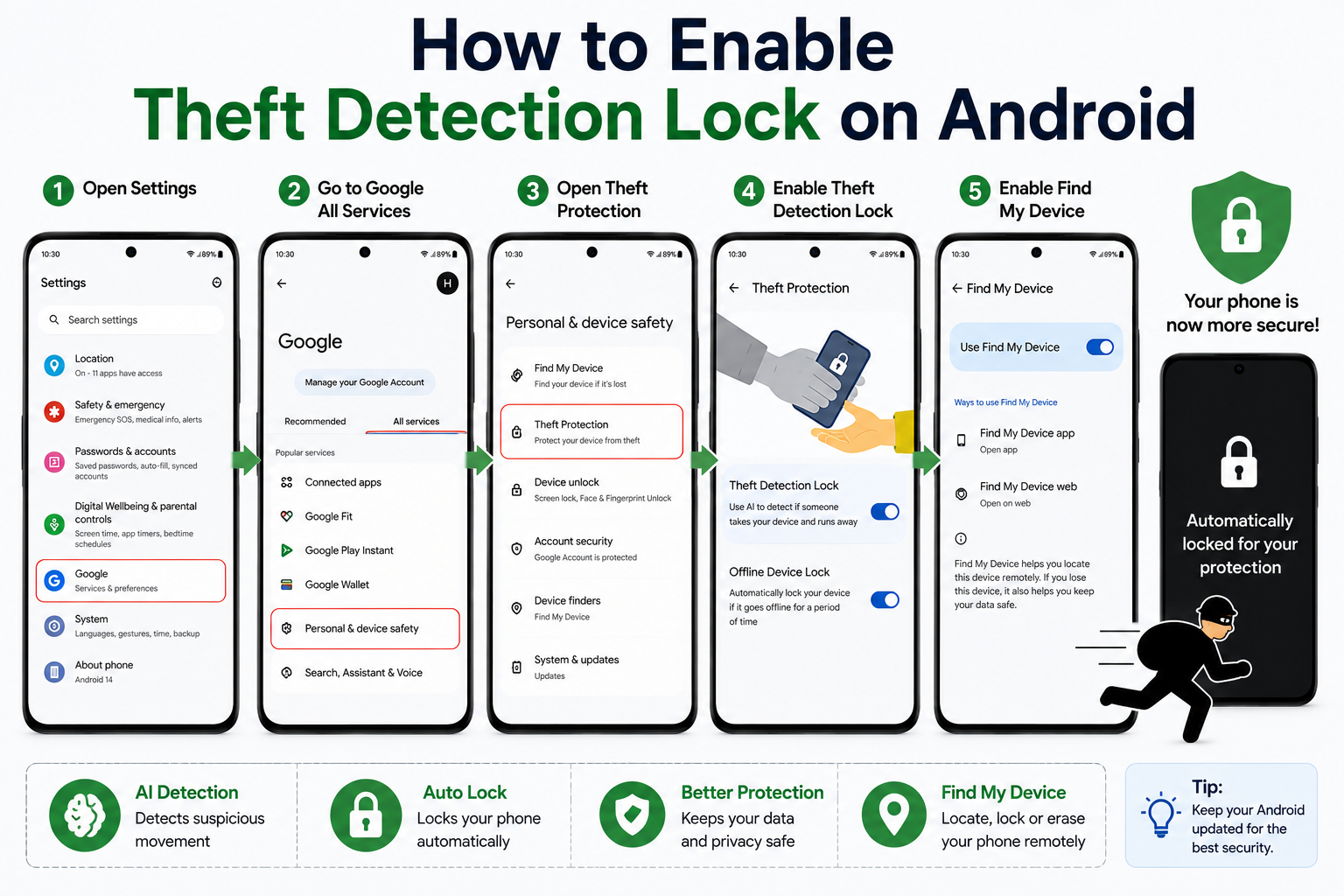
How to Enable Theft Detection Lock on Android
is one of the most important security tips for Android users in 2026. Google’s Theft Detection Lock uses artificial intelligence (AI) and your phone’s sensors to detect if someone suddenly grabs your device and runs away. When suspicious movement is detected, your Android phone can automatically lock its screen to help protect your personal data.
In this guide, you’ll learn how to enable Theft Detection Lock on Android, how it works, and how to use other Android anti-theft features to keep your device secure.
Important: Theft Detection Lock is available only on supported Android devices running compatible Android versions. Availability may vary by device manufacturer, region, and software update.
Table of Contents
- What Is Theft Detection Lock?
- How Theft Detection Lock Works
- How to Enable Theft Detection Lock on Android
- Other Android Anti-Theft Features
- Tips to Keep Your Phone Safe
- Frequently Asked Questions
- Final Thoughts
What Is Theft Detection Lock?
Theft Detection Lock is a security feature introduced by Google to help protect Android users from phone theft.
Using AI and motion sensors, Android can detect suspicious movements, such as someone snatching your phone and running away. If this happens, your device may automatically lock the screen to prevent unauthorized access.
This helps keep your:
- Photos
- Messages
- Banking apps
- Emails
- Personal documents
- Social media accounts
more secure.
How Theft Detection Lock Works
The feature uses:
- Artificial Intelligence (AI)
- Motion sensors
- Accelerometer
- Device activity detection
If Android detects movement that resembles a phone theft, it automatically locks the device, making it harder for someone else to access your information.
How to Enable Theft Detection Lock on Android
Step 1: Open Settings
Unlock your Android phone.
Open:
Settings
Step 2: Go to Google Settings
Tap:
Then select:
All Services
or
Personal & Device Safety (depending on your device).
Step 3: Open Theft Protection
Find and tap:
Theft Protection
If your device supports the feature, you’ll see available anti-theft options.
Step 4: Enable Theft Detection Lock
Turn on:
Theft Detection Lock
Your phone will now use AI to detect possible theft attempts and automatically lock when appropriate.
Step 5: Enable Offline Device Lock
Also enable:
Offline Device Lock
This allows your phone to lock automatically if it stays offline for an extended period after suspicious activity.
Step 6: Enable Find My Device
Go to:
Settings → Google → Find My Device
Turn it on.
This helps you:
- Locate your phone
- Lock it remotely
- Erase data if necessary
Step 7: Test Your Security Settings
Review your enabled security features and make sure they remain active after system updates.
Other Android Anti-Theft Features
Screen Lock
Use a:
- PIN
- Password
- Pattern
- Fingerprint
- Face Unlock
to protect your phone.
Find My Device
Google’s Find My Device lets you:
- Locate your phone
- Play a sound
- Lock the device
- Erase personal data remotely
Two-Factor Authentication
Enable two-factor authentication for your Google Account and important apps.
Automatic Security Updates
Keep Android updated to receive the latest security improvements.
Tips to Keep Your Phone Safe
Follow these best practices:
- Enable Theft Detection Lock.
- Keep Find My Device turned on.
- Use a strong screen lock.
- Avoid leaving your phone unattended.
- Install apps only from trusted sources.
- Enable Google Play Protect.
- Keep Android updated.
- Back up your important data regularly.
Common Mistakes to Avoid
Avoid these common mistakes:
- Leaving your phone unlocked.
- Disabling Find My Device.
- Ignoring Android security updates.
- Using weak PINs or passwords.
- Turning off location services if you rely on device-finding features.
Read More:
- OPPO Reno Kya Hai? Kharidne Se Pehle Zarur Jaane
- Spam Calls Band Kaise Kare
- Phone Reset Kaise Kare
- How to Check Camera & Microphone Access on Android (2026)
- How to Find Hidden Bluetooth Trackers Near You
Frequently Asked Questions
What is Theft Detection Lock?
It’s an Android security feature that can automatically lock your phone when it detects movement consistent with a theft attempt.
Does every Android phone support Theft Detection Lock?
No. The feature is available only on compatible devices running supported Android versions, and rollout may vary by manufacturer and region.
Does Theft Detection Lock replace Find My Device?
No. Theft Detection Lock and Find My Device serve different purposes and work best when both are enabled.
Can I disable Theft Detection Lock later?
Yes. If your device supports the feature, you can turn it off from the same settings menu where it was enabled.
Final Thoughts
Knowing How to Enable Theft Detection Lock on Android is an excellent way to improve your phone’s security. Combined with Find My Device, a strong screen lock, and regular security updates, Theft Detection Lock can help protect your personal information if your phone is stolen.
Take a few minutes to review your Android security settings—you’ll be better prepared if your device is ever lost or stolen.

