
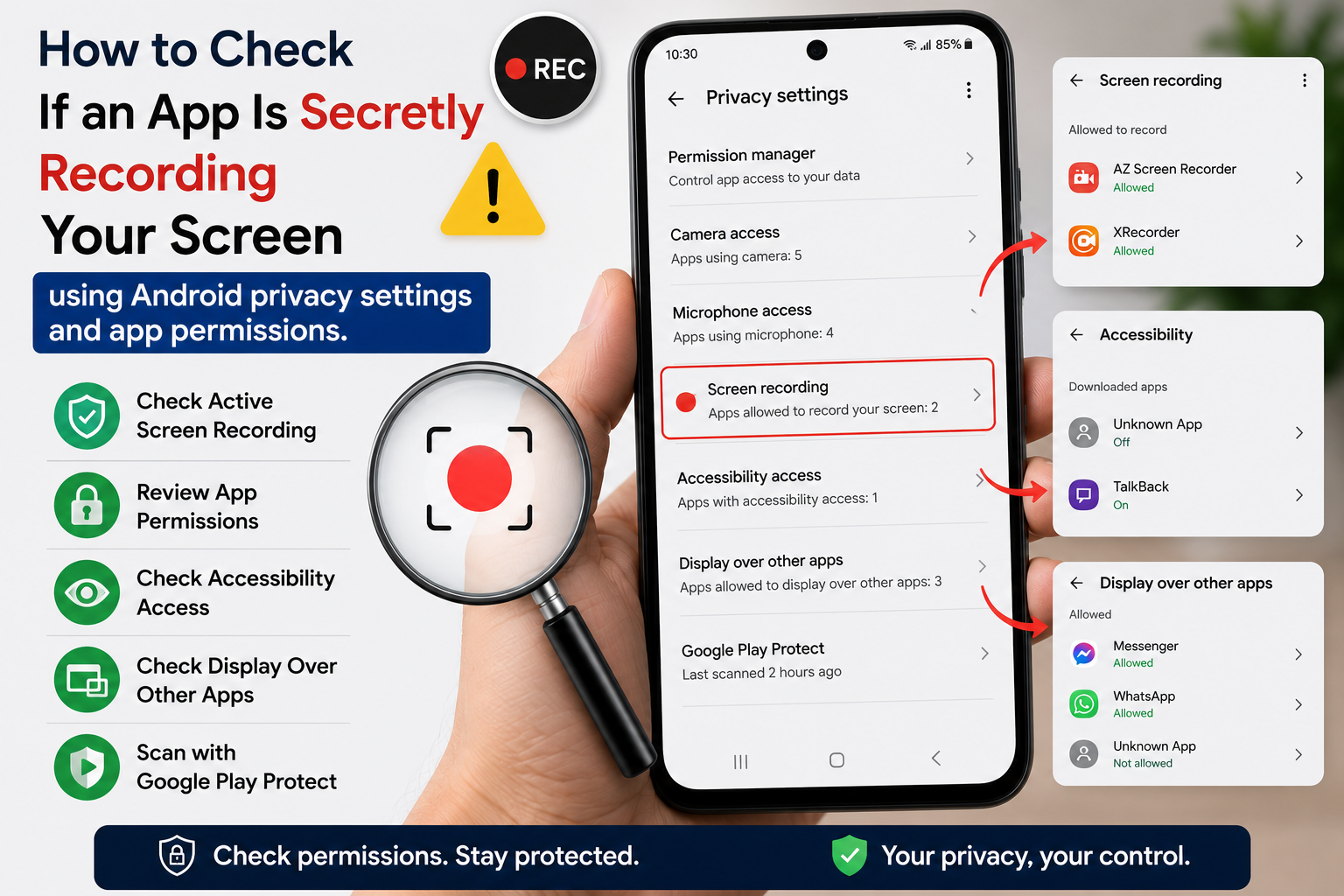
How to Check If an App Is Secretly Recording Your Screen
is becoming a common concern among Android users. With more apps requesting accessibility, display-over-other-apps, and screen capture permissions, it’s important to know whether an app could be recording your screen without your knowledge.
In this guide, you’ll learn how to check if an app is secretly recording your screen, identify suspicious permissions, and protect your personal information.
Important: Android does not allow apps to secretly record your screen continuously without appropriate permissions and user consent. However, malicious or poorly designed apps may misuse granted permissions, so it’s important to review them regularly.
Table of Contents
- Can Apps Secretly Record Your Screen?
- Signs an App May Be Recording Your Screen
- How to Check If an App Is Secretly Recording Your Screen
- How to Stop Screen Recording Permissions
- Tips to Protect Your Privacy
- Frequently Asked Questions
- Final Thoughts
Can Apps Secretly Record Your Screen?
Most legitimate apps cannot secretly record your screen without your permission. Android includes security measures that require apps to request screen capture access.
However, apps with excessive permissions or accessibility access may perform actions you don’t expect. That’s why reviewing app permissions is essential.
Signs an App May Be Recording Your Screen
Watch for these warning signs:
- Unusual battery drain
- Phone overheating while idle
- Unexpected screen recording notification
- Unknown floating icons
- Increased data usage
- Slow phone performance
- Accessibility service enabled for an unfamiliar app
These signs don’t necessarily mean your screen is being recorded, but they warrant checking.
How to Check If an App Is Secretly Recording Your Screen
Step 1: Check Active Screen Recording Notification
When an app records your screen, Android usually displays a notification or status bar indicator.
If you notice a screen recording icon that you didn’t start, investigate immediately.
Step 2: Review Installed Apps
Go to:
Settings → Apps
Look for:
- Unknown apps
- Recently installed apps
- Apps you don’t remember downloading
Remove any app you don’t trust.
Step 3: Check Accessibility Permissions
Open:
Settings → Accessibility
Review apps that have accessibility access.
Disable permission for any app that doesn’t genuinely need it.
Accessibility permissions are powerful and should only be granted to trusted apps.
Step 4: Check Display Over Other Apps
Go to:
Settings → Apps → Special App Access → Display Over Other Apps
Apps with overlay permission can display content over other apps.
Review the list and disable unnecessary permissions.
Step 5: Review Screen Recording Permission Requests
If an app asks to start screen recording unexpectedly:
- Read the prompt carefully.
- Don’t allow access unless you trust the app.
- Close the app if the request seems suspicious.
Step 6: Check Battery Usage
Open:
Settings → Battery → Battery Usage
Look for apps consuming unusually high battery in the background.
Unexpected battery usage may indicate excessive background activity.
Step 7: Scan with Google Play Protect
Open:
Google Play Store → Profile → Play Protect
Run a security scan.
Google Play Protect helps detect harmful apps installed on your device.
Read More:
- How to Check If Your WhatsApp Is Being Monitored
- How to Delete Duplicate Contacts on Android: 7 Easy Ways
- How to Recover Deleted Files from Google Drive
- OPPO Reno Kya Hai? Kharidne Se Pehle Zarur Jaane
- Spam Calls Band Kaise Kare
- Mobile Hang Ho Jaye To Kya Kare
How to Stop Screen Recording Permissions
If you suspect an app:
Remove Accessibility Access
Disable accessibility permission immediately.
Remove Overlay Permission
Turn off Display Over Other Apps for suspicious applications.
Uninstall the App
If you don’t trust the app, uninstall it completely.
Update Android
Install the latest Android security updates.
Updates often include important security improvements.
Best Tips to Protect Your Privacy
Follow these privacy tips:
- Download apps only from Google Play Store.
- Review permissions before installing apps.
- Keep Google Play Protect enabled.
- Remove unused apps regularly.
- Update Android and apps frequently.
- Avoid installing APK files from unknown websites.
- Check accessibility permissions every month.
- Review battery and data usage regularly.
Common Mistakes to Avoid
Avoid these common mistakes:
- Granting every permission without reading it.
- Ignoring screen recording prompts.
- Installing apps from unofficial sources.
- Keeping unused apps installed.
- Disabling Google Play Protect.
Frequently Asked Questions
Can Android apps secretly record my screen?
Most Android apps cannot secretly record your screen without requesting permission. Android shows a confirmation prompt before screen recording begins.
How do I know if screen recording is active?
Modern Android devices display a notification or indicator whenever screen recording is active.
Can malware record my screen?
Some malicious apps may attempt to misuse permissions. Keeping your device updated and using Google Play Protect helps reduce this risk.
Should I uninstall suspicious apps?
Yes. If an app requests unnecessary permissions or behaves suspiciously, it’s safer to uninstall it unless you can verify it’s trustworthy.
Final Thoughts
Knowing How to Check If an App Is Secretly Recording Your Screen is an important step toward protecting your digital privacy. By reviewing app permissions, checking accessibility settings, monitoring battery usage, and using Google Play Protect, you can identify suspicious behavior and reduce security risks.
Make it a habit to review your app permissions regularly and only install apps from trusted sources.


