Your Google Search history can reveal a lot about your interests, habits, and daily activities. If you use a shared computer, public device, or simply value your privacy, you may want to know how to delete Google Search history permanently. Clearing your search history can help reduce your digital footprint and give you more control over your personal data.
In this guide, you’ll learn how to delete Google Search history permanently, manage your Google Activity settings, and prevent future searches from being saved automatically.
Important: Deleting your Google Search history removes activity from your Google account, but it does not erase information from websites you’ve visited or remove your browsing history stored in your browser.
Table of Contents
- What Is Google Search History?
- Why Delete Google Search History?
- How to Delete Google Search History Permanently
- How to Turn Off Search History
- How to Enable Auto-Delete
- Delete Browser History vs Google Search History
- Tips to Protect Your Privacy
- Frequently Asked Questions
- Final Thoughts
What Is Google Search History?
Google Search history is a record of the searches you perform while signed in to your Google account. If Web & App Activity is enabled, Google may save:
- Search queries
- Google Assistant activity
- Chrome activity (if syncing is enabled)
- Google Maps searches
- Activity from other Google services
Learning how to delete Google Search history permanently helps you manage what information is stored in your account.
Why Delete Google Search History?
People choose to delete their search history for many reasons:
- Improve privacy
- Remove old searches
- Reduce personalized recommendations
- Keep shared devices private
- Better control over personal data
Deleting your history regularly is a good privacy habit.
1. Delete Google Search History from Your Google Account
The easiest way to remove your search history is through your Google account.
Steps:
- Sign in to your Google account.
- Open My Activity.
- Select Delete.
- Choose:
- Last hour
- Last day
- Custom range
- All time
- Confirm the deletion.
This removes eligible search activity stored in your Google account.
2. Delete Individual Search Items
If you don’t want to erase everything:
- Open My Activity.
- Search for a specific activity.
- Select the delete option next to that item.
This is useful when you only want to remove certain searches.
3. Turn Off Web & App Activity
If you don’t want Google to continue saving future searches:
- Open your Google Account.
- Go to Data & Privacy.
- Select Web & App Activity.
- Turn it off if it meets your needs.
Disabling this setting may affect personalized experiences across some Google services.
4. Enable Auto-Delete
Google allows you to automatically remove activity after a selected period.
Available options may include:
- 3 months
- 18 months
- 36 months
Auto-delete helps reduce the need to manually clear your history.
5. Delete Browser History Separately
Deleting your Google Search history does not automatically remove your browser history.
To clear browser history:
- Open your browser settings.
- Find History or Privacy.
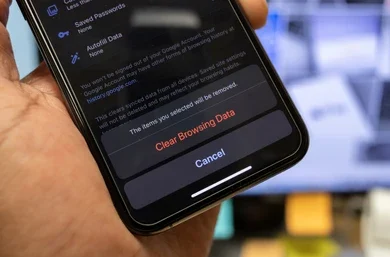
- Select Clear Browsing Data.
- Choose the desired time range.
This removes locally stored browsing information from your device.
6. Remove Search Suggestions
Google Search suggestions are different from your account’s search history.
To remove individual suggestions:
- Tap or click the suggestion.
- Select the option to remove it (when available).
This helps clean up your search experience without deleting all activity.
7. Check Synced Devices
If you use multiple devices with the same Google account:
- Phone
- Tablet
- Laptop
- Desktop
Deleting search history from your account generally syncs the change across signed-in devices, although timing may vary.
Review your connected devices regularly to ensure only trusted devices have access to your account.
8. Protect Your Google Account
Deleting history is only one part of protecting your privacy.
You should also:
✔ Enable Two-Step Verification.
✔ Use a strong password.
✔ Review account security regularly.
✔ Remove unknown devices.
✔ Update recovery information.
9. Review Your Google Activity Regularly
Set a reminder every few months to review:
- Search history
- Device activity
- Connected apps
- Privacy settings
Regular reviews help you maintain better control over your Google account.
Browser History vs Google Search History
| Feature | Google Search History | Browser History |
|---|---|---|
| Stored In | Google Account | Your Device |
| Requires Google Login | Yes | No |
| Syncs Across Devices | Yes (when signed in) | Depends on browser sync settings |
| Can Be Auto-Deleted | Yes | Usually No |
| Includes Search Activity | Yes | Shows websites visited |
Understanding the difference helps ensure you’re deleting the information you intend to remove.
Tips to Improve Online Privacy
✔ Delete search history regularly.
✔ Enable Auto-Delete.
✔ Review account activity.
✔ Remove old connected devices.
✔ Use a secure screen lock.
✔ Avoid using shared accounts.
✔ Keep your browser updated.
✔ Sign out from public computers.
Also Read :
- How to auto-delete location history on Google Map
- Tricks to Download your Entire Google Search History
- Google Chrome Tips and Shortcuts for Better Browsing
Frequently Asked Questions (FAQs)
Does deleting Google Search history delete browser history?
No. Google Search history and browser history are separate. You’ll need to clear your browser history separately if you want to remove locally stored browsing data.
Can I permanently delete all Google Search history?
Yes. You can delete eligible search activity stored in your Google account and enable Auto-Delete or adjust activity settings to better manage future data collection.
Will deleting search history affect my Google account?
Deleting search history does not delete your Google account. It may reduce personalization in some Google services.
Can deleted Google Search history be recovered?
Once eligible activity has been deleted from your account, recovery may not be possible. Be sure you want to remove it before confirming deletion.
Final Thoughts
Learning how to delete Google Search history permanently is a simple but effective way to improve your online privacy. By clearing your search history, enabling Auto-Delete, reviewing your activity settings, and securing your Google account, you can reduce your digital footprint and take greater control of your personal information.
For the best privacy protection, combine regular history management with strong passwords, Two-Step Verification, and routine account security checks.