
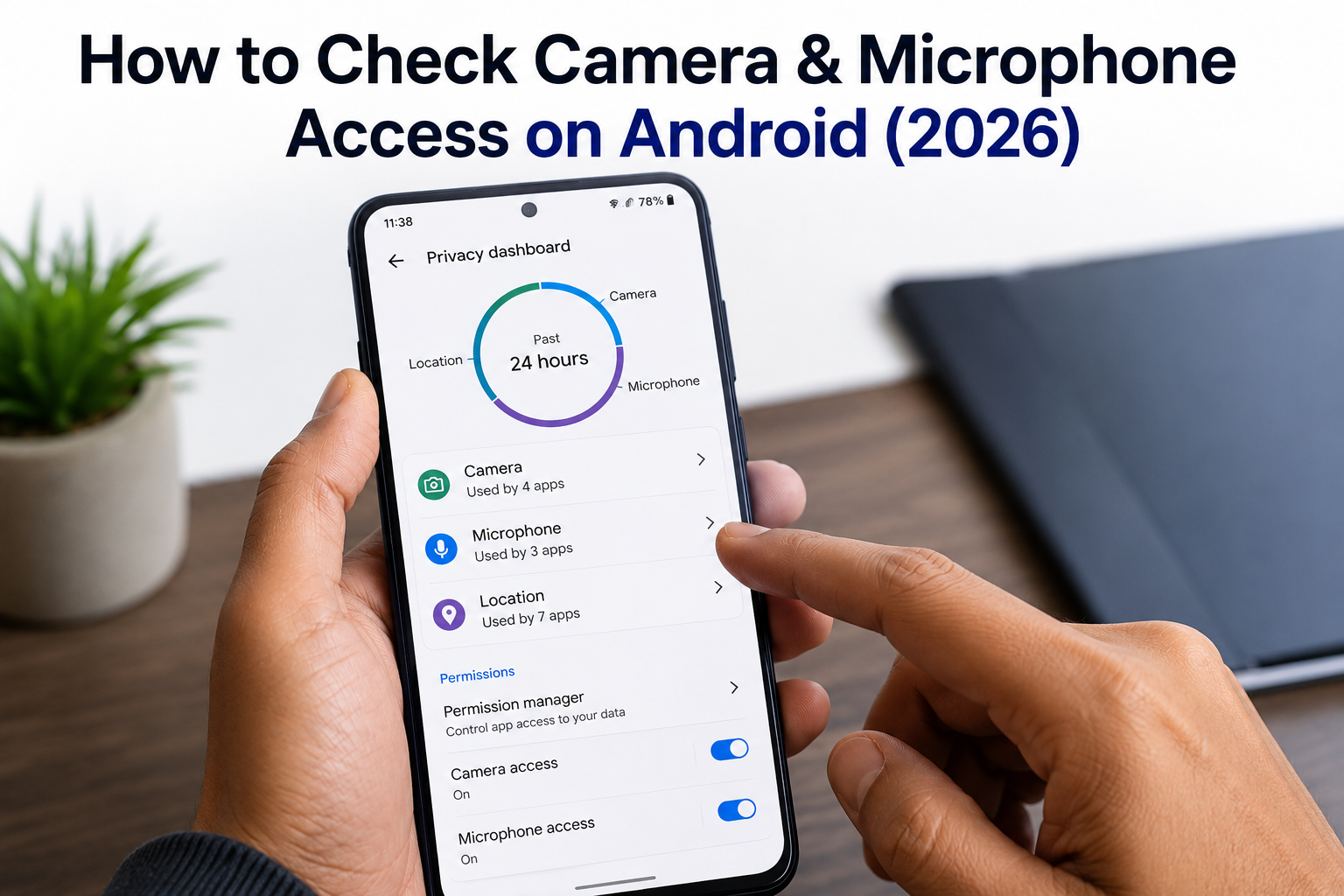
How to Check Camera & Microphone Access on Android
How to Check Camera & Microphone Access on Android is one of the easiest ways to protect your privacy in 2026. Many apps require access to your phone’s camera and microphone for features like video calling, QR code scanning, and voice recording. However, some apps may request these permissions even when they don’t actually need them.
If you’re wondering how to check camera & microphone access on Android, this guide will show you exactly how to review app permissions, identify apps using your camera or microphone, and remove unnecessary access to keep your personal information safe.
Important: Only allow camera and microphone permissions for trusted apps. If an app’s purpose doesn’t require these permissions, it’s safer to deny access.
Table of Contents
- Why Apps Need Camera and Microphone Access
- How to Check Camera & Microphone Access on Android
- How to Remove Camera and Microphone Permissions
- How to See Recent Camera & Microphone Activity
- Tips to Protect Your Privacy
- Frequently Asked Questions
- Final Thoughts
Why Apps Need Camera and Microphone Access
Many Android apps legitimately require these permissions.
Examples include:
- Camera app
- Google Meet
- Zoom
- Snapchat
- QR Code Scanner
However, apps such as calculators, wallpapers, flashlights, or simple games generally don’t need access to your camera or microphone.
Reviewing permissions regularly helps protect your privacy.
How to Check Camera & Microphone Access on Android
Step 1: Open Settings
Unlock your Android phone.
Open:
Settings
Step 2: Tap Privacy
Scroll down and select:
Privacy
Some phones may show:
- Privacy
- Security & Privacy
- Privacy Protection
Step 3: Open Permission Manager
Tap:
Permission Manager
You’ll now see every permission category available on your phone.
Step 4: Check Camera Permission
Tap:
Camera
Android will display every app that currently has camera permission.
Review the list carefully.
Look for apps that don’t actually require camera access.
Step 5: Check Microphone Permission
Return to Permission Manager.
Select:
Microphone
Again, review every app.
If you notice apps like games, calculators, or wallpaper apps using microphone permission, consider removing it.
Step 6: Change App Permissions
Tap the app.
Choose one of these options:
- Allow only while using the app
- Ask every time
- Don’t allow
For better privacy, “Allow only while using the app” is recommended for most applications.
Step 7: Use Android Privacy Dashboard
Android 12 and newer devices include the Privacy Dashboard.
Go to:
Settings → Privacy → Privacy Dashboard
You’ll see which apps recently accessed:
- Camera
- Microphone
- Location
This is one of the easiest ways to check camera & microphone access on Android and identify suspicious activity.
How to Remove Camera and Microphone Permissions
If an app doesn’t need these permissions:
- Open Permission Manager
- Select Camera or Microphone
- Tap the app
- Choose Don’t Allow
Repeat for every unnecessary application.
How to Know If an App Is Using Your Camera or Microphone
Most Android phones display a green privacy indicator whenever an app is actively using:
- Camera
- Microphone
If you see this indicator unexpectedly:
- Close recently opened apps.
- Open Privacy Dashboard.
- Check which app accessed your camera or microphone.
- Remove unnecessary permissions if needed.
Learning how to check camera & microphone access on Android helps you quickly identify apps that may be accessing sensitive hardware.
Why You Should Review Permissions Regularly
Checking permissions offers several benefits.
Better Privacy
Apps cannot collect unnecessary audio or video.
Better Security
Reducing unnecessary permissions lowers the risk of misuse.
Longer Battery Life
Background access to hardware can increase battery usage.
Better Control
You decide which apps can access your camera and microphone.
Best Tips to Protect Your Privacy
Follow these privacy practices:
- Install apps only from trusted sources.
- Review app permissions every month.
- Remove permissions from unused apps.
- Keep Android updated.
- Enable Google Play Protect.
- Use a secure screen lock.
- Review the Privacy Dashboard regularly.
- Avoid downloading APK files from unknown websites.
These habits make it easier to check camera & microphone access on Android and keep your device secure.
Common Mistakes to Avoid
Avoid these mistakes:
- Allowing every app to use the camera.
- Ignoring permission requests.
- Never checking Privacy Dashboard.
- Installing apps from unofficial websites.
- Forgetting to review permissions after updates.
Read More:
- How to Find Hidden Spy Apps on Android: 10 Easy Ways
- How to Remove Devices from Google Account: 7 Easy Steps
- How to Check If Your Aadhaar Has Been Misused
Frequently Asked Questions
Can Android tell me which app used my camera?
Yes. Android 12 and newer include the Privacy Dashboard, which shows recent camera usage.
Can I disable microphone access completely?
Yes. Android allows you to disable microphone access from the Privacy settings on supported devices.
What does the green dot mean?
The green privacy indicator means an app is currently using your camera or microphone.
How often should I check camera & microphone access on Android?
Checking camera & microphone access on Android once a month is recommended, especially after installing new apps.
Final Thoughts
Knowing How to Check Camera & Microphone Access on Android is an important part of protecting your personal privacy. By reviewing app permissions, using Android’s Privacy Dashboard, removing unnecessary access, and keeping your device updated, you can greatly reduce the chances of unwanted camera or microphone usage.
Make permission reviews part of your regular phone maintenance to stay secure and in control of your data.


