Is your Google Photos storage full? You’re not alone. Since Google Photos shares storage with Gmail and Google Drive, many users quickly run out of space. The good news is that you don’t always need to delete your favorite memories to free up storage. If you’re searching for How to Free Up Google Photos Storage (2026), this guide covers practical ways to reclaim space while keeping your important photos safe.
In this article, you’ll learn how to free up Google Photos storage, identify what’s using your storage, and optimize your Google Account without losing valuable files.
Important: Before deleting any photos or videos, make sure you have another backup if those files are important.
Table of Contents
- Why Google Photos Storage Gets Full
- How to Check Google Photos Storage Usage
- How to Free Up Google Photos Storage
- Tips to Prevent Storage from Filling Up Again
- Frequently Asked Questions
- Final Thoughts
Why Google Photos Storage Gets Full
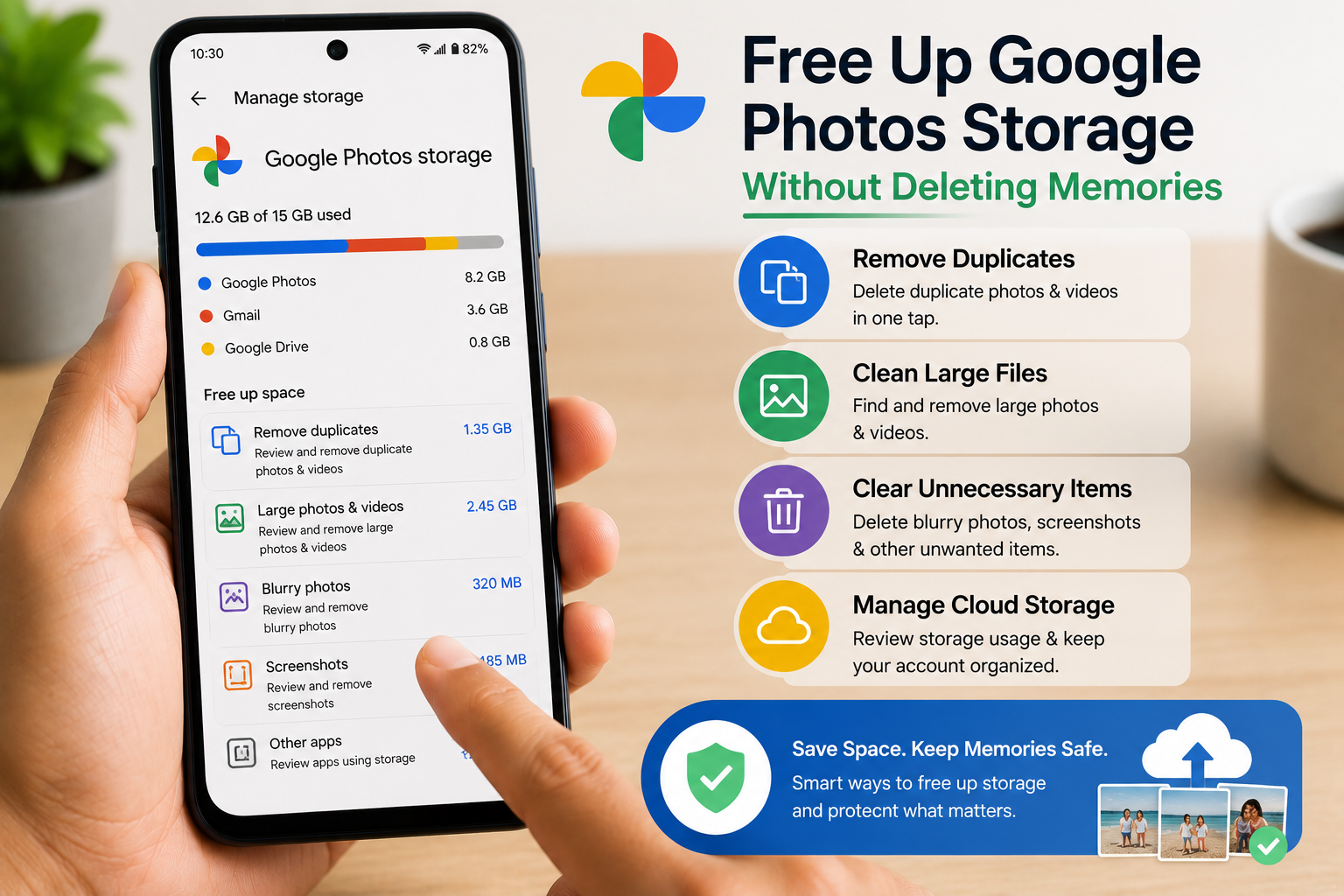
Your Google Account storage is shared across:
- Google Photos
- Gmail
- Google Drive
Storage fills up because of:
- High-resolution photos
- Large video files
- Gmail attachments
- Duplicate images
- Screenshots
- WhatsApp media backups
- Downloaded files backed up automatically
Knowing what’s consuming your storage helps you clean it more efficiently.
How to Check Google Photos Storage Usage
Before deleting anything, check your storage usage.
Step 1: Open Google One Storage
Visit Google’s storage management page or open the Google One app.
You’ll see how much storage is being used by:
- Google Photos
- Gmail
- Google Drive
This helps you identify where to free up space.
Step 2: Review Large Files
Use Google’s storage management tools to find:
- Large videos
- Blurry photos
- Screenshots
- Unsupported files
- Items in Trash
These files often consume the most space.
How to Free Up Google Photos Storage
1. Delete Blurry Photos
Many phones capture several versions of the same picture.
Delete:
- Blurry photos
- Accidental photos
- Duplicate images
This can instantly free storage.
2. Remove Screenshots
Screenshots often accumulate over time.
Delete:
- Old receipts
- Temporary screenshots
- Social media screenshots
- Unused QR codes
These files usually aren’t worth backing up forever.
3. Delete Large Videos
Videos take much more storage than photos.
Review and remove:
- Screen recordings
- Duplicate videos
- Old downloaded clips
- Unnecessary recordings
4. Clean Google Drive
Remember that Google Drive shares the same storage.
Delete:
- Duplicate documents
- Old PDFs
- Unused ZIP files
- Large backups
Don’t forget to empty the Trash afterward.
5. Clean Gmail Attachments
Large email attachments also consume storage.
Delete:
- Promotional emails
- Spam
- Large attachments
- Unwanted newsletters
Then empty the Trash folder.
6. Disable Backup for Unnecessary Folders
Open Google Photos backup settings.
Turn off backup for folders like:
- Screenshots
- Downloads
- Memes
- Social media images
- Temporary files
Only back up folders that matter.
7. Move Old Photos to External Storage
Copy older albums to:
- External SSD
- Hard drive
- USB drive
This creates another backup while reducing cloud storage usage if you later remove selected cloud copies.
8. Organize Photos into Albums
Albums don’t save storage directly, but they help you quickly identify duplicates and unnecessary files.
Create albums for:
- Family
- Travel
- Work
- School
- Events
9. Empty the Trash
Photos and videos in Trash still occupy storage for a period before permanent deletion.
Review the Trash carefully and permanently delete items you no longer need.
10. Upgrade Google Storage (Optional)
If you’ve already optimized your storage and still need more space, upgrading your Google storage plan may be the easiest solution.
This is especially useful if you regularly back up high-resolution photos and videos.
Tips to Prevent Storage from Filling Up Again
Review Storage Monthly
Check your storage every month to avoid surprises.
Back Up Only Important Photos
Avoid backing up every screenshot and downloaded image.
Remove Duplicate Photos Regularly
Delete duplicate images after vacations or events.
Keep Gmail Clean
Delete emails with large attachments that you no longer need.
Organize Google Drive Files
Archive or delete files you no longer use.
Common Mistakes to Avoid
Avoid these common mistakes:
- Deleting photos without another backup.
- Forgetting Gmail also uses storage.
- Ignoring Google Drive files.
- Leaving Trash full.
- Backing up unnecessary folders.
Read More:
- How to Check If Your Aadhaar Has Been Misused
- How to Find Hidden Spy Apps on Android: 10 Easy Ways
- How to Check If Your Phone Number Is Leaked Online
- Google Par Apni Photo Kaise Search Kare
Frequently Asked Questions
Does Google Photos share storage with Gmail?
Yes. Google Photos, Gmail, and Google Drive all use the same Google Account storage quota.
Can I free up Google Photos storage without deleting memories?
Yes. You can remove duplicates, clean Gmail and Drive, disable unnecessary backups, and move older files to external storage.
Why is my Google Photos storage filling up so fast?
Large videos, duplicate photos, screenshots, Gmail attachments, and Google Drive files are common reasons.
Will deleting photos from Google Photos remove them from my phone?
If your photos are synced, deleting them may also remove them from synced devices. Always review the confirmation message before deleting.
Final Thoughts
Knowing How to Free Up Google Photos Storage (2026) helps you manage your Google Account more efficiently. Instead of deleting precious memories, start by removing duplicates, clearing Gmail attachments, organizing Google Drive, and disabling unnecessary backups.
A few minutes of regular maintenance can save gigabytes of storage and keep your Google Photos library organized.