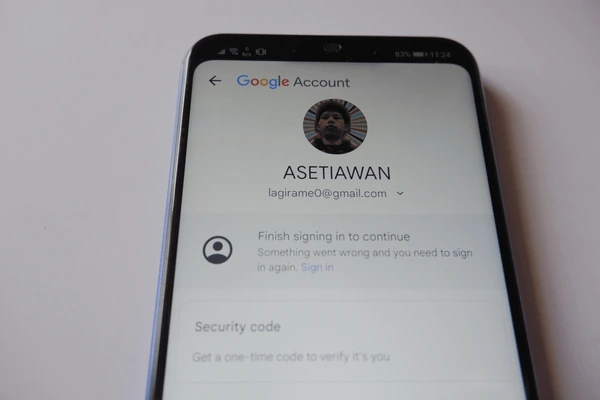
Your Google Account stores sensitive information, including emails, contacts, passwords, photos, and payment details. If you’ve logged in on an old phone, shared computer, or another device that you no longer use, it’s important to remove that device to keep your account secure. If you’re searching for How to Remove Devices from Google Account, this guide will walk you through the official process.
In this article, you’ll learn how to remove devices from Google Account, how to check where your account is signed in, and what to do if you notice an unknown device.
Important: Removing a device signs your Google Account out of that device. If the device is lost or stolen, change your Google Account password immediately after removing it.
Table of Contents
- Why Should You Remove Devices from Your Google Account?
- How to Check Devices Logged Into Your Google Account
- 7 Easy Steps to Remove Devices from Google Account
- What to Do If You Find an Unknown Device
- Tips to Keep Your Google Account Secure
- Frequently Asked Questions
- Final Thoughts
Why Should You Remove Devices from Your Google Account?
Removing unused or unknown devices helps protect your personal information from unauthorized access.
You should remove devices if:
- You sold or gave away your phone.
- You lost your smartphone or laptop.
- You logged in on a public computer.
- You notice an unfamiliar device.
- You changed your password after suspicious activity.
Regularly reviewing your signed-in devices is a simple but effective security habit.
How to Check Devices Logged Into Your Google Account
Before removing a device, check where your account is currently signed in.
To view your devices:
- Open your Google Account.
- Go to the Security section.
- Scroll to Your devices.
- Select Manage all devices.
You’ll see information such as:
- Device name
- Device type
- Last active date
- Approximate location (if available)
- Recent sign-in activity
Review this list carefully for anything you don’t recognize.
7 Easy Steps to Remove Devices from Google Account
1. Open Your Google Account
Visit your Google Account using a trusted browser and sign in if prompted.
2. Go to the Security Tab
From the left-hand menu (or top navigation on mobile), open the Security section.
This page contains your account’s security settings, including device management.
3. Open “Manage All Devices”
Scroll down until you see Your devices.
Click or tap Manage all devices to view every device currently signed in to your account.
4. Select the Device You Want to Remove
Choose the device you no longer use or don’t recognize.
Review:
- Device model
- Browser (if applicable)
- Last activity
- Sign-in location
Make sure you’re selecting the correct device.
5. Sign Out of the Device
Select Sign out.
Google will ask you to confirm the action.
Once confirmed, your Google Account will be removed from that device until someone signs in again.
6. Change Your Password If Necessary
If the removed device was:
- Lost
- Stolen
- Unknown
- Accessed without permission
Immediately change your Google Account password.
A new password helps prevent unauthorized access.
7. Enable Two-Step Verification
For additional protection:
- Turn on Two-Step Verification.
- Use an authenticator app or security key if available.
- Keep recovery information up to date.
This makes it much harder for unauthorized users to access your account.
What to Do If You Find an Unknown Device
If you notice a device you don’t recognize:
- Sign it out immediately.
- Change your Google password.
- Review recent security activity.
- Check connected third-party apps.
- Update your recovery phone number and email.
- Enable Two-Step Verification if it’s not already active.
Act quickly to reduce the risk of unauthorized access.
Tips to Keep Your Google Account Secure
Follow these security best practices:
- Review your signed-in devices regularly.
- Use a strong, unique password.
- Enable Two-Step Verification.
- Keep your recovery email and phone number updated.
- Don’t stay signed in on shared computers.
- Avoid entering passwords on suspicious websites.
- Review third-party app access periodically.
- Turn on Google security alerts.
Read More:
- How to Delete Google Search History Permanently: 9 Prove
- Google Gemini vs ChatGPT: Which AI Is Better?
Frequently Asked Questions
Will removing a device delete my Google Account?
No. Removing a device only signs your account out from that device. Your Google Account remains active.
Can the device sign back in automatically?
Not usually. Someone would generally need to sign in again using your Google Account credentials and complete any required verification.
What should I do if my phone was stolen?
Remove the device from your Google Account, change your password, review your account’s recent activity, and consider using Android’s device-finding features if applicable.
How often should I review my Google devices?
It’s a good idea to review your signed-in devices every few months or immediately after using a public or shared computer.
Final Thoughts
Knowing How to Remove Devices from Google Account is an important part of protecting your personal information. Whether you’ve upgraded to a new phone, sold an old device, or noticed suspicious account activity, removing unused devices helps keep your Google Account secure.
Make it a habit to review your account’s device list, update your password when needed, and enable Two-Step Verification for stronger protection against unauthorized access.