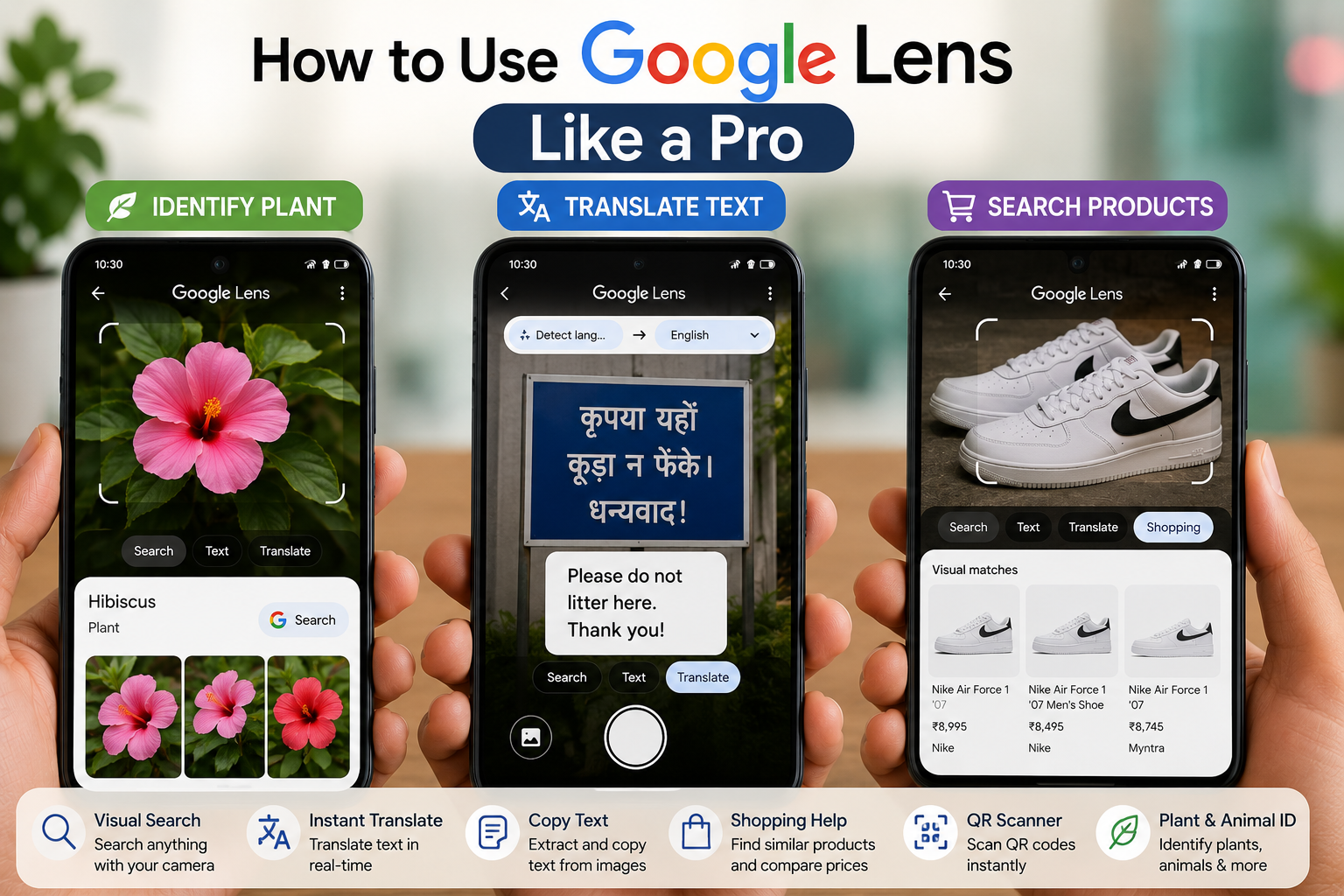
Google Lens is much more than a simple image search tool. It can identify objects, translate text, solve homework, copy text from images, shop online, scan QR codes, and even help you recognize plants and animals. If you’re searching for How to Use Google Lens Like a Pro, this guide will help you unlock its most useful features.
In this article, you’ll learn how to use Google Lens like a pro, explore its hidden features, and discover practical ways to save time using your Android phone, iPhone, or computer.
Important: Google Lens works best with a stable internet connection and clear, high-quality images. Results may vary depending on your region, language, and device.
Table of Contents
- What Is Google Lens?
- Why Should You Use Google Lens?
- How to Use Google Lens Like a Pro
- Best Google Lens Features
- Tips for Better Results
- Frequently Asked Questions
- Final Thoughts
What Is Google Lens?
Google Lens is an AI-powered visual search tool developed by Google. Instead of typing a search query, you simply point your camera at an object or upload a photo, and Google Lens analyzes the image to provide useful information.
It can recognize:
- Plants
- Animals
- Products
- Landmarks
- Books
- Documents
- QR codes
- Text
- Food
- Clothing
- Artwork
Google Lens is available through the Google app, Google Photos, Chrome, and many Android devices.
Why Should You Use Google Lens?
Google Lens can help you:
- Save time searching.
- Translate text instantly.
- Copy text from printed documents.
- Find similar products online.
- Solve homework questions.
- Identify unknown objects.
- Scan QR codes.
- Search using images instead of words.
- Learn more about places you visit.
It’s one of the most useful AI-powered tools available for everyday tasks.
How to Use Google Lens Like a Pro
1. Search Anything Using Your Camera
Open Google Lens and point your camera at:
- Products
- Books
- Electronics
- Furniture
- Artwork
Google will show related search results within seconds.
2. Copy Text from Images
Google Lens can extract text from:
- Books
- Documents
- Receipts
- Posters
- Business cards
Simply select the detected text and copy it directly to your clipboard.
3. Translate Languages Instantly
Traveling abroad?
Open Google Lens and point it at:
- Menus
- Signboards
- Documents
- Posters
Lens can translate supported languages in real time.
4. Identify Plants and Animals
Point your camera at a:
- Flower
- Tree
- Leaf
- Bird
- Dog
- Cat
- Insect
Google Lens can often identify the species and provide additional information.
5. Solve Homework Problems
Lens can help explain:
- Math problems
- Science questions
- Historical topics
- Definitions
Use it as a learning aid rather than simply copying answers.
6. Shop Smarter
Found a product you like?
Use Google Lens to:
- Compare prices.
- Find similar products.
- Read reviews.
- Locate online stores.
This makes shopping faster and more informed.
7. Scan QR Codes Automatically
Instead of installing another QR scanner:
- Open Google Lens.
- Point your camera at the QR code.
Lens will recognize it automatically and display the available action.
8. Search from Screenshots
You don’t always need to use your camera.
Open a screenshot in Google Photos and tap the Lens icon to search using the image.
9. Recognize Landmarks
While traveling, point Google Lens at:
- Buildings
- Museums
- Monuments
- Tourist attractions
Lens can identify many famous places and provide historical information.
10. Use Google Lens on Your Computer
You can also use Google Lens in Chrome.
Right-click an image and choose Search with Google Lens to find visually similar images, copy text, or identify objects.
Best Google Lens Features
Here are some of the most useful Google Lens tools:
Visual Search
Search using images instead of typing.
Instant Translation
Translate signs, menus, and printed text in supported languages.
Text Extraction
Copy text from printed documents into editable digital text.
Homework Help
Receive explanations and educational resources for certain academic topics.
Shopping Assistance
Compare products and prices using photos.
QR Code Scanner
Scan QR codes without installing an additional app.
Landmark Recognition
Learn about buildings, monuments, and tourist attractions.
Plant & Animal Identification
Identify many common plants, flowers, insects, and animals.
Tips to Get Better Results
For the best experience:
- Use good lighting.
- Keep the camera steady.
- Focus clearly on the object.
- Avoid blurry photos.
- Update the Google app regularly.
- Keep your internet connection active.
- Capture the entire object when possible.
- Try multiple angles if recognition fails.
Common Mistakes to Avoid
Avoid these common errors:
- Using blurry images.
- Blocking part of the object.
- Expecting perfect recognition every time.
- Ignoring privacy when scanning personal documents.
- Using outdated versions of the Google app.
Read More :
- How to Remove Devices from Google Account: 7 Easy Steps
- How to Delete Google Search History Permanently: 9 Proven Steps
- Google Account Suspended
- Google Par Apni Photo Kaise Search Kare
- Google Maps Par Apna Ghar Kaise Add Kare
Frequently Asked Questions
Is Google Lens free?
Yes. Google Lens is free to use and is available through several Google apps and supported Android devices.
Does Google Lens work offline?
Some features require an internet connection because image recognition is processed using Google’s services.
Can Google Lens identify everything?
No. While it recognizes many objects, results may vary depending on image quality, lighting, and the type of object.
Is Google Lens safe?
Google Lens is developed by Google and is generally considered safe to use. However, always review Google’s privacy policies and avoid scanning sensitive personal documents unless necessary.
Final Thoughts
Learning How to Use Google Lens Like a Pro can make your smartphone much more useful. From translating text and identifying plants to shopping smarter and copying text from printed documents, Google Lens offers powerful AI features that save time and improve productivity.
Explore its tools regularly, keep your Google app updated, and use clear images for the most accurate results.