Many apps request access to your location to provide useful features like navigation, weather updates, nearby restaurants, and ride-sharing services. However, some apps continue tracking your location even when you’re not actively using them. If you’re wondering How to Stop Apps from Tracking Your Location, this guide will show you the safest and easiest ways to control location access on your Android phone.
In this article, you’ll learn how to stop apps from tracking your location, manage location permissions, improve your privacy, and reduce unnecessary background tracking.
Important: Disabling location access may affect certain app features such as maps, food delivery, and navigation. Only allow location access to apps that genuinely need it.
Table of Contents
- Why Do Apps Track Your Location?
- Signs an App May Be Tracking Your Location
- How to Stop Apps from Tracking Your Location
- How to Check Which Apps Have Location Access
- Best Practices to Protect Your Location Privacy
- Frequently Asked Questions
- Final Thoughts
Why Do Apps Track Your Location?
Apps may use your location for legitimate purposes, including:
- Navigation and maps
- Weather forecasts
- Food delivery
- Ride-booking services
- Finding nearby stores
- Location-based reminders
However, some apps may also collect location data for:
- Personalized advertisements
- Analytics
- Marketing
- User behavior tracking
Reviewing your location permissions regularly helps ensure only trusted apps have access.
Signs an App May Be Tracking Your Location
You may notice:
- The location icon appearing frequently.
- Faster battery drain.
- Increased mobile data usage.
- Personalized ads based on places you’ve visited.
- Apps requesting location access without a clear reason.
- GPS turning on automatically.
These signs don’t necessarily indicate malicious behavior, but they are good reasons to review your settings.
How to Stop Apps from Tracking Your Location
1. Review App Location Permissions
The first step is to check which apps currently have location access.
Steps:
- Open Settings.
- Tap Location.
- Select App Permissions or App Location Permissions.
- Review the list of apps.
Choose the most appropriate permission for each app.
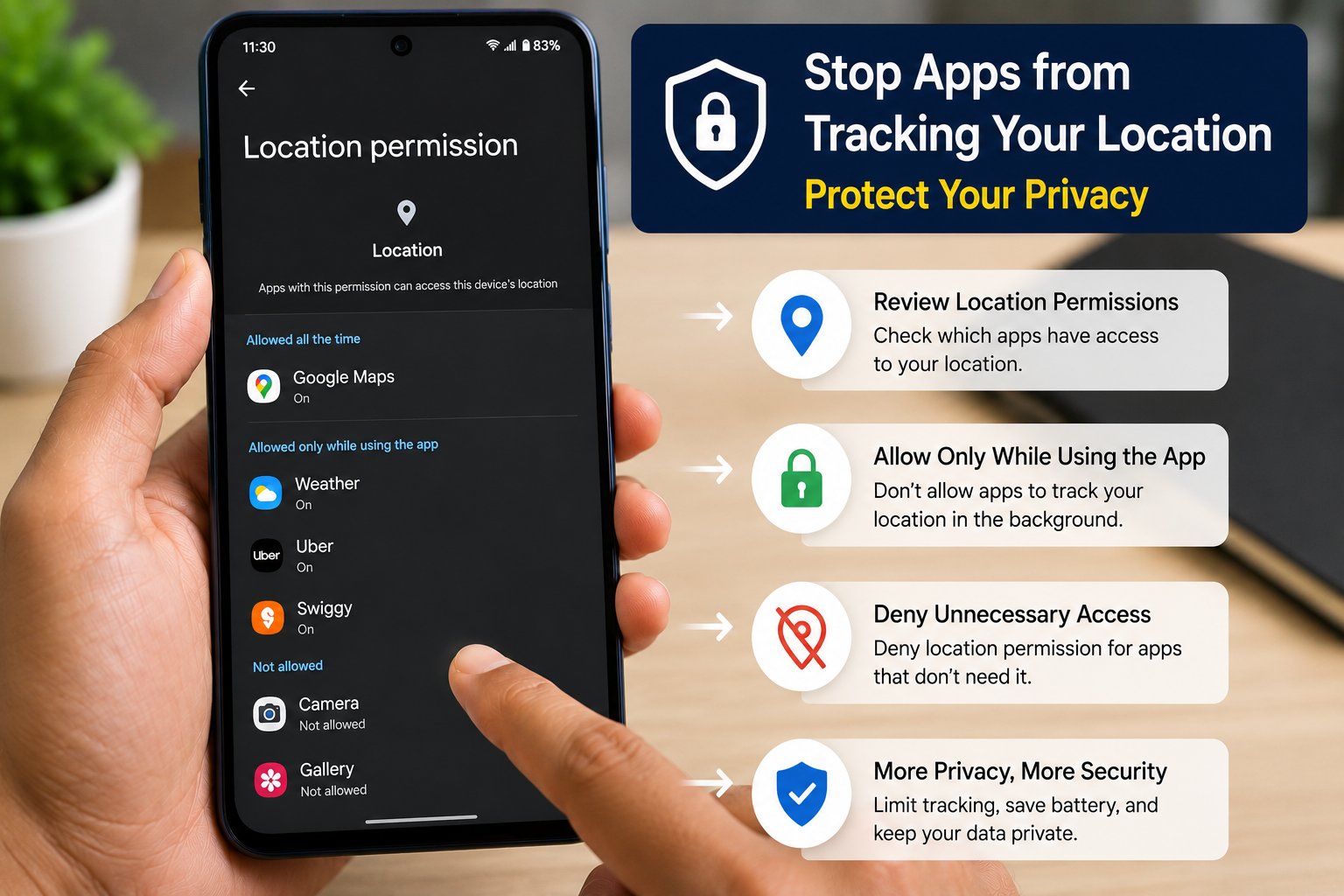
2. Choose “Allow Only While Using the App”
Instead of granting permanent access, select:
- Allow only while using the app
This lets the app access your location only when you’re actively using it.
For most apps, this is the recommended setting.
3. Deny Location Permission for Unnecessary Apps
Ask yourself:
- Does a calculator need your location?
- Does a wallpaper app need GPS?
- Does a flashlight app require location access?
If the answer is no, select:
Don’t Allow
4. Disable Precise Location
Many Android devices allow you to choose between:
- Precise Location
- Approximate Location
If an app doesn’t need your exact location, disable Precise Location to improve your privacy.
5. Turn Off Background Location Access
Some apps continue collecting location data even when closed.
Open:
Settings → Location → App Permissions
For apps that don’t require constant tracking, disable background location access.
6. Turn Off Location Services When Not Needed
If you rarely use GPS:
- Swipe down from Quick Settings.
- Tap Location to turn it off.
You can also disable it from:
Settings → Location
7. Review Google Location Settings
Google offers several location-related services.
Open your Google Account and review:
- Location History
- Timeline
- Web & App Activity
Disable features you don’t use.
8. Check App Permissions Regularly
Whenever you install a new app:
- Review requested permissions.
- Remove unnecessary access.
- Update permissions if the app’s purpose changes.
A quick review every few months can significantly improve your privacy.
9. Remove Apps You Don’t Use
Unused apps may still retain permissions.
Delete apps you no longer need to reduce unnecessary access to your device.
10. Keep Android Updated
Install the latest Android updates.
Security updates often include improvements to privacy controls and permission management.
How to Check Which Apps Have Location Access
Follow these steps:
- Open Settings.
- Tap Location.
- Select App Permissions.
- Review apps under:
- Allowed all the time
- Allowed only while using the app
- Ask every time
- Not allowed
Change permissions whenever necessary.
Why You Should Limit Location Tracking
Restricting unnecessary location access offers several benefits:
Better Privacy
Fewer companies can collect information about where you go.
Improved Battery Life
GPS is one of the most power-intensive phone features.
Reduced Background Activity
Apps running less often can improve overall device performance.
Fewer Personalized Ads
Limiting location sharing may reduce location-based advertising.
Better Control Over Personal Data
You decide which apps know where you are.
Best Practices to Protect Your Location Privacy
Follow these tips:
- Only install apps from trusted sources.
- Grant location access only when necessary.
- Use Allow only while using the app whenever possible.
- Disable Precise Location for apps that don’t need it.
- Remove unused apps.
- Keep Android updated.
- Review permissions after app updates.
- Check your Google privacy settings regularly.
Common Mistakes to Avoid
Avoid these privacy mistakes:
- Granting location permission to every app.
- Ignoring permission requests.
- Leaving background location enabled unnecessarily.
- Downloading apps from unofficial websites.
- Never reviewing privacy settings.
Read More :
- Mobile Number Se Location Kaise Pata Kare
- How to Remove Spam Calls Automatically on Android
- How to Check If Your Phone Number Is Leaked Online
- How to Recover Permanently Deleted Photos on Android
Frequently Asked Questions
Can apps track my location when they’re closed?
Some apps can access your location in the background if you’ve granted Allow all the time permission. Review your settings to limit this access where appropriate.
Does turning off GPS stop all location tracking?
Turning off GPS reduces location sharing, but some apps and services may still estimate your location using Wi-Fi, Bluetooth, or mobile networks, depending on your device settings and permissions.
Should I disable location completely?
Not necessarily. Many apps, such as navigation and ride-sharing services, require location access to function properly. It’s generally better to allow access only when you’re using those apps.
Is Approximate Location safer than Precise Location?
Approximate Location shares a broader area instead of your exact position, offering more privacy while still allowing many apps to function.
Final Thoughts
Knowing How to Stop Apps from Tracking Your Location is an important step toward protecting your privacy. Android gives you powerful tools to control which apps can access your location and when they can use it.
By reviewing permissions regularly, limiting background access, disabling Precise Location where possible, and removing unnecessary apps, you can significantly reduce unwanted location tracking while still enjoying the features you need.