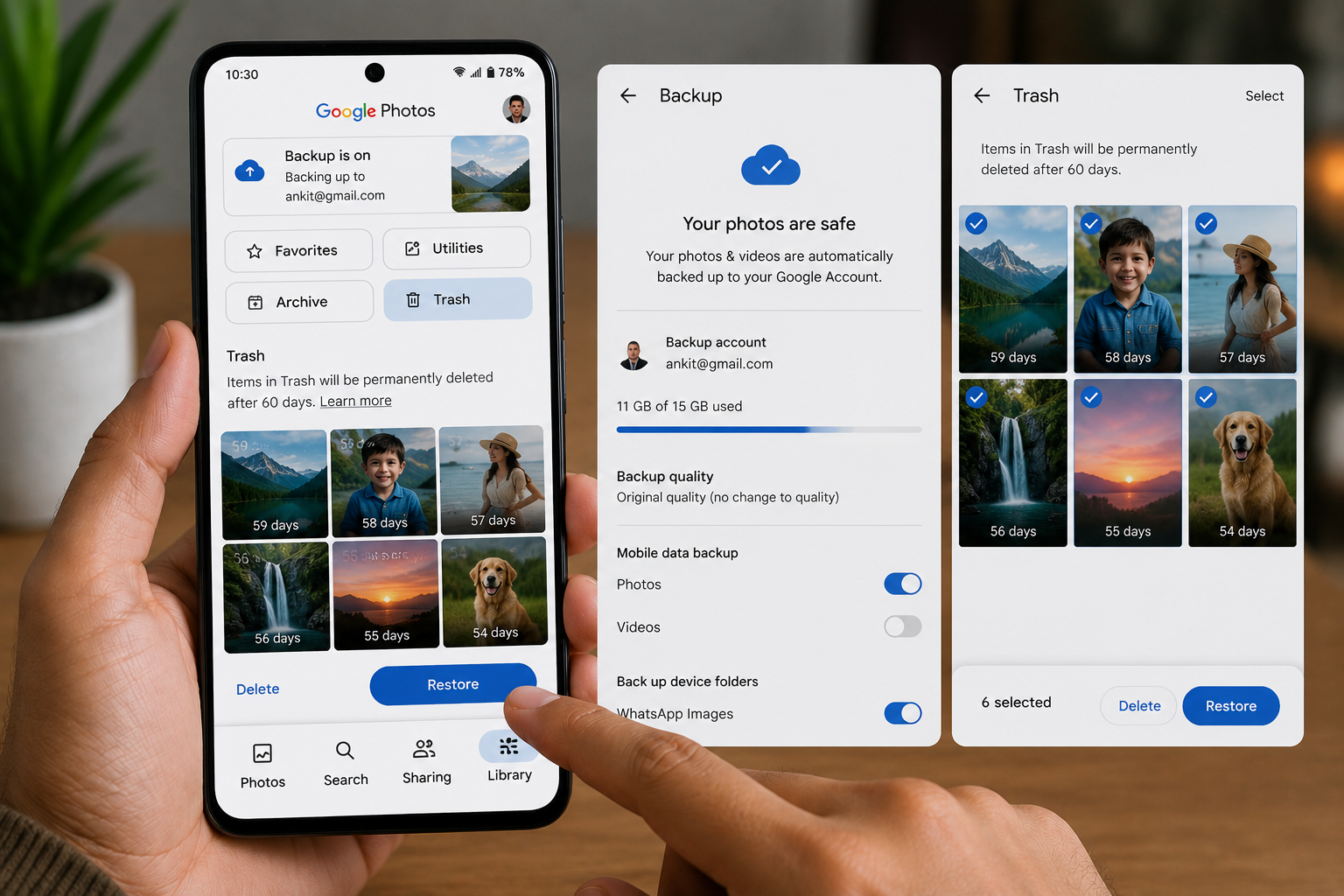
Accidentally deleting important photos from your Android phone can be frustrating. Whether it’s family memories, travel pictures, work documents, or screenshots, losing photos doesn’t always mean they’re gone forever. If you’re searching for How to Recover Permanently Deleted Photos on Android, this guide explains the safest and most effective recovery methods.
In this article, you’ll learn how to recover permanently deleted photos on Android, when recovery is possible, and what you should do immediately after deleting your files.
Important: The chances of recovering deleted photos are highest if you stop using your phone immediately after deletion. Continuing to take photos or install apps may overwrite deleted data, making recovery more difficult.
Table of Contents
- Can Permanently Deleted Photos Be Recovered?
- Why Photos Get Deleted
- How to Recover Permanently Deleted Photos on Android
- What to Do If Recovery Doesn’t Work
- Tips to Prevent Photo Loss
- Frequently Asked Questions
- Final Thoughts
Can Permanently Deleted Photos Be Recovered?
Yes, in some situations. Recovery depends on several factors, including:
- Whether the photos were backed up.
- How long ago they were deleted.
- Whether the deleted storage space has been overwritten.
- Which Android phone you use.
- Whether cloud backup was enabled.
The sooner you try to recover your photos, the better your chances.
Why Photos Get Deleted
Photos may disappear because of:
- Accidental deletion
- Factory reset
- SD card corruption
- Phone damage
- Malware or virus attacks
- Storage cleanup apps
- System update errors
- File transfer mistakes
Understanding the cause can help you choose the best recovery method.
How to Recover Permanently Deleted Photos on Android
Method 1: Check Google Photos Trash
If you use Google Photos with backup enabled, deleted photos usually remain in the Trash for a limited period before being permanently removed.
Steps:
- Open Google Photos.
- Tap Collections or Library (depending on the app version).
- Open Trash or Bin.
- Select the photos you want to restore.
- Tap Restore.
Recovered photos return to your gallery and Google Photos library.
Method 2: Restore from Google Backup
If Google Backup was enabled before deletion:
- Open your Google Photos account.
- Check whether cloud backup contains your deleted images.
- Restore available photos to your device.
Cloud backups are often the easiest recovery option.
Method 3: Check Your Device Gallery Trash
Many Android manufacturers include a recycle bin in their Gallery app.
Examples include:
- Samsung Gallery
- OnePlus Gallery
- Xiaomi Gallery
- OPPO Photos
- vivo Album
Open your Gallery app and check the Trash, Recycle Bin, or Recently Deleted folder.
Method 4: Recover Photos from an SD Card Backup
If your photos were stored on a microSD card:
- Insert the card into a computer or card reader.
- Check for available backups.
- Use trusted recovery software if needed.
Avoid saving new files to the SD card before attempting recovery.
Method 5: Restore from Cloud Storage
Check cloud services such as:
- Google Drive
- Microsoft OneDrive
- Dropbox
Many users enable automatic photo uploads without realizing it.
Method 6: Restore from Your Computer Backup
If you regularly copy photos to your computer:
- Check your Pictures folder.
- Search external hard drives.
- Look in backup folders.
You may already have another copy.
Method 7: Use Trusted Recovery Software
If no backup exists, reputable data recovery software may help recover photos, especially from removable storage.
Recovery success depends on whether the deleted files have been overwritten.
Choose well-known software from trusted developers and follow their instructions carefully.
Method 8: Contact a Professional Recovery Service
If the photos are extremely important and your phone is physically damaged, consider contacting a professional data recovery service.
Keep in mind that recovery cannot be guaranteed and may involve additional costs.
What to Do Immediately After Deleting Photos
If you accidentally delete photos:
Stop Using the Phone
Avoid taking new photos or installing apps.
Disable Downloads
Downloading new files may overwrite deleted storage.
Check Cloud Backups
Look for copies stored online.
Attempt Recovery Quickly
The sooner you try, the better the chances.
Avoid Unknown Recovery Apps
Use only trusted recovery software or official cloud services.
Tips to Prevent Photo Loss
Protect your memories by following these tips:
- Enable Google Photos backup.
- Keep multiple backups.
- Sync photos to cloud storage.
- Use an external hard drive.
- Avoid deleting files without checking.
- Back up important photos regularly.
- Keep your phone updated.
- Replace failing SD cards promptly.
Common Mistakes to Avoid
Avoid these common errors:
- Continuing to use the phone after deletion.
- Installing multiple recovery apps.
- Formatting the storage before recovery.
- Saving new photos to the same storage location.
- Trusting unknown recovery tools.
Read More:
- How to Create Ghibli-Style AI Images for Free: 7 Easy Methods
- Deleted Photos Wapas Kaise Laye
- Google Par Apni Photo Kaise Search Kare
- Google Photos Backup Not Working?
- Google Photos Backup Not Working? Here’s How to Fix It
Frequently Asked Questions
Can permanently deleted photos really be recovered?
Sometimes. Recovery is more likely if the deleted storage hasn’t been overwritten and if backups are available.
Does Google Photos keep deleted photos forever?
No. Items in the Trash are typically retained for a limited period before being permanently removed, depending on your backup status and Google’s current policies.
Can I recover photos after a factory reset?
Recovery is often difficult after a factory reset unless you previously backed up your photos to a cloud service or another storage location.
Are photo recovery apps safe?
Some are legitimate, while others may be unreliable or unsafe. Download recovery software only from trusted developers and official sources.
Final Thoughts
Learning How to Recover Permanently Deleted Photos on Android can help you restore valuable memories and important files. Your best chance of success comes from acting quickly, checking cloud backups, reviewing your Gallery’s Trash folder, and avoiding actions that overwrite deleted data.
The easiest way to avoid future data loss is to enable automatic backups and maintain copies of your important photos in more than one location.