
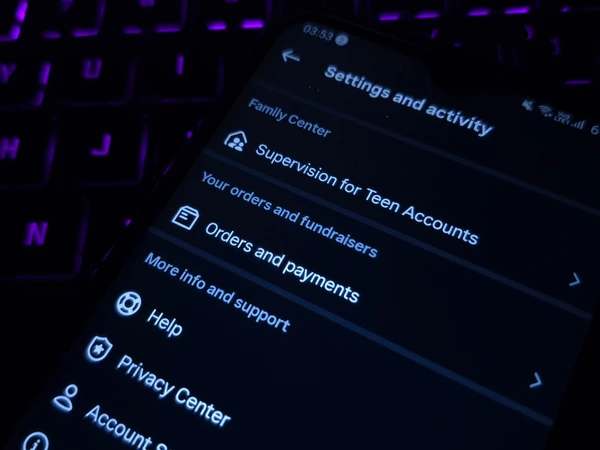
Have you ever wondered if someone else has accessed your Instagram account? Whether you’ve noticed unusual activity, received an unexpected login alert, or simply want to improve your account security, checking your login history is one of the best ways to detect unauthorized access. If you’re searching for How to Check Login History on Instagram, this guide will show you the official method to view your recent login activity.
In this article, you’ll learn how to check login history on Instagram, identify suspicious devices, remove unknown logins, and secure your account from hackers.
Important: If you see a login from an unfamiliar device or location, change your password immediately and enable Two-Factor Authentication (2FA).
Table of Contents
- What Is Instagram Login History?
- Why Should You Check Your Login History?
- How to Check Login History on Instagram
- What to Do If You Find an Unknown Login
- Tips to Keep Your Instagram Account Safe
- Frequently Asked Questions
- Final Thoughts
What Is Instagram Login History?
Instagram login history is a security feature that shows where and when your account has been accessed. It helps you monitor recent login activity and identify devices that are currently logged into your account.
The login activity section may include information such as:
- Device type
- Approximate location
- Login date and time
- Current active session
Regularly reviewing this information helps you detect unauthorized access before it becomes a bigger problem.
Why Should You Check Your Login History?
Checking your Instagram login history is important because it helps you:
- Detect unauthorized access
- Identify unknown devices
- Monitor suspicious login attempts
- Secure your personal information
- Protect your photos, messages, and followers
It’s a good habit to review your login activity every few weeks, especially if you’ve logged in on a shared device.
How to Check Login History on Instagram
Step 1: Open the Instagram App
Launch the Instagram app on your Android or iPhone and sign in to your account if you’re not already logged in.
Step 2: Go to Your Profile
Tap your profile picture in the bottom-right corner to open your Instagram profile.
Step 3: Open the Menu
Tap the three-line (☰) menu in the top-right corner.
This opens Instagram’s settings and account management options.
Step 4: Open Accounts Center
Tap Accounts Center.
Then navigate to the section where Instagram provides security and password settings. Depending on app updates, menu names may change slightly.
Step 5: View Password and Security Settings
Open the Password and Security section.
Look for options related to:
- Where you’re logged in
- Login activity
- Devices
Instagram displays devices currently signed in to your account.
Step 6: Review Logged-In Devices
Carefully review each device.
Check:
- Device name
- Approximate location
- Login time
- Active status
If you recognize every device, your account is likely secure.
Step 7: Remove Unknown Devices
If you notice a device you don’t recognize:
- Select the device.
- Tap Log Out.
- Confirm the action.
Immediately after logging out the unknown device:
- Change your Instagram password.
- Enable Two-Factor Authentication.
- Review your account information.
What to Do If You Find an Unknown Login
If someone else has accessed your account:
Change Your Password Immediately
Choose a strong password that you haven’t used elsewhere.
Enable Two-Factor Authentication
This adds an extra security layer by requiring a verification code when someone tries to log in.
Review Account Information
Check whether anyone changed:
- Email address
- Phone number
- Username
If you notice unauthorized changes, update them immediately.
Remove Third-Party Apps
Review apps connected to your Instagram account and remove any that you don’t recognize or no longer use.
Check Your Recent Activity
Look for unusual:
- Messages
- Posts
- Comments
- Story uploads
- Profile edits
If anything appears suspicious, secure your account immediately.
Tips to Keep Your Instagram Account Safe
Protect your Instagram account by following these best practices:
- Use a strong and unique password.
- Enable Two-Factor Authentication.
- Never share your login code.
- Avoid phishing websites.
- Keep your recovery email updated.
- Don’t log in on unknown devices.
- Log out from public computers.
- Review login activity regularly.
- Update the Instagram app to the latest version.
Signs Your Instagram Account May Be Hacked
Watch out for these warning signs:
- Login alerts you don’t recognize
- Password changed without your permission
- New followers or following accounts you didn’t add
- Messages you didn’t send
- Posts or stories you didn’t create
- Email or phone number changed unexpectedly
If you notice any of these, secure your account as soon as possible.
Read More :
Frequently Asked Questions
Can I see who logged into my Instagram account?
Instagram allows you to view devices and approximate locations where your account is currently logged in. It does not identify the individual person using the device.
Does Instagram notify me about suspicious logins?
Yes. Instagram may send security notifications if it detects unusual login attempts or activity.
Can I remove all logged-in devices at once?
Depending on your account settings and app version, Instagram may allow you to log out of all sessions by changing your password. Otherwise, you may need to remove devices individually.
How often should I check my login history?
Checking your login activity once a month or whenever you receive a suspicious login alert is a good security practice.
Final Thoughts
Knowing How to Check Login History on Instagram is one of the easiest ways to protect your account from unauthorized access. By reviewing your logged-in devices, removing unfamiliar sessions, changing your password when necessary, and enabling Two-Factor Authentication, you can significantly improve your Instagram security.
A few minutes spent checking your login history can help prevent hacked accounts, stolen personal information, and unauthorized activity.


