Google Photos is one of the most popular cloud backup services for smartphones. It automatically stores your photos and videos online, helping protect precious memories if your device is lost, damaged, or replaced.
However, many users occasionally encounter a frustrating problem: photos stop backing up.
New pictures remain on the phone but never appear in the cloud.
Fortunately, this issue is usually easy to fix once the underlying cause is identified.
Why Does Google Photos Backup Stop Working?
Several factors can interrupt backups.
Common causes include:
- Poor internet connection
- Full storage
- Disabled backup settings
- Battery restrictions
- Outdated app versions
Understanding the cause is essential before applying solutions.
Verify Backup Is Enabled
Open Google Photos and confirm that:
- Backup is turned ON.
- The correct Google account is selected.
Many users accidentally disable backup without realizing it.
Check Internet Connectivity
Photo backups require:
- Wi-Fi
- Mobile data (if enabled)
Weak connections can delay uploads significantly.
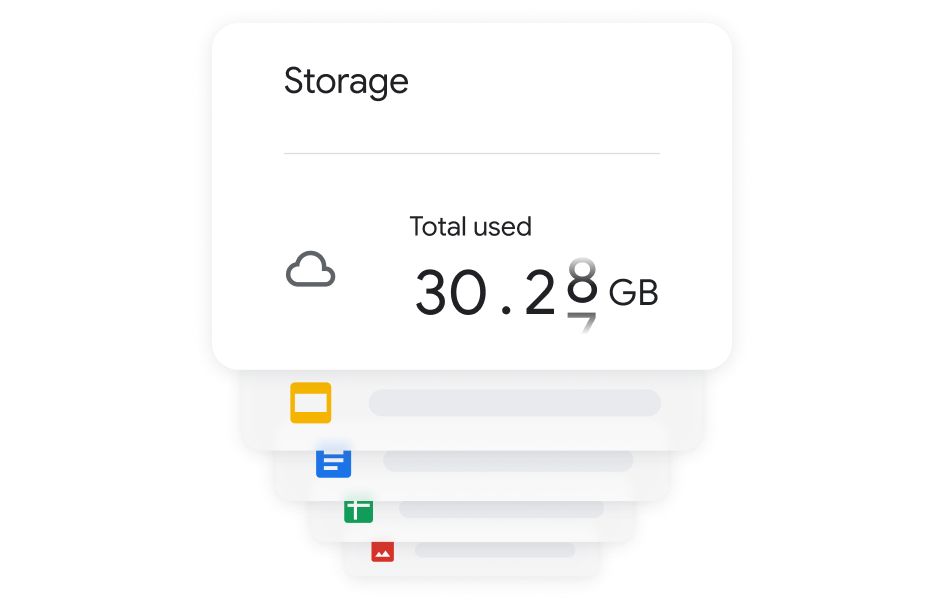
Review Available Storage Space
Cloud storage may be full.
Google storage is shared across:
- Gmail
- Google Drive
- Google Photos
If storage reaches its limit, backups stop automatically.
Update Google Photos
App updates often include:
✔ Bug fixes
✔ Performance improvements
✔ Compatibility updates
Keeping the app current helps prevent syncing issues.
Disable Battery Restrictions
Some phones aggressively limit background activity.
Battery optimization settings may stop Google Photos from uploading content.
Allowing unrestricted background activity can solve the problem.
Verify Account Login Status
Occasionally, account authentication issues interrupt syncing.
Ensure:
- You’re signed in correctly.
- No account alerts require attention.
Clear App Cache
Temporary files can occasionally create sync issues.
Clearing cache may improve:
- App performance
- Sync reliability
- Upload processing
Restart the Device
A simple restart refreshes:
- Network connections
- Background services
- App processes
This remains one of the easiest troubleshooting methods.
Prevent Future Backup Problems
Helpful practices include:
✔ Maintaining free storage
✔ Using reliable internet
✔ Updating apps regularly
✔ Reviewing backup settings monthly
Keeping Your Memories Safe
Google Photos backup issues can be frustrating, especially when important photos are involved. Fortunately, most backup failures are caused by settings, storage limitations, or temporary app problems rather than permanent issues.
By checking connectivity, storage availability, and backup configuration, you can usually restore automatic uploads quickly and keep your photos protected.