Google Photos is one of the most popular cloud storage services for backing up photos and videos. It helps users protect important memories by automatically syncing media files to the cloud.
However, many users occasionally encounter backup problems where photos stop syncing, uploads remain stuck, or backups fail completely.
Fortunately, most Google Photos backup issues can be resolved with a few simple troubleshooting methods.
Why Is Google Photos Backup Not Working?
Several factors can prevent backups from completing.
Common causes include:
- Poor internet connection
- Insufficient cloud storage
- App permission issues
- Battery optimization restrictions
- Outdated application version
- Account synchronization problems
Understanding the cause helps you fix the issue faster.
Check Your Internet Connection
Google Photos requires a stable internet connection to upload files.
Verify:
- WiFi connectivity
- Mobile data availability
- Internet speed
Slow or unstable connections may delay backups.
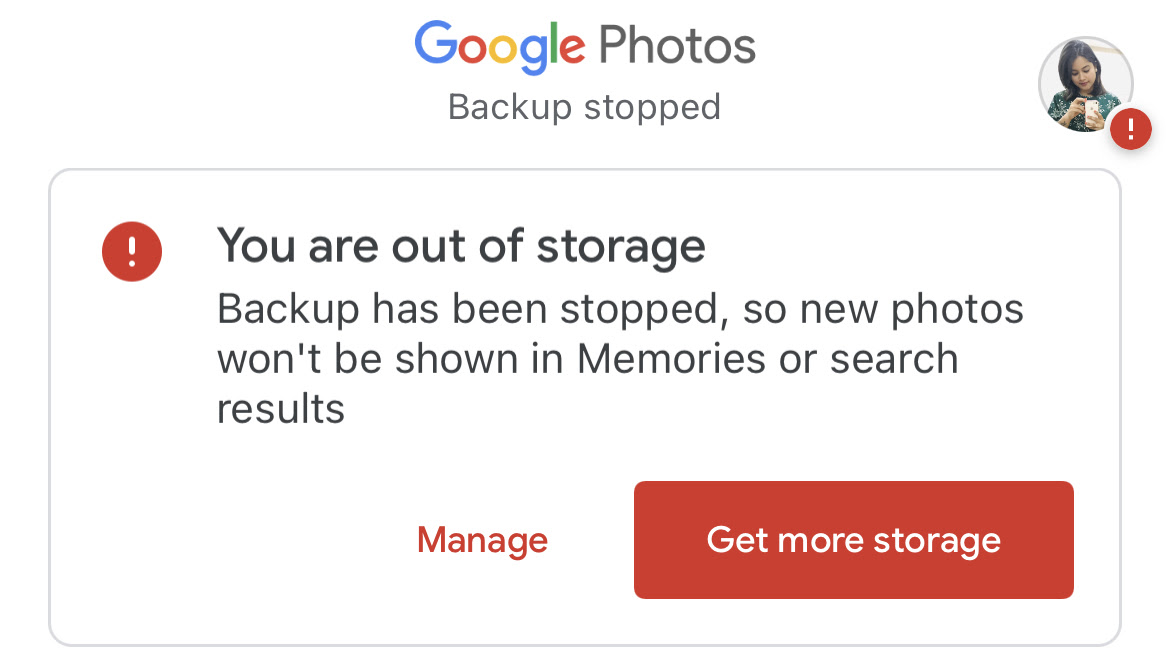
Verify Available Google Storage
Google accounts have limited cloud storage.
If storage becomes full:
- New photos cannot upload
- Backups may stop
- Synchronization may fail
Regularly review available storage space.
Ensure Backup Is Enabled
Sometimes backup settings may become disabled accidentally.
Check:
- Backup status
- Account selection
- Sync preferences
Make sure backup is turned on.
Update Google Photos
Older app versions may experience:
- Sync errors
- Compatibility issues
- Upload failures
Updates often provide:
✔ Bug fixes
✔ Security improvements
✔ Better performance
Grant Required Permissions
Google Photos requires access to:
- Photos
- Videos
- Storage
Without proper permissions, backups may not work correctly.
Review app permissions if uploads fail.
Disable Battery Optimization
Some Android devices restrict background activity to save battery.
This may prevent:
- Automatic uploads
- Continuous synchronization
- Background backups
Allow Google Photos to operate without aggressive battery restrictions.
Restart Your Phone
A simple restart can refresh:
- App services
- Network connections
- Account synchronization
Many backup problems disappear after rebooting.
Clear Google Photos Cache
Temporary files occasionally become corrupted.
Clearing cache can:
✔ Fix sync issues
✔ Improve performance
✔ Restore proper functionality
Check Account Synchronization
Google account sync problems may interrupt backups.
Verify:
- Google account status
- Sync settings
- Account connectivity
Reconnecting the account may help resolve issues.
Back Up Photos While Charging
Large backups often require:
- Stable internet
- Sufficient battery
- Background processing
Connecting the phone to a charger can improve backup reliability.
Prevent Future Backup Problems
Helpful habits include:
✔ Maintain free cloud storage
✔ Use stable WiFi
✔ Keep Google Photos updated
✔ Review backup settings regularly
✔ Enable account synchronization
Protecting Your Photos with Reliable Backups
Google Photos backup issues are often caused by internet problems, storage limitations, permission restrictions, or synchronization errors. By checking these common causes, most users can restore backup functionality quickly.
Regular maintenance of your Google account, storage space, and app settings helps ensure that your important photos and videos remain safely backed up in the cloud.