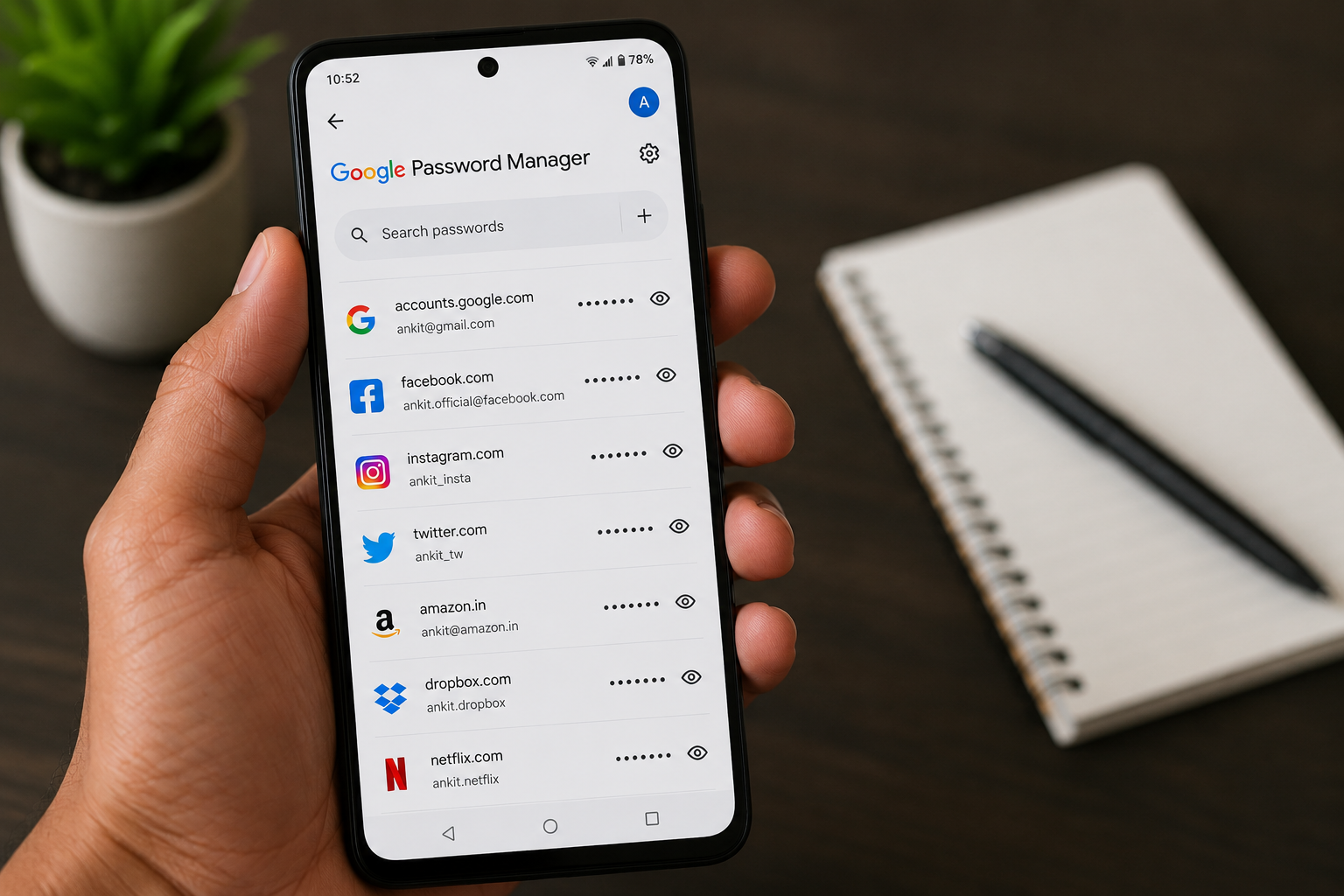
Forgetting passwords is a common problem, especially when you have multiple online accounts. Fortunately, Android phones can securely save your passwords through your Google Account or supported password managers, making it easy to access them when needed. If you’re searching for How to Find Saved Passwords on Android, this guide will show you the official and safest methods.
In this article, you’ll learn how to find saved passwords on Android, view Wi-Fi and website passwords, manage your saved credentials, and keep your accounts secure.
Important: Only view passwords on devices that belong to you or that you have permission to use. Never access or share someone else’s saved passwords without their consent.
Table of Contents
- What Are Saved Passwords on Android?
- Where Are Passwords Stored?
- How to Find Saved Passwords on Android
- How to Manage Saved Passwords
- Tips to Keep Your Passwords Safe
- Frequently Asked Questions
- Final Thoughts
What Are Saved Passwords on Android?
Android allows you to securely save login credentials for websites and apps using your Google Account or another password manager. Once saved, you can sign in to supported apps and websites without remembering every password.
Saved passwords may include:
- Google account passwords (for autofill purposes)
- Website login credentials
- App login credentials
- Wi-Fi passwords (on supported Android versions)
- Passkeys (if enabled)
Using a password manager helps create stronger, unique passwords for different accounts.
Where Are Passwords Stored?
Depending on your settings, passwords may be stored in:
- Google Password Manager
- Your browser’s password manager
- A third-party password manager
- Your device’s secure storage
Most Android users rely on Google Password Manager, which syncs passwords across compatible devices when enabled.
How to Find Saved Passwords on Android
Method 1: Check Google Password Manager
The easiest way to find saved passwords is through Google Password Manager.
Steps:
- Open Settings.
- Tap Google.
- Select Password Manager (or Google Password Manager, depending on your device).
- Authenticate using your fingerprint, face unlock, or device PIN.
- Browse the list of saved websites and apps.
- Tap an entry to view its details.
- Select the eye icon to reveal the saved password, if available.
This is the official method recommended for Google Password Manager users.
Method 2: View Saved Passwords in Google Chrome
If you use Chrome for Android:
- Open Google Chrome.
- Tap the three-dot menu.
- Go to Settings.
- Tap Password Manager.
- Verify your identity.
- Select the website whose password you want to view.
Chrome syncs passwords with your Google Account if synchronization is enabled.
Method 3: Find Saved Wi-Fi Passwords
On supported Android versions:
- Open Settings.
- Tap Network & Internet or Wi-Fi.
- Select your connected Wi-Fi network.
- Open the Share option.
- Verify your identity.
Your device may display a QR code and, on supported versions, the Wi-Fi password.
Method 4: Check Autofill Settings
Android can automatically fill in saved credentials.
To review Autofill:
- Open Settings.
- Go to Passwords & Accounts or Privacy (menu names vary by device).
- Open Autofill Service.
- Confirm that Google Password Manager or your preferred password manager is enabled.
Method 5: Check Samsung Pass (Samsung Devices)
If you use a Samsung Galaxy phone:
- Open Samsung Wallet or Samsung Pass (depending on your device and software version).
- Authenticate with your fingerprint or PIN.
- View supported saved login information.
Available features may vary by Samsung model and One UI version.
Method 6: Use a Third-Party Password Manager
If you use apps such as Bitwarden, 1Password, or Dashlane:
- Open the password manager.
- Unlock it with your master password or biometric authentication.
- View your saved passwords securely.
Never install unknown password manager apps from unofficial sources.
Method 7: Recover Forgotten Passwords Safely
If you can’t find a saved password:
- Check whether it was saved in another password manager.
- Use the account’s official Forgot Password option.
- Follow the account recovery process.
Avoid downloading apps that claim to “hack” or reveal passwords.
How to Manage Saved Passwords
Regularly review your saved passwords.
You can:
Edit Passwords
Update old passwords after changing them.
Delete Unused Passwords
Remove credentials for accounts you no longer use.
Check Password Strength
Replace weak or reused passwords with strong, unique ones.
Add New Passwords
Save new account credentials securely for easier future logins.
Tips to Keep Your Passwords Safe
Protect your online accounts with these best practices:
- Use strong, unique passwords.
- Enable Two-Factor Authentication (2FA).
- Turn on biometric authentication for your password manager.
- Don’t share passwords with others.
- Avoid saving passwords on public devices.
- Keep Android and your apps updated.
- Review your saved passwords regularly.
- Change passwords immediately after a known data breach.
Common Mistakes to Avoid
Avoid these security mistakes:
- Using the same password for multiple accounts.
- Writing passwords in unsecured notes.
- Saving passwords on shared devices without protection.
- Ignoring security alerts.
- Downloading unofficial password manager apps.
Read More :
- How to Enable Passkeys in Google Account: 7 Easy Steps
- How to Find Hidden Spy Apps on Android: 10 Easy Ways
- How to Create Ghibli-Style AI Images for Free: 7 Easy Methods
- PAN Card Me Mobile Number Update Kaise Kare?
- OPPO Reno Kya Hai? Kharidne Se Pehle Zarur Jaane
Frequently Asked Questions
Can I see all my saved passwords on Android?
Yes. If you’re using Google Password Manager or another password manager, you can view your saved credentials after verifying your identity.
Are saved passwords secure?
Password managers encrypt your credentials and protect them with your device’s security features. No system is completely risk-free, but using a trusted password manager is generally much safer than reusing weak passwords.
Can I export my saved passwords?
Some password managers provide an export feature. If you export passwords, store the file securely because it may contain sensitive information.
What if my password isn’t saved?
If your password wasn’t previously saved, you’ll need to use the service’s official password recovery or reset process.
Final Thoughts
Knowing How to Find Saved Passwords on Android can save time and help you regain access to your online accounts. Whether you’re checking website logins, Wi-Fi passwords, or app credentials, Android and Google Password Manager provide secure tools to manage your saved information.
To keep your accounts safe, use strong passwords, enable Two-Factor Authentication, review your saved credentials regularly, and avoid storing passwords in insecure locations.