Accidentally deleting important WhatsApp conversations can be frustrating, especially if they contain personal memories, work messages, or important documents. If you’re searching for how to recover deleted WhatsApp chats, there are several methods you can try depending on whether you have a backup and what type of device you use.
In this guide, you’ll learn how to recover deleted WhatsApp chats, understand when recovery is possible, and discover the safest ways to restore your conversations without risking your data.
Important: Recovery is usually possible only if a backup exists or if the messages haven’t been permanently overwritten. There is no guaranteed method to recover chats that were never backed up.
Table of Contents
- Can Deleted WhatsApp Chats Be Recovered?
- Check Your WhatsApp Backup
- Recover Chats from Google Drive (Android)
- Recover Chats from iCloud (iPhone)
- Restore from a Local Backup (Android)
- Ask the Other Person to Forward Messages
- Recover Media Files
- Tips to Prevent Chat Loss
- Frequently Asked Questions
- Final Thoughts
Can Deleted WhatsApp Chats Be Recovered?
Yes, in many cases you can recover deleted chats if a backup is available.
WhatsApp supports backups through:
- Google Drive (Android)
- iCloud (iPhone)
- Local backups (on many Android devices)
If no backup exists and the chats have been permanently removed, recovery may not be possible.
1. Check Your WhatsApp Backup
Before trying to recover deleted chats, check if a backup already exists.
Open WhatsApp and go to:
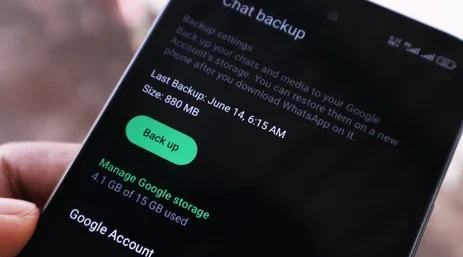
Settings → Chats → Chat Backup
Look for:
- Last backup date
- Backup size
- Google account or iCloud account used
- Whether videos are included
If the backup was created before the chats were deleted, you may be able to restore them.
2. Recover Deleted WhatsApp Chats from Google Drive (Android)
If you’re using Android and have a recent Google Drive backup:
Steps:
- Confirm your backup exists.
- Uninstall WhatsApp.
- Reinstall WhatsApp from the official app store.
- Verify your phone number.
- When prompted, choose Restore.
- Wait for the restoration to finish.
After the process is complete, your chats included in the backup should reappear.
3. Recover Deleted WhatsApp Chats from iCloud (iPhone)
For iPhone users:
Steps:
- Open Settings → Chats → Chat Backup in WhatsApp and confirm a backup exists.
- Delete WhatsApp from your device.
- Reinstall WhatsApp.
- Verify your phone number.
- Tap Restore Chat History when prompted.
Ensure you’re signed in with the same Apple ID used for the backup.
4. Restore from a Local Backup (Android)
Many Android phones automatically create local WhatsApp backups.
If available, you may be able to restore messages from one of these backups.
Before attempting this method:
- Verify the backup date.
- Make a copy of important current data.
- Follow WhatsApp’s official guidance to avoid overwriting newer information.
5. Ask the Other Person to Forward Important Messages
If no backup is available, a simple solution may be to ask the other person in the conversation to:
- Forward important messages
- Share documents again
- Resend photos or videos
While this won’t restore the original chat history, it can help recover important information.
6. Recover Media Files
Even if chat messages are deleted, some media files may still exist on your device or cloud storage.
Check:
- Gallery or Photos app
- Google Photos
- iCloud Photos
- Downloads folder
- File Manager (Android)
If media backup was enabled, your photos and videos may still be available.
7. Avoid Unofficial Recovery Apps
Many websites promise to recover deleted WhatsApp chats without a backup.
Be cautious because some third-party tools:
- Require unnecessary permissions
- May compromise your privacy
- Can damage your existing data
- May not work as advertised
Always use official WhatsApp recovery options whenever possible.
8. Enable Automatic Backups
The easiest way to avoid losing chats in the future is to enable automatic backups.
Android
Go to:
WhatsApp → Settings → Chats → Chat Backup
Choose:
- Daily
- Weekly
- Monthly
iPhone
Go to:
WhatsApp → Settings → Chats → Chat Backup
Enable automatic iCloud backups.
Regular backups greatly improve your chances of recovering deleted chats.
Tips to Prevent Losing WhatsApp Chats
Follow these best practices:
✔ Enable daily backups.
✔ Verify backups regularly.
✔ Keep enough cloud storage available.
✔ Don’t uninstall WhatsApp without confirming your backup.
✔ Export important chats before changing phones.
✔ Keep WhatsApp updated to the latest version.
Also Read :
- WhatsApp Hacked? Recover It Fast
- WhatsApp Web Not Working? Complete Troubleshooting Guide
- How to Earn Money from WhatsApp in 2026 (Complete Beginner Guide)
Frequently Asked Questions (FAQs)
Can I recover deleted WhatsApp chats without a backup?
Recovery is generally much more difficult without a backup. If no cloud or local backup exists and the chats were permanently deleted, recovery may not be possible.
Will reinstalling WhatsApp restore deleted chats?
Only if WhatsApp detects a backup associated with the same phone number and cloud account. Reinstalling alone does not restore deleted messages.
Can I recover messages deleted months ago?
If a backup created before the deletion still exists, you may be able to restore those messages. Otherwise, recovery is unlikely.
Are third-party WhatsApp recovery tools safe?
Be cautious. Many unofficial recovery tools request sensitive permissions or make claims they cannot guarantee. It’s safest to use WhatsApp’s built-in backup and restore features.
Final Thoughts
Knowing how to recover deleted WhatsApp chats can save valuable conversations when accidental deletion occurs. The most reliable recovery method is restoring from a recent Google Drive, iCloud, or local backup. If no backup is available, your options are limited, but you may still recover important media or ask contacts to resend messages.
To avoid future data loss, enable automatic backups and verify them regularly. A few minutes of preparation today can save hours of frustration later.