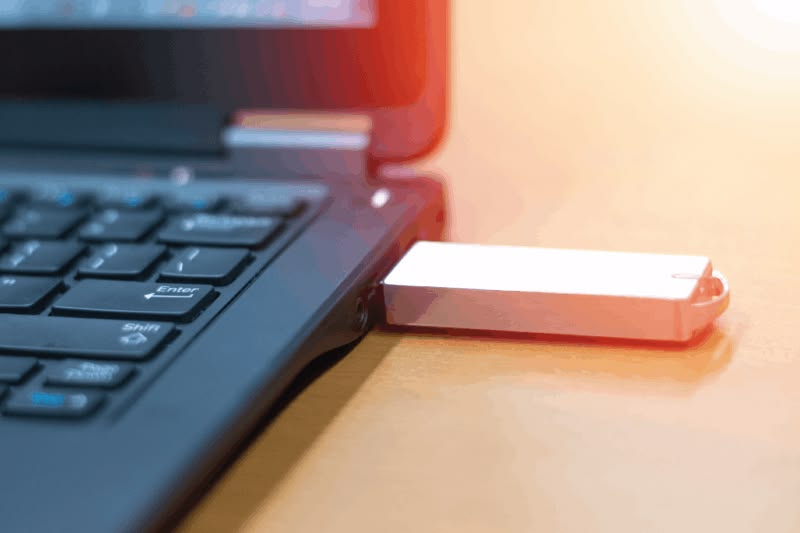
USB drives are one of the easiest ways to transfer files between devices. Whether you’re using a pen drive, external hard drive, or USB SSD, it can be alarming when the device suddenly stops appearing on your computer.
You plug it in, hear the connection sound, but nothing shows up in File Explorer.
Fortunately, this issue is usually caused by software settings, outdated drivers, connection problems, or drive letter conflicts rather than hardware failure.
Let’s look at the most effective solutions.
Why Is Your USB Drive Not Showing?
Common causes include:
- Faulty USB ports
- Driver issues
- Missing drive letters
- Corrupted file systems
- Hardware problems
- Power supply issues
Understanding the cause helps identify the right solution.
Try Another USB Port
The problem may be the USB port rather than the drive.
Test:
- Another USB port
- Another computer
- Different USB cable (if applicable)
This quick check often saves time.
Restart Your Computer
Windows occasionally fails to recognize removable devices correctly.
Restarting can refresh:
- USB drivers
- System processes
- Hardware detection
Check File Explorer
Sometimes the drive is connected but not immediately visible.
Open:
- File Explorer
- This PC
Look carefully for newly detected drives.
Assign a Drive Letter
Windows may detect the drive but fail to assign a drive letter.
Without a drive letter:
- The drive won’t appear normally.
- Files remain inaccessible.
Using Disk Management often resolves this issue.
Update USB Drivers
Outdated or corrupted drivers can prevent recognition.
Driver updates may help:
✔ Improve compatibility
✔ Fix detection issues
✔ Resolve communication errors
Check Disk Management
Disk Management provides valuable information.
You may discover:
- Unallocated space
- Offline drives
- Missing partitions
This helps identify the exact problem.
Scan for File System Errors
Corrupted file systems can make a drive inaccessible.
Common causes:
- Improper removal
- Power interruptions
- Virus infections
Repair tools may restore access.
Disable USB Power Saving
Windows sometimes powers down USB devices to save energy.
This can cause:
- Random disconnections
- Detection failures
Adjusting power settings may help.
Check for Malware
Malware occasionally interferes with storage devices.
Running a security scan is recommended if unusual behavior occurs.
When Might the USB Drive Be Damaged?
Physical damage can occur due to:
- Drops
- Water exposure
- Electrical issues
Signs include:
- Overheating
- No detection anywhere
- Unusual noises
Professional recovery may be necessary.
Protecting USB Drives in the Future
Follow these habits:
✔ Safely eject drives
✔ Avoid sudden removal
✔ Scan regularly for malware
✔ Store devices safely
These practices reduce corruption risks.
Most USB Detection Problems Are Fixable
When a USB drive doesn’t appear on your PC, it doesn’t automatically mean the drive is dead.
Many issues result from software settings, driver conflicts, or configuration problems that can be corrected with simple troubleshooting.
Working through the solutions systematically often restores access without data loss.