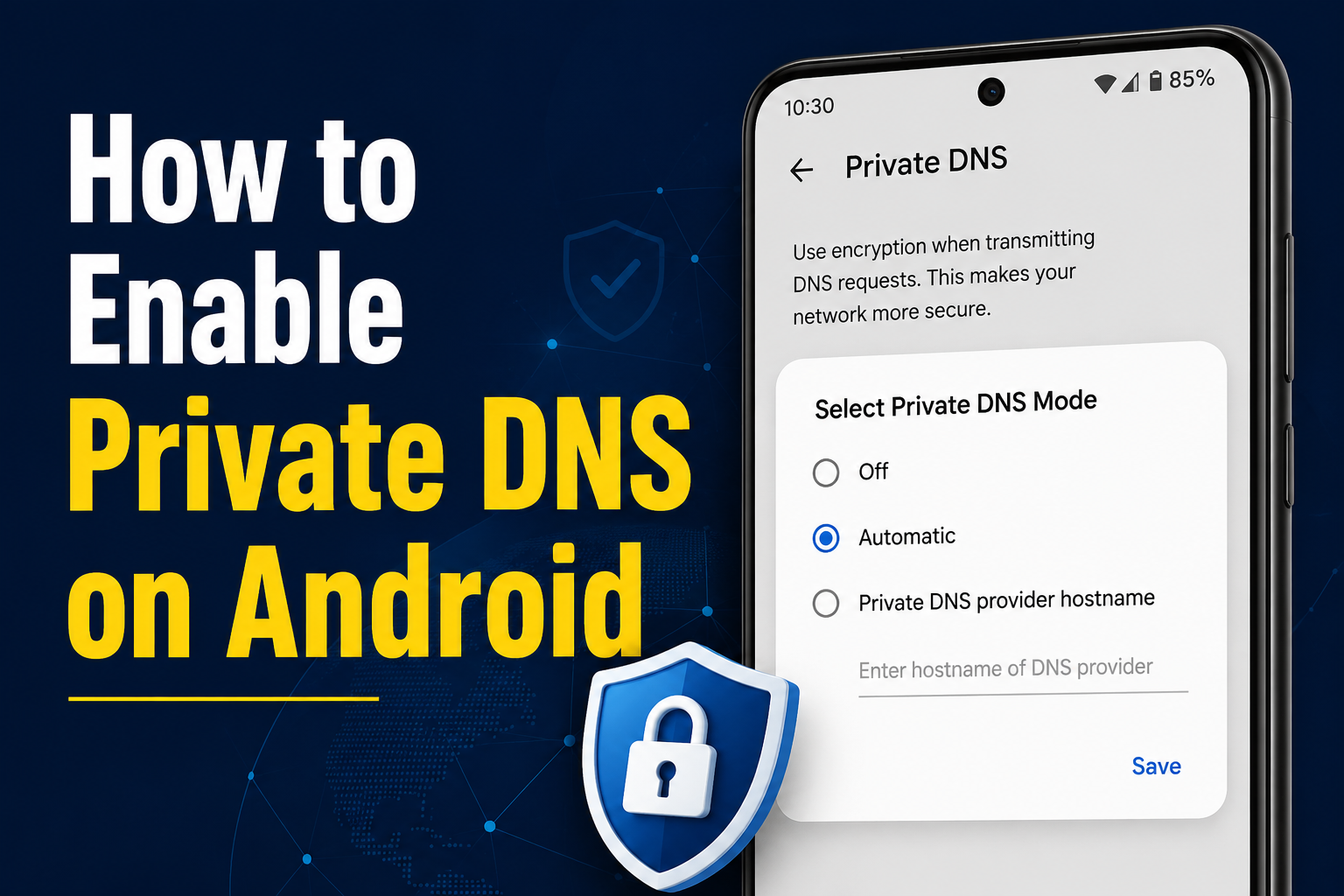
What Is Private DNS on Android?
Private DNS is an Android feature that helps protect DNS queries when your phone connects to the internet. DNS, or Domain Name System, translates website names into network addresses.
On supported Android devices, Private DNS is available directly in the system settings, so you don’t necessarily need a separate app to enable it. Google recommends keeping Private DNS turned on.
However, Private DNS should not be confused with a VPN. It protects DNS queries and answers, but it does not encrypt or protect all of your internet traffic.
Why Should You Enable Private DNS?
Using Private DNS can provide an additional layer of privacy when your device makes DNS requests.
Some benefits include:
- Helps secure DNS queries
- Works across supported networks
- Doesn’t require a separate VPN app
- Can use a custom DNS provider
- Available directly through Android settings
- Can help improve control over DNS resolution
For most users, leaving the setting on Automatic is a simple option.
How to Enable Private DNS on Android
Step 1: Open Settings
Unlock your Android smartphone and open the Settings app.
The location of network settings can differ between manufacturers, so the names may not be exactly the same on every phone.
Step 2: Open Network Settings
Look for:
Network & internet
On some devices, you may see Connections or another similar option.
Google’s Android documentation lists Network & internet → Private DNS for supported devices.
Step 3: Select Private DNS
Tap Private DNS.
If you cannot find it, use the Settings search bar and search for Private DNS. Google also recommends searching Settings when the option isn’t visible.
Step 4: Choose Your Preferred Option
Android normally provides three choices:
- Off
- Automatic
- Private DNS provider hostname
For everyday users, Automatic is generally the easiest option.
If you specifically want to use a custom DNS provider, choose Private DNS provider hostname and enter the hostname supplied by that provider.
Step 5: Save the Setting
After selecting your preferred option, tap Save.
Your Android phone will then use the selected Private DNS configuration.
Should You Choose Automatic or a Custom Provider?
For most people, Automatic is the simplest choice.
With Automatic enabled, Android can use Private DNS where supported without requiring you to manually enter a provider hostname. Google recommends keeping Private DNS turned on by default.
A custom provider can be useful when you specifically need a particular DNS service, such as one provided by your organization or another trusted DNS provider.
Before entering a custom hostname, make sure you trust the provider.
Does Private DNS Work Like a VPN?
No.
This is an important difference.
A VPN can route your internet traffic through a VPN server, while Android’s Private DNS is specifically designed to secure DNS queries and answers.
Google explicitly notes that Private DNS does not protect anything beyond DNS questions and answers.
So, Private DNS should not be considered a replacement for a VPN.
What Happens If Private DNS Causes Internet Problems?
In some situations, a custom DNS configuration may cause websites or services to stop working correctly.
If your internet connection suddenly has problems after entering a custom hostname, return to:
Settings → Network & internet → Private DNS
Then switch back to Automatic and test the connection again.
If the problem disappears, the custom DNS configuration may have been responsible.
Private DNS on Different Android Phones
The exact menu can vary depending on your phone manufacturer and Android version.
You may find the setting under:
Settings → Network & internet → Private DNS
or under a manufacturer’s Connections or network settings menu.
If you’re unable to find the option, search for Private DNS directly inside Settings.
Is Private DNS Safe to Use?
Yes, when configured properly.
The safest approach for most users is to leave Private DNS on Automatic rather than entering an unfamiliar provider.
If you choose a custom DNS provider, research the provider first and make sure you understand its privacy and filtering policies.
Remember that DNS privacy is only one part of overall online security.
Private DNS vs VPN
| Feature | Private DNS | VPN |
|---|---|---|
| Secures DNS queries | Yes | Yes |
| Protects all internet traffic | No | Generally yes |
| Requires an app | No | Usually |
| Available in Android settings | Yes | VPN setup varies |
| Hides your IP address | No | Generally yes |
| Replaces a VPN | No | — |
This comparison is why Private DNS is best viewed as a DNS privacy feature, rather than a complete internet-security solution.
Common Private DNS Mistakes
Entering an Unknown Hostname
Don’t copy a random DNS hostname from an untrusted website.
Assuming It Is a VPN
Private DNS does not hide your IP address or protect all internet traffic.
Disabling It Without a Reason
Google recommends keeping Private DNS enabled where available.
Forgetting About Custom Settings
If you experience connectivity problems after changing DNS settings, check whether a custom hostname is configured.
Frequently Asked Questions
Where is Private DNS on Android?
On supported Android devices, go to Settings → Network & internet → Private DNS. You can also search for “Private DNS” in Settings.
Should Private DNS be on or automatic?
For most users, keeping it on Automatic is a simple choice. Google recommends keeping Private DNS turned on.
Does Private DNS block ads?
Private DNS itself does not automatically mean that advertisements will be blocked. What happens depends on the DNS provider you configure.
Does Private DNS make my internet faster?
Not necessarily. DNS performance depends on several factors, including the DNS provider and your network connection.
Can Private DNS replace a VPN?
No. Private DNS only protects DNS queries and answers; it does not provide the same protection as a VPN.
Final Thoughts
How to Enable Private DNS on Android is a useful setting to know if you want better control over how your device handles DNS requests.
Android makes the feature easy to access through its network settings, and most users can simply leave it on Automatic. If you decide to use a custom DNS provider, choose a reputable service and remember that Private DNS is not a replacement for a VPN.
For the latest Android network-setting guidance, refer to Google’s official Android Help Center.