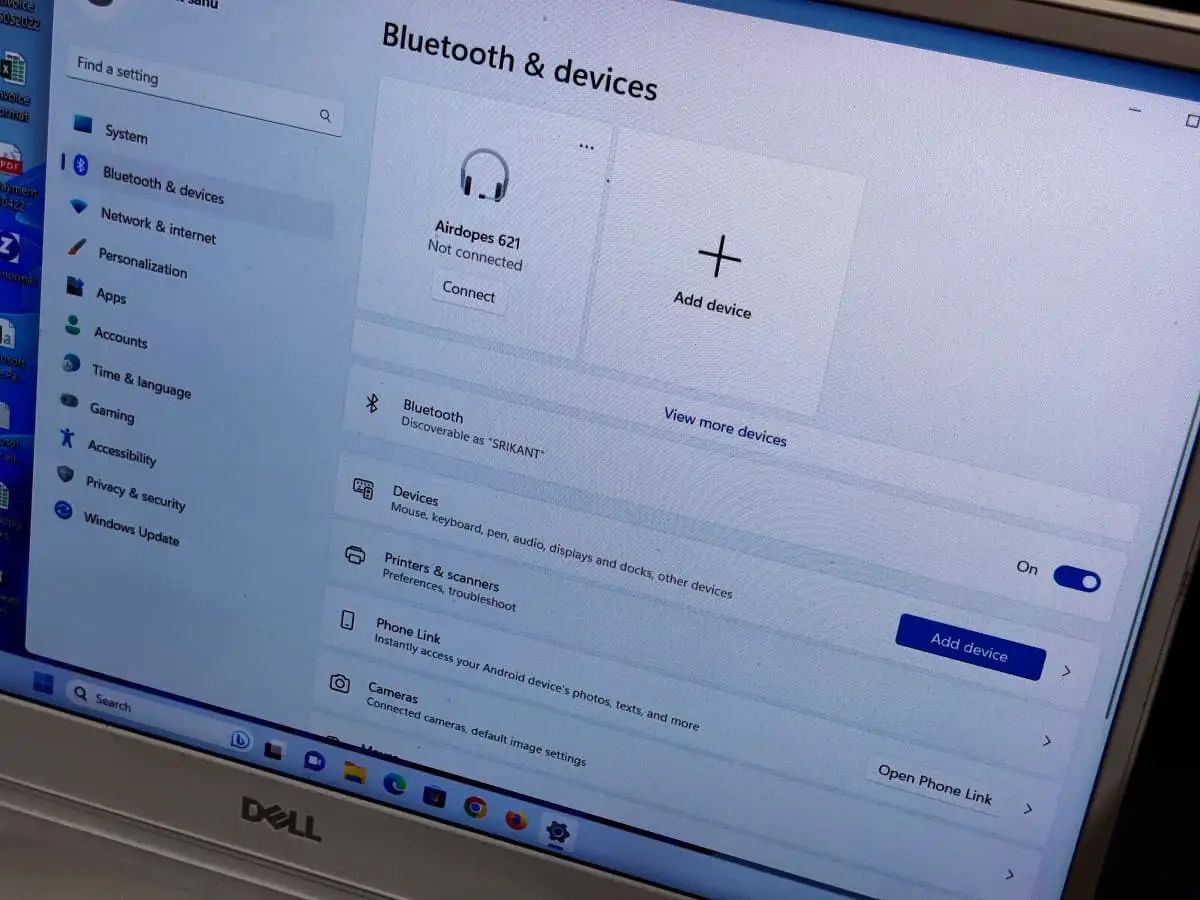
Bluetooth makes it easy to connect wireless devices such as headphones, keyboards, mice, speakers, and smartphones to your computer. However, many Windows users occasionally face issues where Bluetooth suddenly stops working, fails to detect devices, or refuses to connect.
The good news is that most Bluetooth problems are caused by software settings, outdated drivers, or temporary system glitches rather than hardware failure.
If your Bluetooth isn’t working on Windows 10 or Windows 11, these troubleshooting steps can help restore connectivity.
Common Bluetooth Problems
Users frequently report issues such as:
- Bluetooth option missing
- Devices not showing up
- Pairing failures
- Frequent disconnections
- Audio stuttering
- Bluetooth turning off automatically
Fortunately, most of these issues have simple fixes.
Make Sure Bluetooth Is Enabled
Before trying advanced solutions, confirm that Bluetooth is actually turned on.
Check:
- Windows Quick Settings
- Settings > Bluetooth & Devices
Sometimes Bluetooth gets disabled accidentally during updates or troubleshooting.
Restart Bluetooth
Turning Bluetooth off and on can refresh the wireless connection.
Steps:
- Turn Bluetooth off.
- Wait a few seconds.
- Turn it back on.
- Try reconnecting your device.
Restart Your Computer
Many Bluetooth issues are temporary.
Restarting Windows can:
- Reload Bluetooth services
- Refresh drivers
- Clear minor software glitches
Check Device Compatibility
Some older Bluetooth devices may not fully support newer Windows versions.
Verify:
- Device compatibility
- Firmware updates
- Manufacturer requirements
Remove and Re-Pair the Device
Corrupted pairing information can cause connection failures.
Try:
- Remove the device.
- Restart Bluetooth.
- Pair the device again.
This often resolves pairing-related issues.
Update Bluetooth Drivers
Outdated drivers are one of the most common causes of Bluetooth problems.
Updated drivers can:
✔ Improve stability
✔ Fix bugs
✔ Increase compatibility
Run Windows Bluetooth Troubleshooter
Windows includes built-in troubleshooting tools.
The Bluetooth troubleshooter can automatically detect and fix common configuration issues.
Check Bluetooth Services
Windows relies on background Bluetooth services.
If these services stop running:
- Devices may fail to connect.
- Bluetooth may disappear entirely.
Restarting the required services often restores functionality.
Disable Airplane Mode
Airplane Mode disables wireless communications, including Bluetooth.
Make sure Airplane Mode is turned off before troubleshooting further.
Prevent Future Bluetooth Problems
Helpful habits include:
✔ Keeping Windows updated
✔ Updating Bluetooth drivers
✔ Avoiding unnecessary third-party driver tools
✔ Restarting devices periodically
Getting Bluetooth Working Again
Bluetooth issues on Windows are usually caused by software settings, pairing problems, or outdated drivers. By following the solutions above, most users can restore Bluetooth functionality without professional assistance.
Whether you’re connecting wireless headphones, a keyboard, or a smartphone, maintaining updated drivers and system software can help ensure reliable Bluetooth performance.