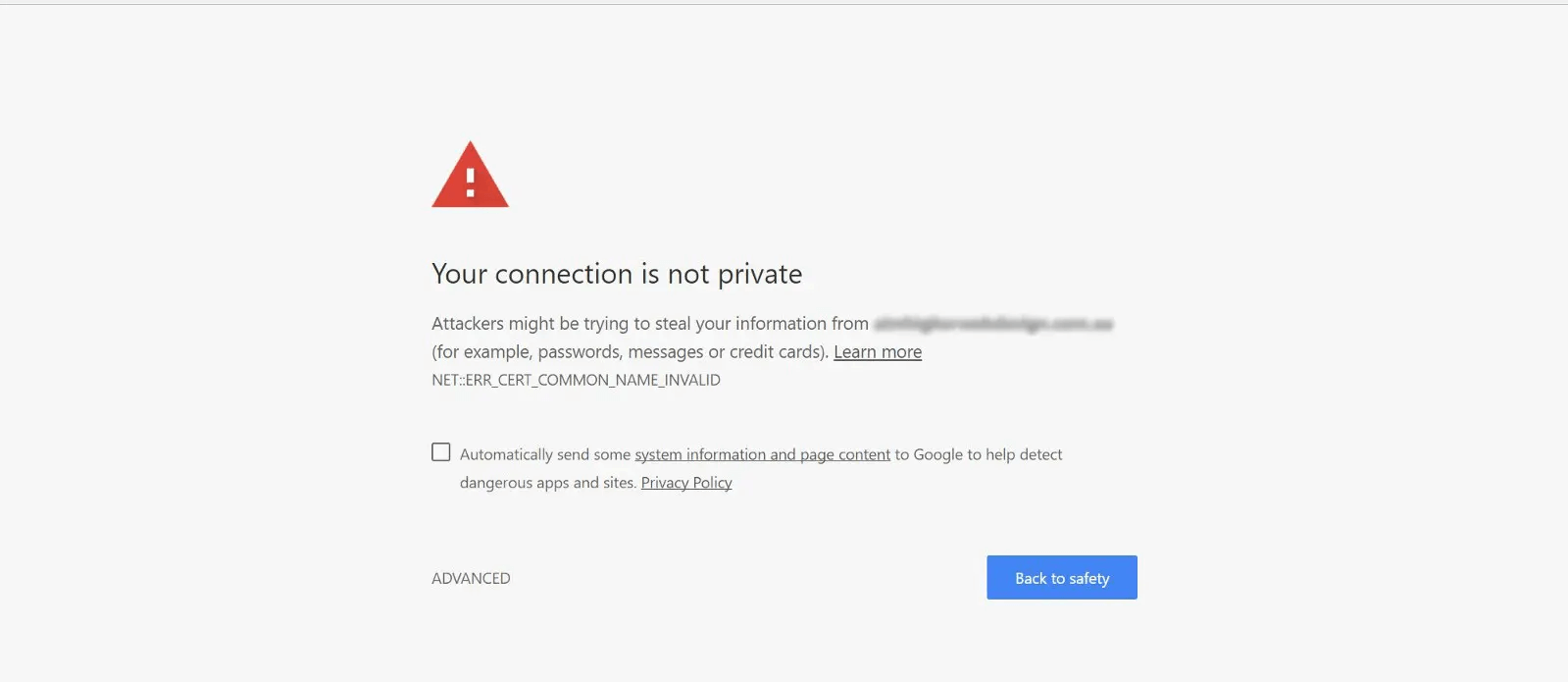
Have you ever opened your website and noticed a warning that says “Not Secure” next to the URL in your browser? This message can be alarming for both website owners and visitors.
A “Not Secure” warning may reduce visitor trust, increase bounce rates, and negatively affect SEO performance. Users are often hesitant to enter personal information on websites that display security warnings.
Fortunately, most “Not Secure” errors can be fixed by understanding their causes and implementing the correct security measures.
What Does “Not Secure” Mean?
When a browser displays “Not Secure,” it usually means that the website is not using a valid SSL certificate.
SSL (Secure Sockets Layer) encrypts data exchanged between:
- Visitors
- Web servers
This helps protect:
- Login credentials
- Contact form submissions
- Payment information
- Personal data
Without SSL protection, data can be more vulnerable during transmission.
Why Does a Website Show “Not Secure”?
Several issues may trigger the warning.
Common causes include:
- Missing SSL certificate
- Expired SSL certificate
- Mixed content errors
- Incorrect website configuration
- HTTPS setup problems
Let’s examine each issue.
Missing SSL Certificate
The most common reason is the absence of an SSL certificate.
Without SSL:
- The website loads using HTTP.
- Browsers display security warnings.
Modern websites should always use HTTPS.
Expired SSL Certificate
SSL certificates require periodic renewal.
If a certificate expires:
- Browsers may display warnings.
- Visitors may lose trust.
- Secure connections may fail.
Regular monitoring helps prevent expiration issues.
Mixed Content Problems
Mixed content occurs when:
- The website loads using HTTPS.
- Some resources load using HTTP.
Examples include:
- Images
- Scripts
- Stylesheets
Browsers may flag these inconsistencies as security risks.
Incorrect WordPress Settings
For WordPress websites, incorrect URL settings can cause HTTPS issues.
Verify that:
- Website URL uses HTTPS
- WordPress URL uses HTTPS
This ensures consistent secure connections.
Check SSL Installation
Sometimes SSL certificates are installed incorrectly.
Symptoms include:
- Browser warnings
- Certificate errors
- Connection problems
A proper installation is essential.
Update Internal Links
Older websites may still contain HTTP links.
Updating internal links helps:
✔ Improve security
✔ Reduce mixed content issues
✔ Ensure consistent HTTPS usage
Redirect HTTP to HTTPS
Automatic redirects ensure visitors always access the secure version of your site.
Benefits include:
- Improved security
- Better user experience
- Stronger SEO signals
Why HTTPS Matters for SEO
Search engines favor secure websites.
Benefits include:
✔ Improved user trust
✔ Better website credibility
✔ Potential SEO advantages
✔ Enhanced data protection
Security has become an important ranking consideration.
How to Check if Your SSL Is Working
Review:
- Browser address bar
- SSL certificate status
- HTTPS loading behavior
A secure website should display:
- HTTPS URL
- Security lock icon
without warnings.
Prevent Future SSL Problems
Helpful practices include:
✔ Renew SSL certificates before expiration
✔ Monitor website security regularly
✔ Update plugins and themes
✔ Use trusted hosting providers
✔ Check HTTPS functionality after updates
Keeping Your Website Secure and Trustworthy
A “Not Secure” warning can discourage visitors and affect your website’s credibility. Fortunately, most security warnings are caused by SSL-related issues that can be resolved through proper configuration and maintenance.
By implementing HTTPS correctly, monitoring SSL certificates, and fixing mixed content errors, you can provide a safer browsing experience and build greater trust with your audience.