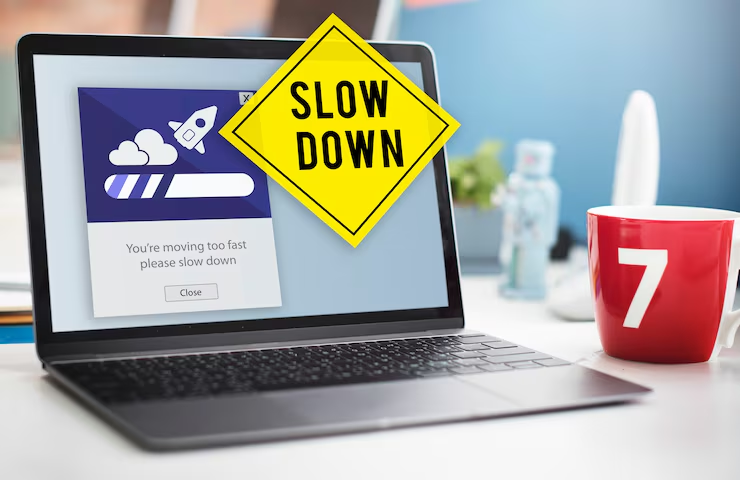
A slow laptop can make even simple tasks frustrating. Whether you’re browsing the internet, working on documents, attending online meetings, or watching videos, a sluggish computer can waste time and reduce productivity.
The good news is that most laptop performance issues can be fixed without buying a new device. In many cases, a few simple optimizations can significantly improve speed.
This guide explains the most common reasons laptops become slow and how to make them faster.
Why Is My Laptop Running Slow?
Several factors can affect performance.
Common causes include:
- Too many startup programs
- Low storage space
- Insufficient RAM
- Background applications
- Malware infections
- Outdated software
- Overheating
Identifying the cause helps determine the best solution.
Restart Your Laptop
Many users leave their laptops running for days or weeks.
Restarting helps:
✔ Clear temporary memory
✔ Refresh system processes
✔ Improve overall performance
A simple restart often provides noticeable improvements.
Disable Unnecessary Startup Programs
Some applications automatically launch when Windows starts.
Examples include:
- Chat applications
- Cloud storage software
- Media players
Too many startup programs can increase boot time and reduce system responsiveness.
Free Up Storage Space
When storage becomes nearly full, Windows performance may decline.
Delete unnecessary:
- Downloads
- Temporary files
- Duplicate files
- Unused applications
Maintaining free storage improves system efficiency.
Remove Unused Software
Many laptops contain applications that are rarely used.
Unused software can:
- Occupy storage
- Run background services
- Consume system resources
Regularly uninstalling unnecessary programs helps improve performance.
Scan for Malware
Viruses and malicious software can significantly slow a laptop.
Warning signs include:
- Unexpected pop-ups
- Slow browsing
- High CPU usage
- Frequent crashes
Running regular security scans is essential.
Update Windows
Software updates often include:
✔ Performance improvements
✔ Security patches
✔ Bug fixes
Keeping Windows updated helps maintain stability.
Check RAM Usage
RAM affects multitasking performance.
If you frequently use:
- Multiple browser tabs
- Video editing software
- Design applications
your laptop may require additional memory.
Clean Temporary Files
Temporary files accumulate over time.
Removing them can:
- Free storage space
- Improve responsiveness
- Reduce system clutter
Regular cleanup helps maintain performance.
Reduce Browser Resource Usage
Web browsers often consume large amounts of memory.
Helpful practices include:
- Closing unused tabs
- Removing unnecessary extensions
- Clearing browser cache
Browser optimization can improve overall speed.
Prevent Laptop Overheating
Excessive heat can reduce performance.
Common causes include:
- Dust buildup
- Blocked vents
- Heavy multitasking
Keeping the laptop cool improves efficiency and longevity.
Upgrade to an SSD
If your laptop still uses a traditional hard drive, upgrading to a Solid State Drive (SSD) can provide one of the biggest performance improvements.
Benefits include:
✔ Faster startup times
✔ Quicker file access
✔ Better overall responsiveness
Many older laptops feel significantly faster after an SSD upgrade.
Tips to Keep Your Laptop Fast
Helpful habits include:
✔ Restart regularly
✔ Keep storage available
✔ Update software
✔ Remove unused apps
✔ Scan for malware
✔ Clean temporary files
Improving Laptop Performance for Everyday Use
Most slow laptop problems are caused by storage limitations, excessive background applications, outdated software, or hardware constraints. By following the optimization methods above, users can often restore performance without replacing their device.
Regular maintenance helps ensure your laptop remains responsive, efficient, and productive for years.