
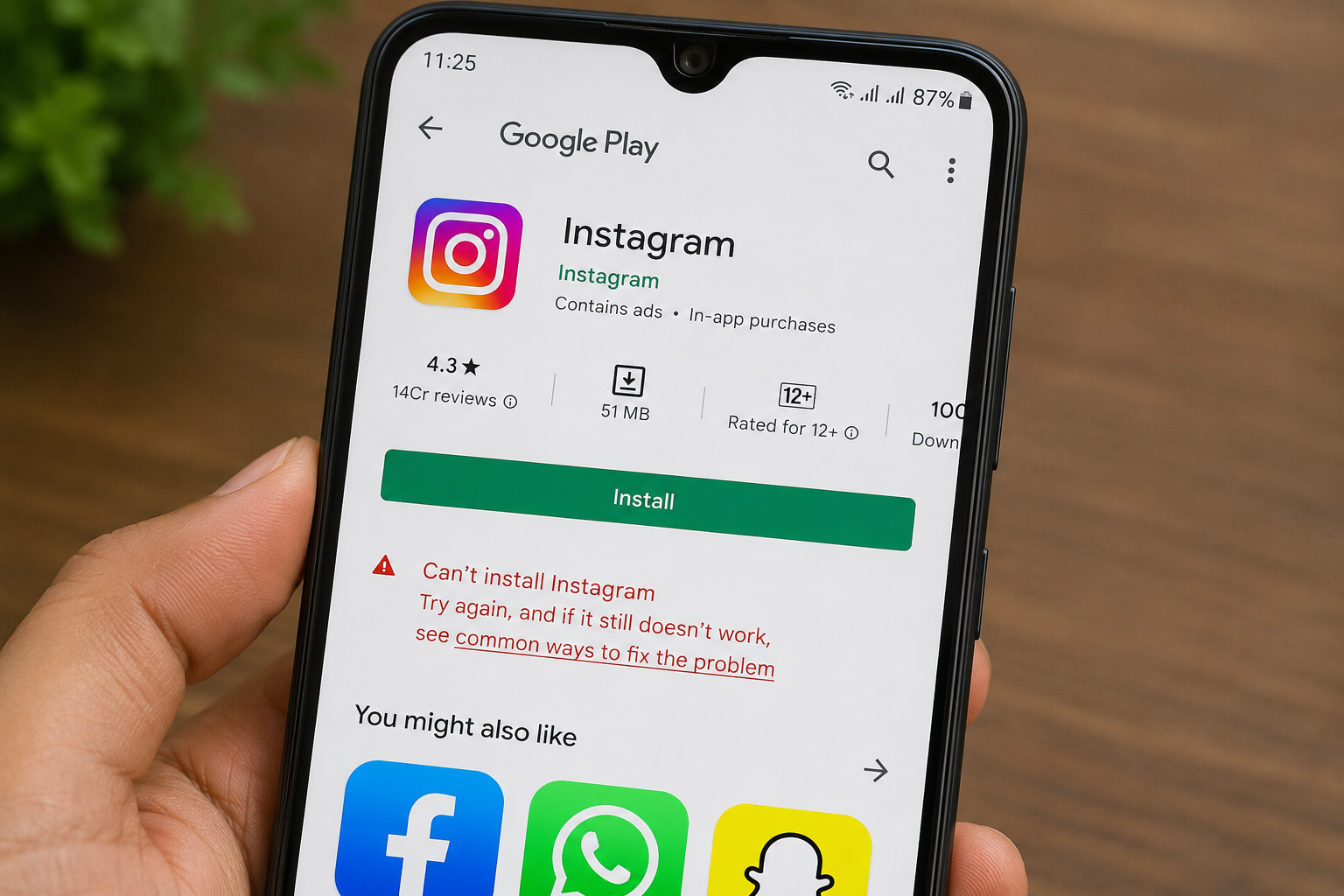
If your Google Play Store not downloading apps problem is stopping you from installing new apps or updating existing ones, you’re not alone. Thousands of Android users experience this issue every day. Sometimes the Play Store gets stuck on “Pending”, shows a Download Failed error, or simply refuses to download any app.
The good news is that in most cases, you don’t need to factory reset your phone. A few simple troubleshooting steps can get the Play Store working again.
In this guide, you’ll learn the most common reasons behind the Google Play Store not downloading apps issue and the best ways to fix it.
Table of Contents
- Why Is Google Play Store Not Downloading Apps?
- Check Your Internet Connection
- Restart Your Android Phone
- Verify Available Storage Space
- Clear Google Play Store Cache and Data
- Update Google Play Store
- Check Date and Time Settings
- Remove and Re-add Your Google Account
- Reset Network Settings
- Frequently Asked Questions
- Keep Your Play Store Working Smoothly
Why Is Google Play Store Not Downloading Apps?
There are several reasons why the Play Store may stop downloading applications.
Common causes include:
- Slow or unstable internet
- Full phone storage
- Corrupted Play Store cache
- Outdated Play Store version
- Google account synchronization issues
- Incorrect date and time settings
- Software bugs
- Temporary Google server problems
Fortunately, most of these issues can be fixed in just a few minutes.
1. Check Your Internet Connection
A weak internet connection is one of the biggest reasons behind the Google Play Store not downloading apps problem.
Before downloading an app:
- Switch between Wi-Fi and mobile data.
- Open a website to confirm your internet is working.
- Avoid downloading large apps on unstable networks.
If the internet is slow, wait until the connection becomes stable before trying again.
Related: If your internet isn’t working properly, check our guide on Mobile Data Not Working.
2. Restart Your Android Phone
Many temporary software glitches disappear after restarting your device.
Restarting helps:
- Refresh system services
- Reconnect Google services
- Clear temporary memory
- Fix minor Play Store bugs
This simple step solves the issue for many users.
3. Make Sure You Have Enough Storage
If your phone storage is almost full, Android may prevent new apps from downloading.
Go to:
Settings → Storage
Check how much free space is available.
If storage is low:
- Delete unnecessary videos
- Remove duplicate photos
- Uninstall unused apps
- Clear the Downloads folder
Keeping at least 2–3 GB of free space helps the Play Store function smoothly.
Related: Read our guide on Phone Storage Full? Fix It Fast for more storage-saving tips.
4. Clear Google Play Store Cache and Data
One of the most effective fixes for the Google Play Store not downloading apps issue is clearing the app cache.
Steps:
- Open Settings.
- Tap Apps.
- Select Google Play Store.
- Tap Storage.
- Choose Clear Cache.
- If needed, tap Clear Data.
Don’t worry—this won’t delete your installed apps.
5. Update Google Play Store
Using an outdated Play Store version may cause download problems.
To check for updates:
- Open Google Play Store.
- Tap your profile picture.
- Go to Settings.
- Open About.
- Tap Update Play Store if available.
Updates often include bug fixes and performance improvements.
6. Check Date and Time Settings
Incorrect date or time settings can prevent Google services from working properly.
To fix this:
- Open Settings
- Tap Date & Time
- Enable Automatic Date & Time
Once updated, restart your phone and try downloading the app again.
7. Remove and Re-add Your Google Account
Sometimes your Google account loses synchronization with Play Store services.
To refresh it:
- Go to Settings → Accounts.
- Select your Google account.
- Remove the account.
- Restart your phone.
- Add the account again.
This often resolves authentication-related download issues.
8. Reset Network Settings
If network settings are corrupted, downloads may fail.
Resetting network settings restores:
- Wi-Fi settings
- Mobile network settings
- Bluetooth settings
After the reset, reconnect to your Wi-Fi and test the Play Store again.
9. Check If Google Servers Are Down
Occasionally, the problem isn’t on your phone.
Google servers sometimes experience temporary outages that affect:
- App downloads
- App updates
- Google account synchronization
If everything on your phone looks correct, wait a while and try again later.
Tips to Prevent Play Store Download Problems
Follow these best practices:
✔ Keep Android updated.
✔ Update Google Play Store regularly.
✔ Maintain enough free storage.
✔ Use a stable internet connection.
✔ Restart your phone once a week.
✔ Avoid downloading apps from unknown sources.
✔ Keep Google Play Services updated.
Frequently Asked Questions (FAQs)
Why does Google Play Store show “Pending” instead of downloading?
This usually happens because of slow internet, another app update in progress, low storage, or Play Store cache issues.
Can low storage stop app downloads?
Yes. If your device has very little free storage, the Play Store may not download or install new apps.
Will clearing Play Store cache delete my apps?
No. Clearing the Play Store cache only removes temporary files. Your installed apps and personal data remain safe.
Why is only one app not downloading?
The app may not be compatible with your Android version, or the developer may have temporarily removed it.
Keep Your Google Play Store Running Smoothly
The Google Play Store not downloading apps problem is usually caused by internet issues, low storage, outdated software, or corrupted cache files. By following the troubleshooting methods above, most users can fix the problem within a few minutes without visiting a service center.
Regular maintenance, timely updates, and keeping enough free storage will help ensure the Play Store continues to work smoothly whenever you need to install or update apps.


