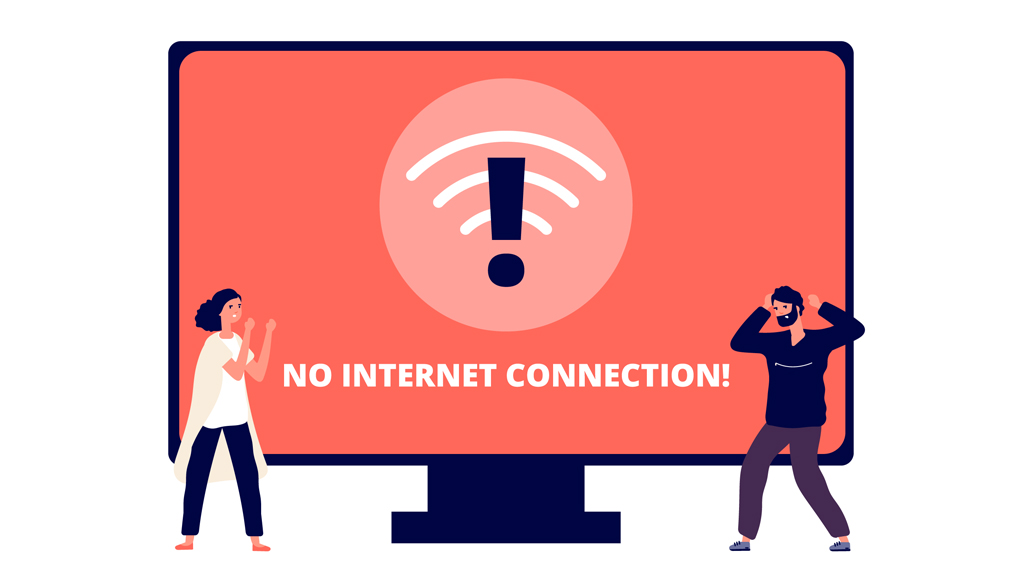
One of the most frustrating internet problems is seeing your device connected to WiFi while websites, apps, and online services refuse to load. The WiFi icon appears normal, but there is no actual internet access.
This issue can affect:
- Smartphones
- Laptops
- Tablets
- Smart TVs
- Gaming consoles
Fortunately, most “WiFi connected but no internet” problems can be solved with basic troubleshooting.
Why Does WiFi Show Connected but No Internet?
Several factors can cause this issue.
Common reasons include:
- Router problems
- ISP outages
- Incorrect network settings
- DNS issues
- Device software glitches
- Signal interference
Identifying the cause makes troubleshooting easier.
Restart Your Router
A router restart is often the quickest solution.
Benefits include:
✔ Refreshing internet connections
✔ Clearing temporary network issues
✔ Re-establishing communication with your ISP
Wait a few minutes after restarting.
Restart Your Device
Sometimes the problem exists only on the device.
Restarting can:
- Refresh network settings
- Clear temporary software bugs
- Restore connectivity
Check Other Devices
Test the same WiFi network on another device.
Results can help determine whether the issue is:
- Device-specific
- Router-related
- ISP-related
This information simplifies troubleshooting.
Verify Internet Service Status
Occasionally, internet service providers experience outages.
Signs include:
- Multiple devices offline
- Router appears connected
- Websites fail to load
In such cases, waiting may be necessary.
Forget and Reconnect to WiFi
Saved network settings sometimes become corrupted.
Try:
- Forget the network.
- Reconnect.
- Enter the password again.
This refreshes the connection profile.
Check Router Placement
Poor router placement can weaken connectivity.
Avoid placing routers:
- Behind thick walls
- Inside cabinets
- Near electronic interference sources
Proper placement improves signal quality.
Change DNS Settings
DNS servers help devices locate websites.
Problems with DNS may cause:
- Websites not loading
- Connection errors
- Slow browsing
Alternative DNS servers sometimes improve reliability.
Disable VPN Services
VPN connections occasionally interfere with internet access.
Testing without a VPN helps identify potential conflicts.
Update Network Drivers
Outdated drivers may affect connectivity on Windows computers.
Updates can improve:
✔ Stability
✔ Compatibility
✔ Network performance
Prevent Future Internet Problems
Helpful habits include:
✔ Restart routers occasionally
✔ Update firmware
✔ Maintain strong signal coverage
✔ Secure WiFi networks
✔ Keep devices updated
Restoring Internet Access Quickly
A WiFi connection without internet access is usually caused by router problems, network configuration issues, ISP outages, or temporary software glitches. By following the troubleshooting methods above, most users can restore connectivity without advanced technical assistance.
Regular network maintenance and updated equipment help minimize future internet disruptions.